• IDD
  • IDD
  • Skybuffer AI
    • Skybuffer AI Installation and Initial Setup
      • On Business Technology Platform (BTP)
        • Skybuffer AI Installation Guide on BTP
      • On Premise: XSA Runtime and SAP HANA EE
        • Installing SAP HANA Including XS Runtime
        • XS Deployment Process
      • Post Installation User Guide
    • AI Agent
      • AI Agent Configurator
        • Register New AI Agent
        • Intents and Entities Creation
        • Skill Creation and Management
        • Actions
          • Message and Content Actions
            • Structured Messages
            • Adaptive Card
          • Destination Calls Actions
          • Conversation Flow and Memory Actions
          • AI Actions
            • Generative AI Action
            • Document Grounding Action
            • Log Insight Action
            • Skills Orchestration Action
        • Scheduling
        • Communication Channels
          • Copy the Existing Channel
          • Skills Activation
          • Destination Assignment
          • Webchat Communication Channel Setup
          • Facebook Messenger Communication Channel Setup
          • Zoom Communication Channel Setup
          • MS Teams Communication Channel Setup
          • Slack Communication Channel Setup
          • Telegram Communication Channel Setup
          • Viber Communication Channel Setup
          • WhatsApp Communication Channel Setup
          • FLP Chat Communication Channel Setup
          • Background Execution Communication Channel Setup
        • Monitor Section
      • Business AI Scenarios
      • Document Grounding Hub
      • Destination Management
      • Models Hub
      • Identity Providers
      • Survey Craft
      • Predefined Response Translator
    • AI Connector
      • AI Connector Configurator
      • AI Connector Logs
      • AWS Integration
      • Twilio Integration
    • SAP Backend for Business AI
      • Business AI Scenarios Package Administration
        • Installation Guide
        • Uninstallation Guide
      • Business AI Scenarios Package Maintenance Guide
        • Product License
        • Configuration of Email Sending Mechanism
          • Configuration Settings
          • Setup of Specific Email Sending Control
        • Technical User Setup
          • Central oData Service Authorization Role Maintenance
          • Technical User ID Creation
        • Assigning Business AI Scenarios to ABAP RIK Classes
        • Simplified User Creation Scenario Setup (Without Approval Workflow)
          • Maintain and Assign Reference Users for User Creation Scenario
          • Activate Notification for New User Creation (Optional)
        • User Creation Scenario Setup with Approval Workflow
          • Configure Approval Workflow for User Creation Scenario
          • Set Up Approval Steps for Different User Types Creation
    • Hybrid Chats
      • Hybrid Chats Maintenance Guide
        • Business and Technical Users Setup
          • Create Business and Technical Users
          • Create Business Partners
        • Tenant Configuration
        • Live Pool Management and Configuration
          • Start Live Pool
          • Manage Live Pool
        • System Configuration
          • Configure Status Profile
          • Set Up Technical Messages for Hybrid Chats
        • Hybrid Chats Configuration
        • Hybrid Chats Categorization
          • Categorization Management
          • Categorization Mapping
          • Translate Categories
      • Hybrid Chats User Manual
        • Hybrid Chats
          • HC Archive Mode
          • HC Active Mode
        • HC My Data
          • Edit Personal Data and Profile Picture
          • Default Settings Management
          • Notification and Dialogue Manual Mode Management
          • Quick Replies Management
            • Standard User Mode - Quick Replies
            • Administrator User Mode - Quick Replies
        • HC Analytics
          • HC Analytics
          • Operator Activity Analytics
          • Exit Survey Analytics
        • HC Teams
          • Access HC Teams Application
          • Create New Team
          • Create New Team Member
          • Edit Agent
          • Edit Team Name
    • HOW-TO Guides
      • MS Teams Integration. Single Sign-On
        • Create Azure Bot Service
        • Configure Azure Bot Service and Connect to the AI Agent MS Teams Channel
        • Create Middleware SSO Application
        • Configure Bot Service Application SSO
        • Create Azure AD Enterprise Application for SAP Backend
        • Configure oAuth2 in SAP System
        • Assign Identity Provider in AI Agent Channel Configuration
        • Deploy Your App into Microsoft Teams
        • Managing Application Keys
      • Office 365 Shared Mailboxes (IMAP) Integration
      • Skybuffer AI PoC Setup
        • SAP BTP
      • SAP AI Core Integration. Ollama Server Setup
      • MS SharePoint Integration. Add-in Registration
    • Troubleshooting
      • Edge Browser Access Issue

Office 365 Shared Mailboxes (IMAP) Integration

3 views 0

Office 365 Shared Mailboxes (IMAP) Integration

This guide describes how to integrate Office 365 inbound email with Skybuffer AI.

The guide covers all configuration steps required in Microsoft Entra ID (formerly Azure Active Directory) and Exchange Online to ensure that the application has access only to the mailboxes you explicitly authorize.

Prerequisites

Before starting the integration of Office 365 inbound email with Skybuffer AI, ensure the following requirements are met:

Microsoft 365 Tenant

You must have access to an active Microsoft 365 tenant with Exchange Online enabled.

Admin Permissions

You will need one of the following Microsoft 365 roles to complete the configuration steps:

  • Global Administrator
  • Exchange Administrator
  • Azure AD Administrator

These permissions are required to register applications, assign permissions, and configure mailbox access policies.

Ability to Run Exchange Online PowerShell

Some parts of the configuration require running PowerShell commands. Make sure you can use the Exchange Online PowerShell module and authenticate with an admin account.
The setup uses the following commands:

  • New-ApplicationAccessPolicy
  • Test-ApplicationAccessPolicy
  • Get-DistributionGroup

Identified Mailboxes for Integration

Decide which mailboxes (shared mailboxes or user mailboxes) the AI Agent should access.
These mailboxes will later be added to a dedicated security group.

IMAP Protocol Enabled (if applicable)

If IMAP will be used to retrieve emails, ensure that:

  • IMAP is enabled at the tenant level
  • IMAP is enabled for each mailbox you want to integrate

This can be verified in the Exchange Admin Center under mailbox settings.

Product Credentials

At the final step of the integration, you will need to provide the following values inside your product:

  • Tenant ID
  • Client ID
  • Client Secret
  • Mailbox address to be monitored

Step 1. Microsoft Entra ID (formerly Azure Active Directory) App Registration 

Create a New Application

  1. Navigate to MS Entra ID 
  2. Select App registrations.
  3. Click New registration.
  4. Enter a name (on this example: IMAP- test)
  5. Register the application.

Step 2. Assign Microsoft Graph API Permissions

Add Required Permissions

  1. In the application, go to API permissions.
  2. Click Add a permission.
  3. Select Microsoft Graph.
  4. Choose Application permissions.
  5. Add the necessary permissions.

In order to apply permissions click Grant admin consent for Skybuffer AS.

Step 3. Create a Client Secret

  1. Open the application you created.
  2. Select Certificates & secrets.
  3. Click New client secret.
  4. Save the generated secret value for later use.

Step 4. Create a Security Group for Allowed Mailboxes

Create the Group

  1. Go to Microsoft 365 Admin Center.
  2. Navigate to Groups.
  3. Click Add a group.
  4. Select Security group.
  5. Provide a group name (for example: Azur App Allow).
  6. Add a group email.

Step 4. Retrieve the Security Group SID and Create the Application Access Policy

Use Exchange Online PowerShell

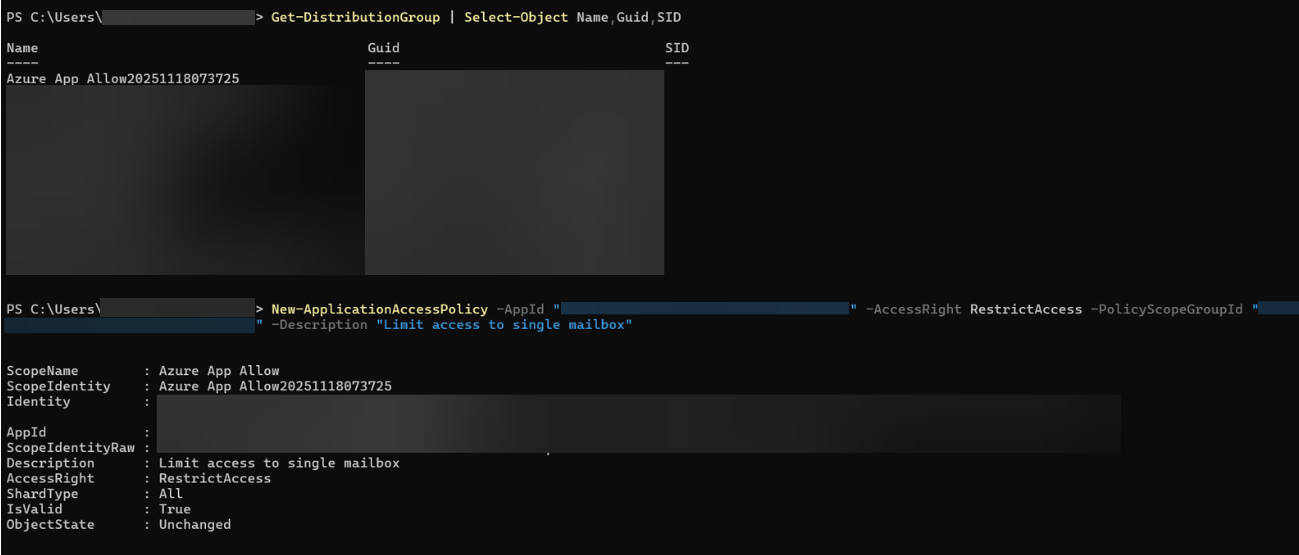
Run the following command:

Get-DistributionGroup | Select-Object Name,Guid,SID

Locate your newly created group and copy its SID.
Create the Application Access Policy

Apply Access Restriction Policy

Replace:

  • YOUR-APP-ID with the Azure AD Application Client ID
  • YOUR-GROUP-SID with the SID of the security group

Run:

New-ApplicationAccessPolicy `

-AppId “YOUR-APP-ID” `

-AccessRight RestrictAccess `

-PolicyScopeGroupId “YOUR-GROUP-SID” `

-Description “Limit access to single mailbox”

This ensures the application can only access mailbox inside the designated group.

Step 6. Verify Mailbox Access

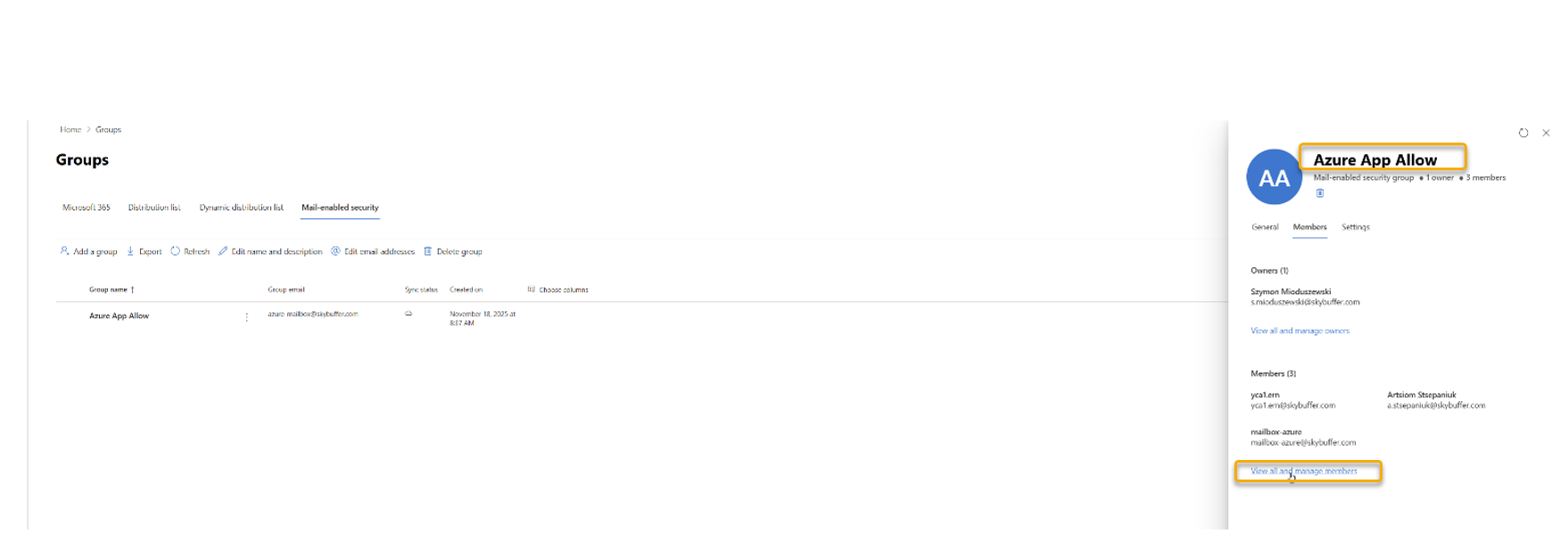
Return to your group Azure App Allowed and assign members by clicking Members -> View all and manage members
Test Access to a Mailbox

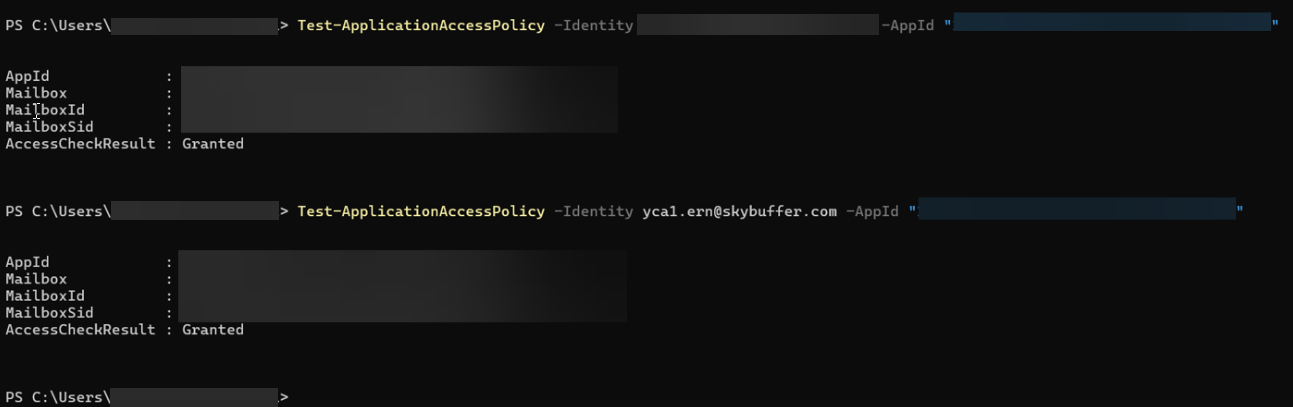
Use this command to verify access:

Test-ApplicationAccessPolicy `

-Identity mailbox@yourdomain.com `

-AppId “YOUR-APP-ID”

Expected result:

  • Mailbox is in the security group: Granted
  • Mailbox is not in the group: Denied

Step 6. Review Existing Policies

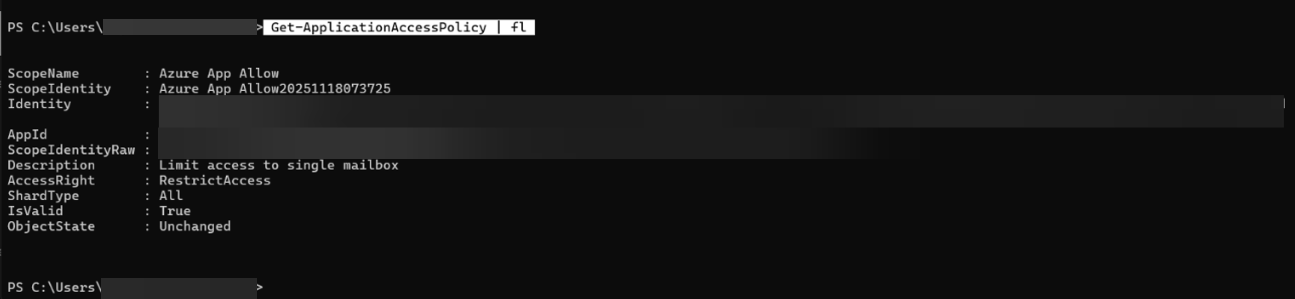
Use this command to see Application Access Policy:

Get-ApplicationAccessPolicy | FL
Step 7. Troubleshooting

Issue: Application cannot access a mailbox

  • Ensure the mailbox is a member of the security group.
  • Re-run Test-ApplicationAccessPolicy to confirm.
  • Verify that IMAP is enabled for the mailbox.

Issue: Access Denied during IMAP login

  • Confirm admin consent was granted for IMAP.AccessAsApp.
  • Ensure the application’s client secret has not expired.

Issue: Policy not applied

  • Confirm you used the correct group SID, not the GUID.
  • Verify the AppId matches the Azure AD application’s Client ID.

Was this helpful?

Yes  No
Related Articles
  • FLP Chat Communication Channel Setup
  • Actions
  • Destination Calls Actions
  • AI Actions
  • Message and Content Actions
  • Conversation Flow and Memory Actions
Copyright 2022 Skybuffer.com. All Rights Reserved.