• IDD
  • IDD
  • Skybuffer AI
    • Skybuffer AI Installation and Initial Setup
      • On Business Technology Platform (BTP)
        • Skybuffer AI Installation Guide on BTP
      • On Premise: XSA Runtime and SAP HANA EE
        • Installing SAP HANA Including XS Runtime
        • XS Deployment Process
          • Guide for Non-Isolated Environment
          • Guide for Isolated Environment
    • AI Agent
      • AI Agent Configurator
        • Register New AI Agent
        • Intents and Entities Creation
        • Tool Creation and Management
        • Actions
          • Message and Content Actions
            • Structured Messages
            • Adaptive Card
            • Sending Notifications
          • Destination Calls Actions
          • Conversation Flow and Memory Actions
          • Process Data Actions
            • Email Processing Action
            • Email Post-Processing Action
            • File Parsing Action
            • Send Email Action
            • Upload File to Document Grounding
          • AI Actions
            • Generative AI Action
            • Document Grounding Action
            • Log Insight Action
            • Tools Orchestration Action
        • Translation
        • Scheduling
        • Communication Channels
          • Tools Activation
          • Destination Assignment
          • Copy the Existing Channel
          • Webchat Communication Channel Setup
          • Facebook Messenger Communication Channel Setup
          • Zoom Communication Channel Setup
          • Slack Communication Channel Setup
          • MS Teams Communication Channel Setup
          • Telegram Communication Channel Setup
          • Viber Communication Channel Setup
          • WhatsApp Communication Channel Setup
          • FLP Chat Communication Channel Setup
          • Background Execution Communication Channel Setup
          • OpenAiCompatible Channel Setup
          • MCP Channel
          • Direct Line Channel
        • Monitor Section
      • Business AI Scenarios
      • Document Grounding Hub
      • ABAP Code Intelligence
      • Destination Management
      • Vectorized Data Sources
      • Data Source Management
        • Data Source Configuration
        • Authorization Administration
          • Organizational Authorization for Data Sources
          • Proposing Organizational Mappings
      • Emails AI Processing Monitor
      • Models Hub
      • Identity Providers
      • Survey Craft
      • Predefined Response Translator
    • AI Connector
      • AI Connector Configurator
      • AI Connector Logs
      • AWS Integration
      • Twilio Integration
    • SAP Backend for Business AI
      • Business AI Scenarios Package Administration
        • Installation Guide
        • Uninstallation Guide
      • Business AI Scenarios Package Maintenance Guide
        • Product License
        • Configuration of Email Sending Mechanism
          • Configuration Settings
          • Setup of Specific Email Sending Control
        • Technical User Setup
          • Central oData Service Authorization Role Maintenance
          • Technical User ID Creation
        • Assigning Business AI Scenarios to ABAP RIK Classes
        • Simplified User Creation Scenario Setup (Without Approval Workflow)
          • Maintain and Assign Reference Users for User Creation Scenario
          • Activate Notification for New User Creation (Optional)
        • User Creation Scenario Setup with Approval Workflow
          • Configure Approval Workflow for User Creation Scenario
          • Set Up Approval Steps for Different User Types Creation
      • MCP Server
        • MCP Server Configuration in ABAP System
        • MCP Tools Creation
    • Hybrid Chats
      • Hybrid Chats Maintenance Guide
        • Business and Technical Users Setup
          • Create Business and Technical Users
          • Create Business Partners
        • Tenant Configuration
        • Live Pool Management and Configuration
          • Start Live Pool
          • Manage Live Pool
        • System Configuration
          • Configure Status Profile
          • Set Up Technical Messages for Hybrid Chats
        • Hybrid Chats Configuration
        • Hybrid Chats Categorization
          • Categorization Management
          • Categorization Mapping
          • Translate Categories
      • Hybrid Chats User Manual
        • Language settings and RTL Support
        • Hybrid Chats
          • HC Archive Mode
          • HC Active Mode
        • HC My Data
          • Edit Personal Data and Profile Picture
          • Default Settings Management
          • Notification and Dialogue Manual Mode Management
          • Quick Replies Management
            • Standard User Mode - Quick Replies
            • Administrator User Mode - Quick Replies
        • HC Analytics
          • HC Analytics
          • Operator Activity Analytics
          • Exit Survey Analytics
        • HC Teams
          • Access HC Teams Application
          • Create New Team
          • Create New Team Member
          • Edit Agent
          • Edit Team Name
    • HOW-TO Guides
      • Exchange On-Premises Shared Mailbox Integration
      • MS Teams Integration. Single Sign-On
        • Create Azure Bot Service
        • Configure Azure Bot Service and Connect to the AI Agent MS Teams Channel
        • Create Middleware SSO Application
        • Configure Bot Service Application SSO
        • Create Azure AD Enterprise Application for SAP Backend
        • Configure oAuth2 in SAP System
        • Assign Identity Provider in AI Agent Channel Configuration
        • Deploy Your App into Microsoft Teams
        • Managing Application Keys
      • Office 365 Shared Mailboxes (IMAP) Integration
      • SAP AI Core Integration. Ollama Server Setup
      • DGX Spark Server Configuration
      • Skybuffer AI PoC Setup
        • SAP BTP
      • MS SharePoint Integration - Location Setup
      • Job Scheduler Services Creation
      • Setting Up Scheduled Sync Jobs in SAP BTP
    • Troubleshooting
      • Edge Browser Access Issue

MS SharePoint Integration - Location Setup

198 views 0

How to Setup MS SharePoint Location

Overview

This document outlines the updated procedure for configuring a Microsoft SharePoint location in Skybuffer AI.

Important Note: SharePoint has retired the ACS-based authentication model (AppRegNew/AppInv). Applications using the legacy method will experience HTTP 401 Unauthorized errors (“Token type is not allowed due to SharePoint ACS retirement”). This new procedure migrates the authentication to Microsoft Entra ID App Registration using the OAuth 2.0 Client Credentials flow.

Step 1: Register an Application in Microsoft Entra ID

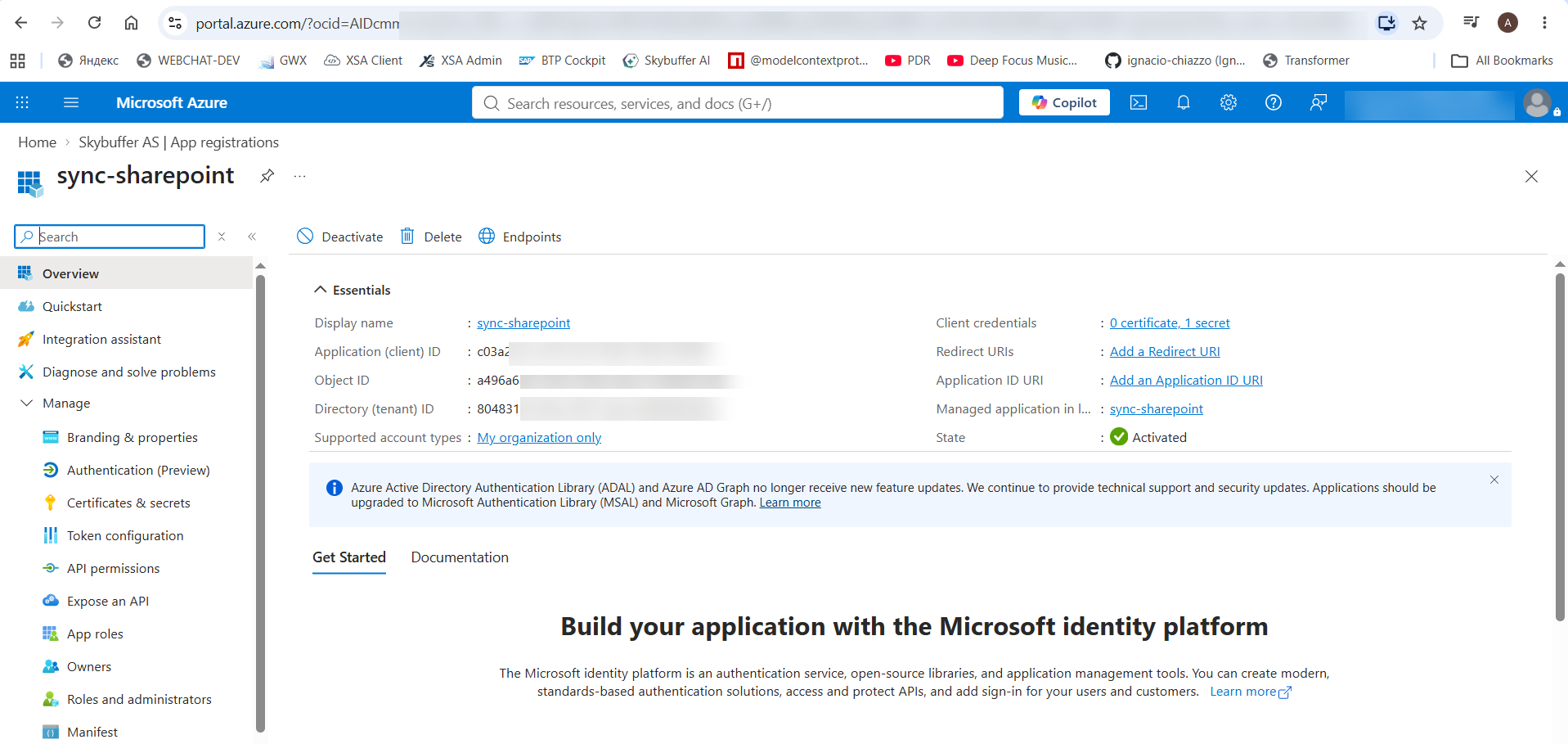
  1. Navigate to the Azure Portal (portal.azure.com).
  2. Go to Microsoft Entra ID (formerly Azure AD) > App registrations > New registration.
  3. Name the application (e.g., “sync-sharepoint”) and choose the supported account types.
  4. Once created, go to the Overview page and copy the following values:
    • Application (client) ID
    • Directory (tenant) ID

Step 2: Generate a Client Secret

  1. In your App registration menu, navigate to Certificates & secrets.
  2. Click on “+ New client secret”.
  3. Provide a description (e.g., “sync-sharepoint-secret”) and select an expiration period.
  4. Click Add and immediately copy the Secret Value. You will need this to configure the Skybuffer destination. (Note: The Secret ID is not used for configuration).

Step 3: Configure API Permissions

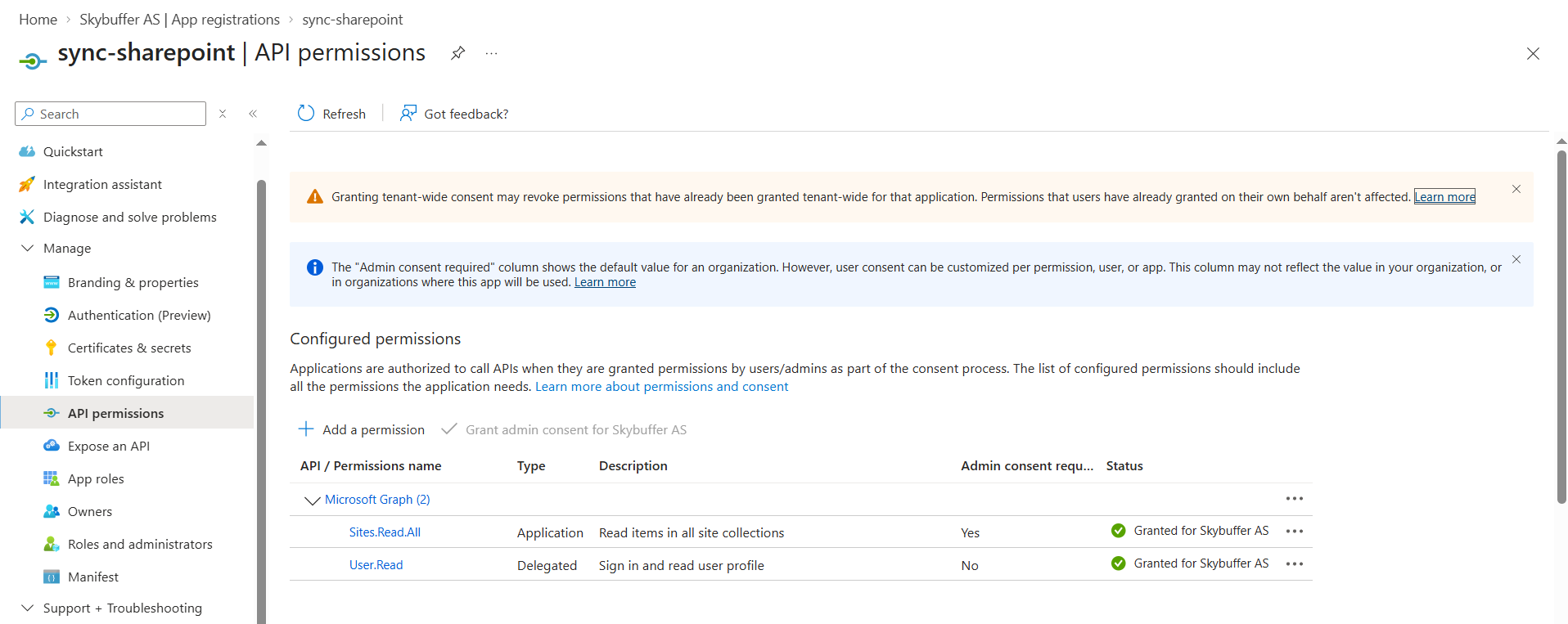
  1. Navigate to API permissions in the App registration menu.
  2. Click “+ Add a permission” and select Microsoft Graph.
  3. Select Application permissions and check:
    • Sites.Read.All
  4. Ensure that User.Read (Delegated) is also present if required.
  5. Click “Grant admin consent for <Your Organization>” to apply the permissions. The status should show as “Granted”.
Step 4: Configure Location Specific Settings in Skybuffer AI

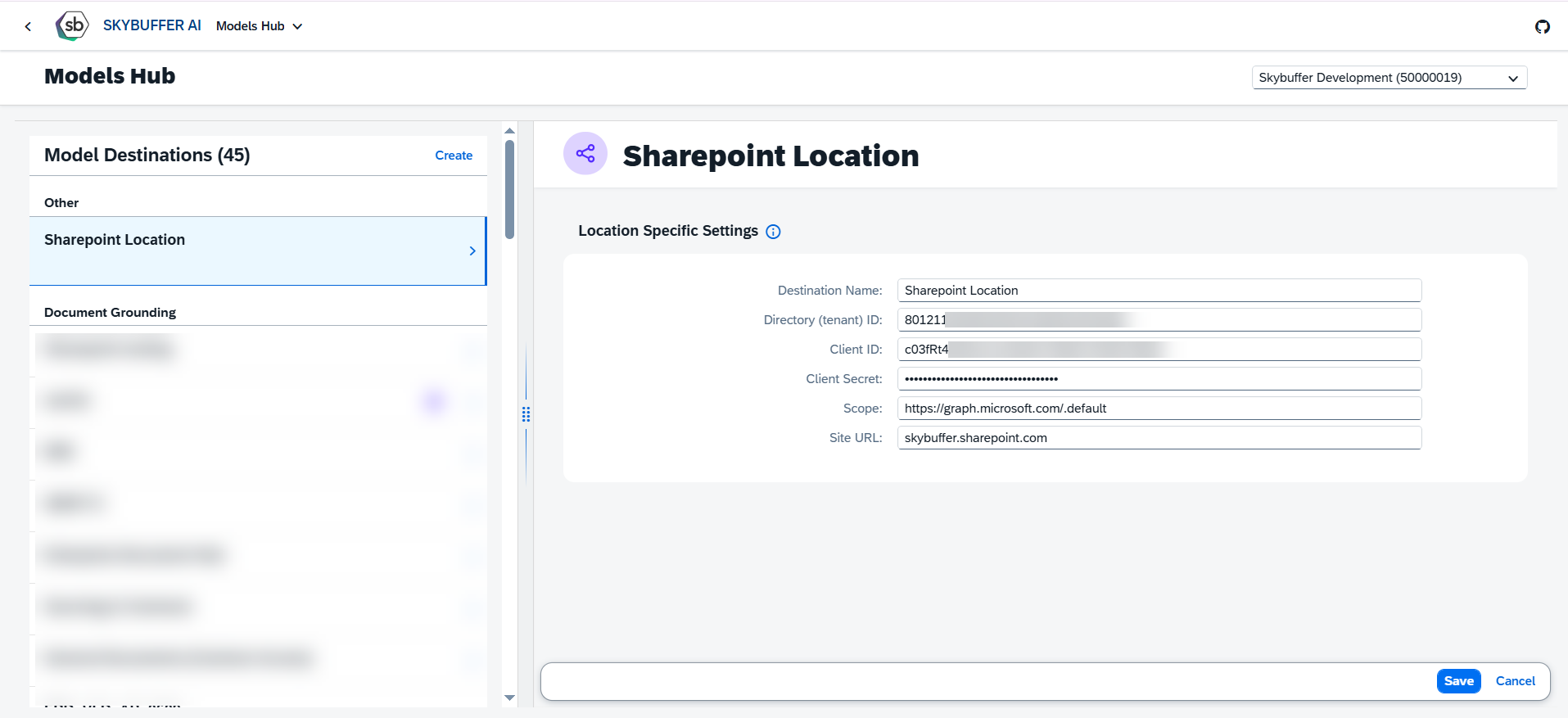
  1. Open the Skybuffer AI UI and navigate to Models Hub > Model Destinations.
  2. Create or Edit a Microsoft Sharepoint Shared Location.
  3. Fill out the Location Specific Settings with the information gathered from Azure:
Field Value / Source
Destination Name e.g., SL Graph
Directory (tenant) ID Copied from Azure App Overview
Client ID Copied from Azure App Overview
Client Secret Copied from Azure Certificates & secrets
Scope https://graph.microsoft.com/.default
Site URL Your SharePoint URL (e.g., skybuffer.sharepoint.com)


After saving these settings, the application will successfully retrieve SharePoint files without HTTP 401 errors. Access tokens are now issued by Microsoft Entra ID instead of ACS, ensuring full compatibility with the Microsoft Graph API.

Was this helpful?

Yes  No
Related Articles
  • Setting Up Scheduled Sync Jobs in SAP BTP
  • Guide for Isolated Environment
  • Guide for Non-Isolated Environment
  • Direct Line Channel
  • Send Email Action
  • Proposing Organizational Mappings
Copyright 2022 Skybuffer.com. All Rights Reserved.