Central oData Service Authorization Role Maintenance
Define the authorization role for the execution of the Central ABAP oData service that is to be later on assigned to the Technical User.
Procedure:
Step 1. Execute PFCG transaction code
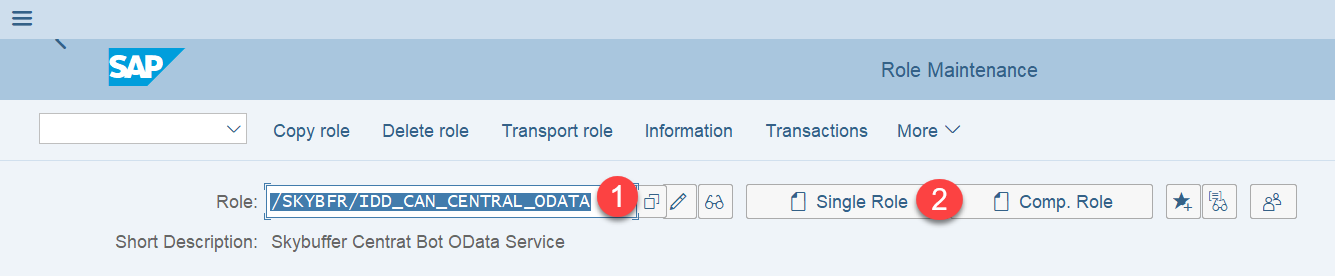
Step 2. Enter the new role name (1) and select Single Role (2)
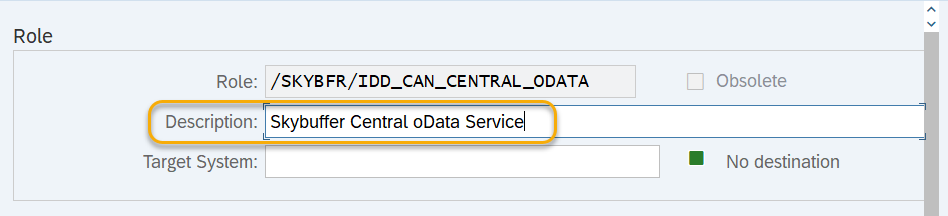
Step 3. Enter role description and press Save button:
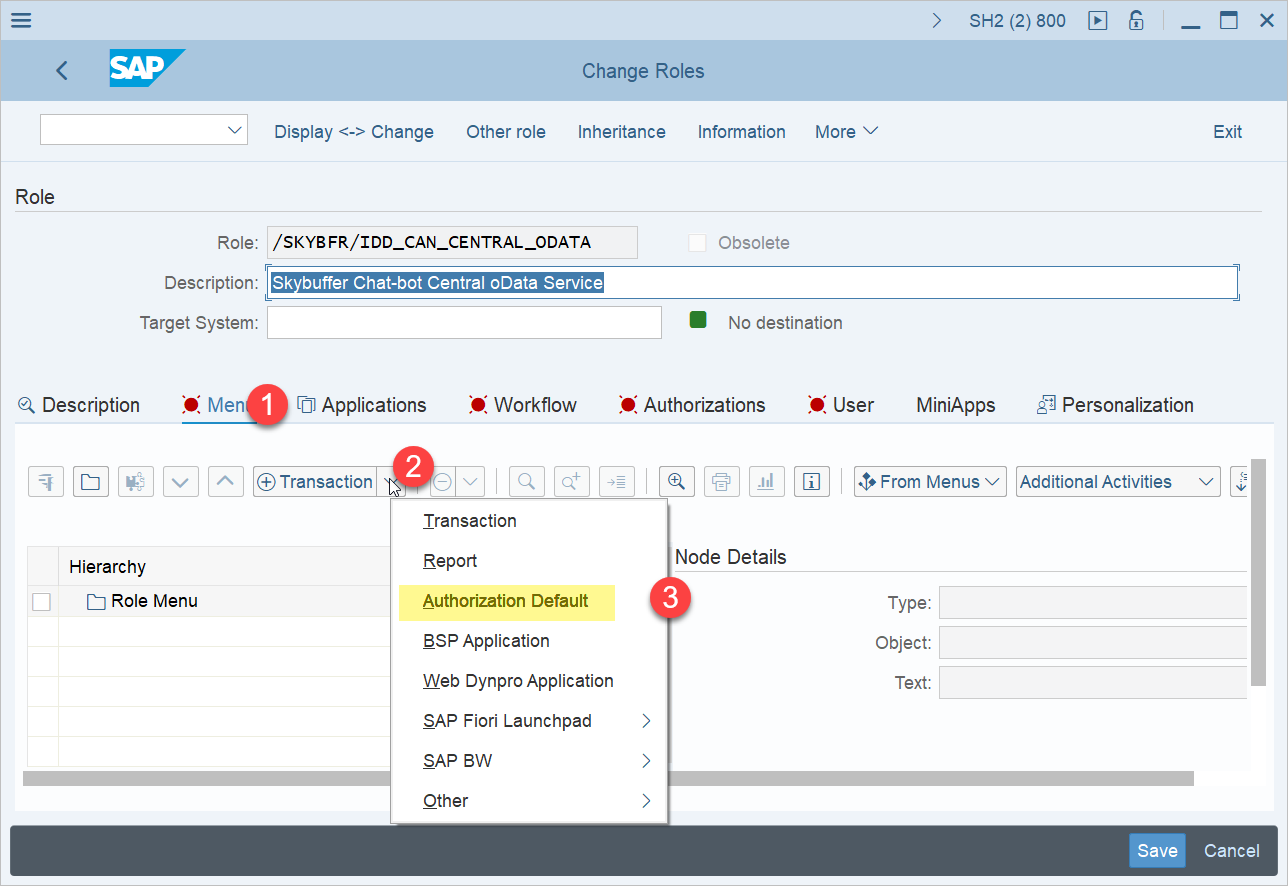
Step 4. Switch to Menu tab (1), go to selection of authorization type list (2), select Authorization default type (3)
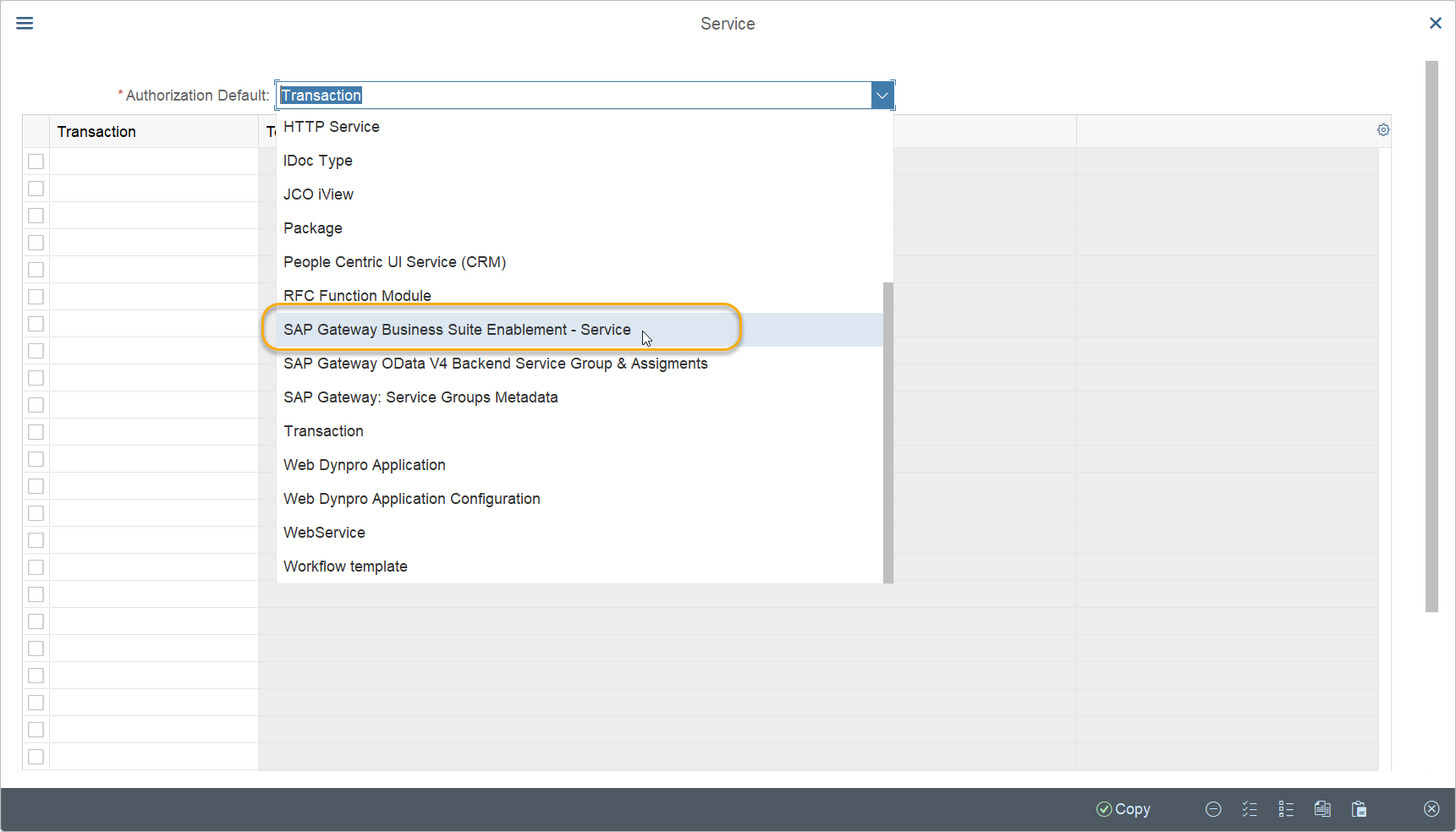
Step 5. On the Service screen inAuthorization Default field, select SAP Gateway Business Suite Enablement – Service:
Step 6. In TADIR service field, open the list of available services:

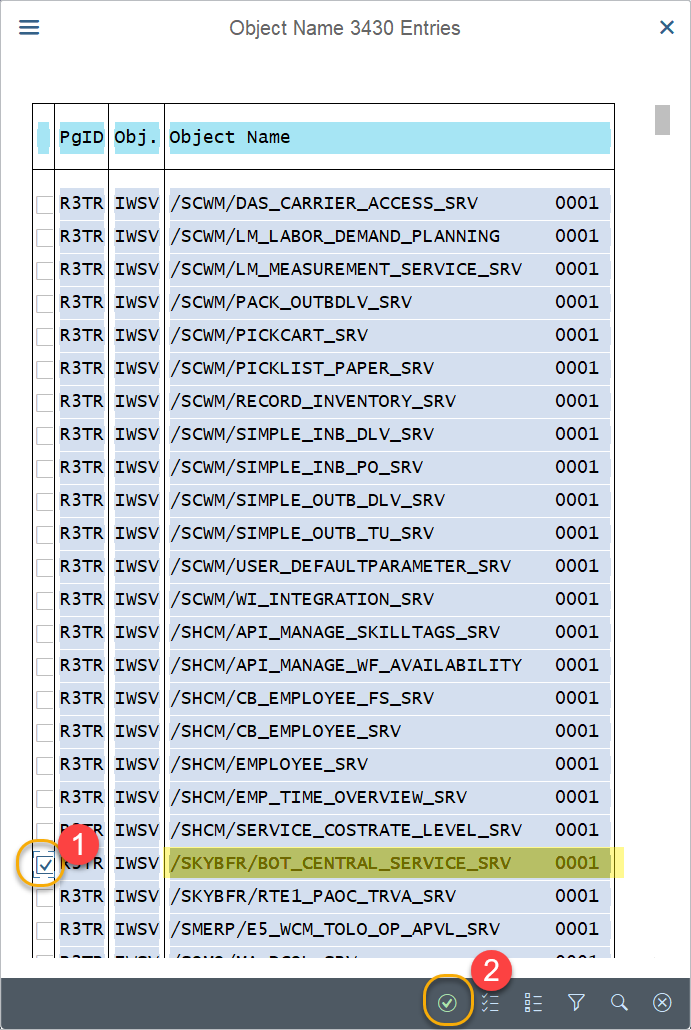
Step 7. Search for /SKYBFR/BOT_CENTRAL_SERVICE_SRV, select it (1) and press Enter (2)
Step 8. On the Service screen press Copy button:
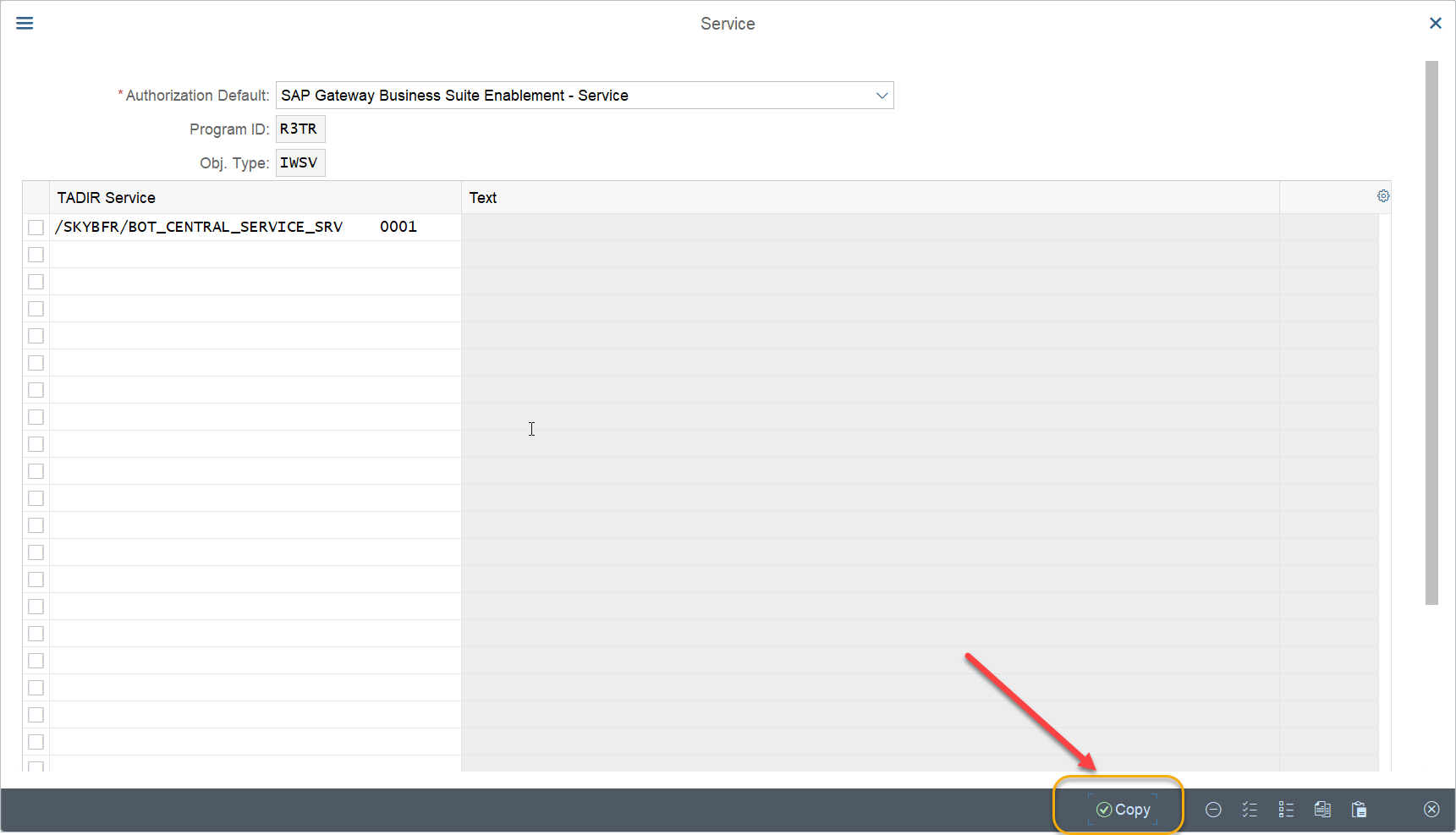
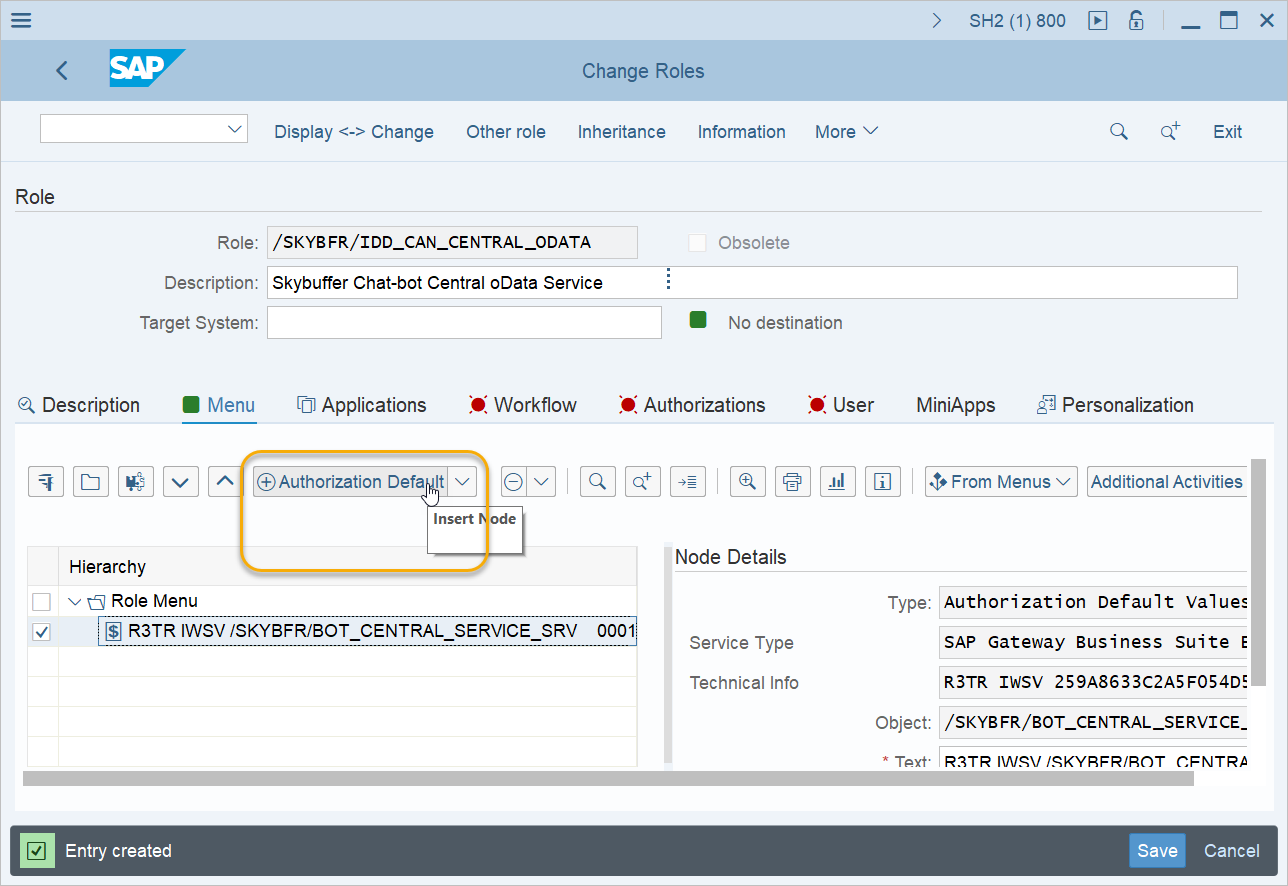
Step 9. From the Change role screen select Authorization Default item once again:
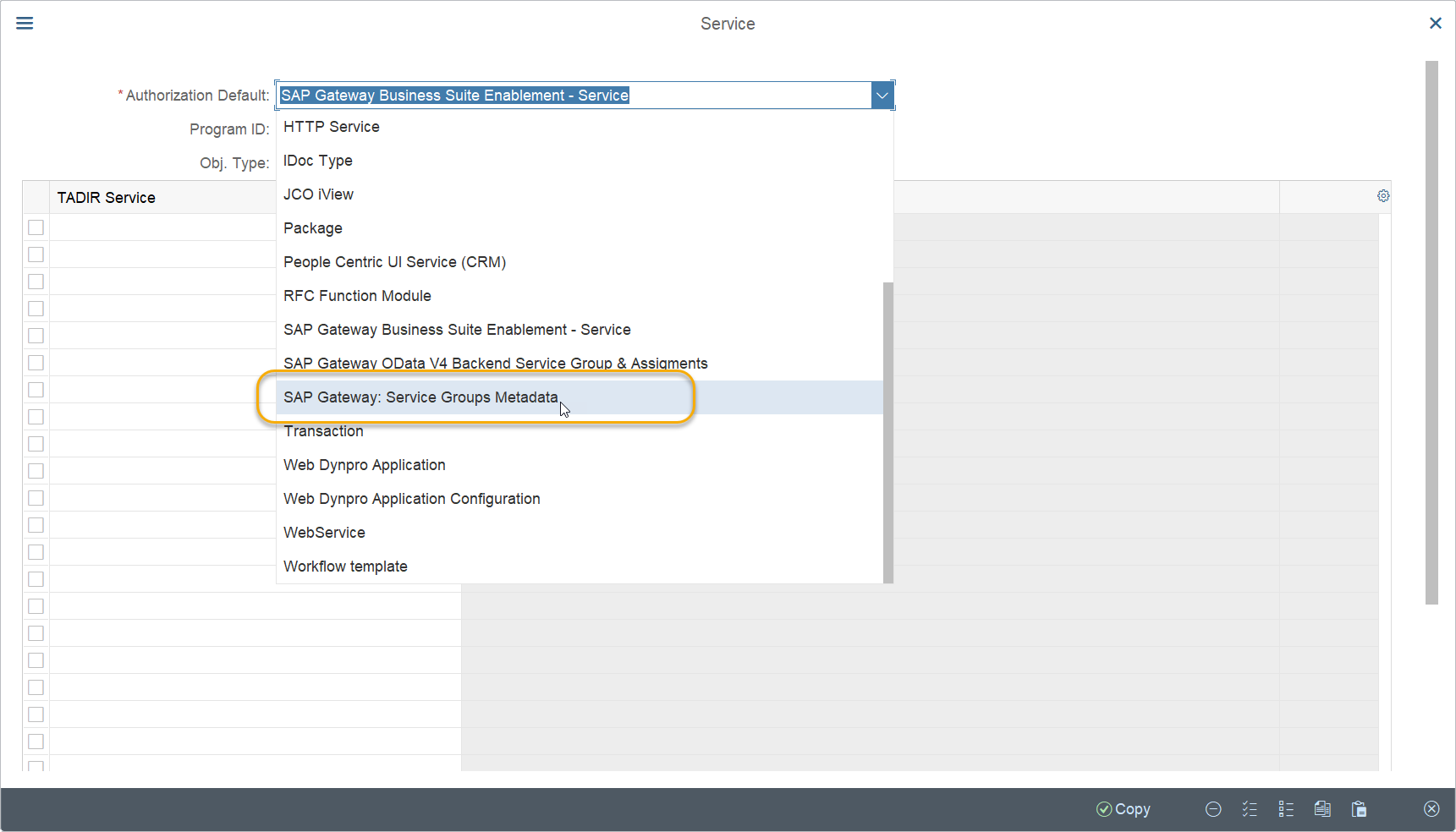
Step 10. From Authorization Default list, please, select SAP Gateway: Service Groups Metadata
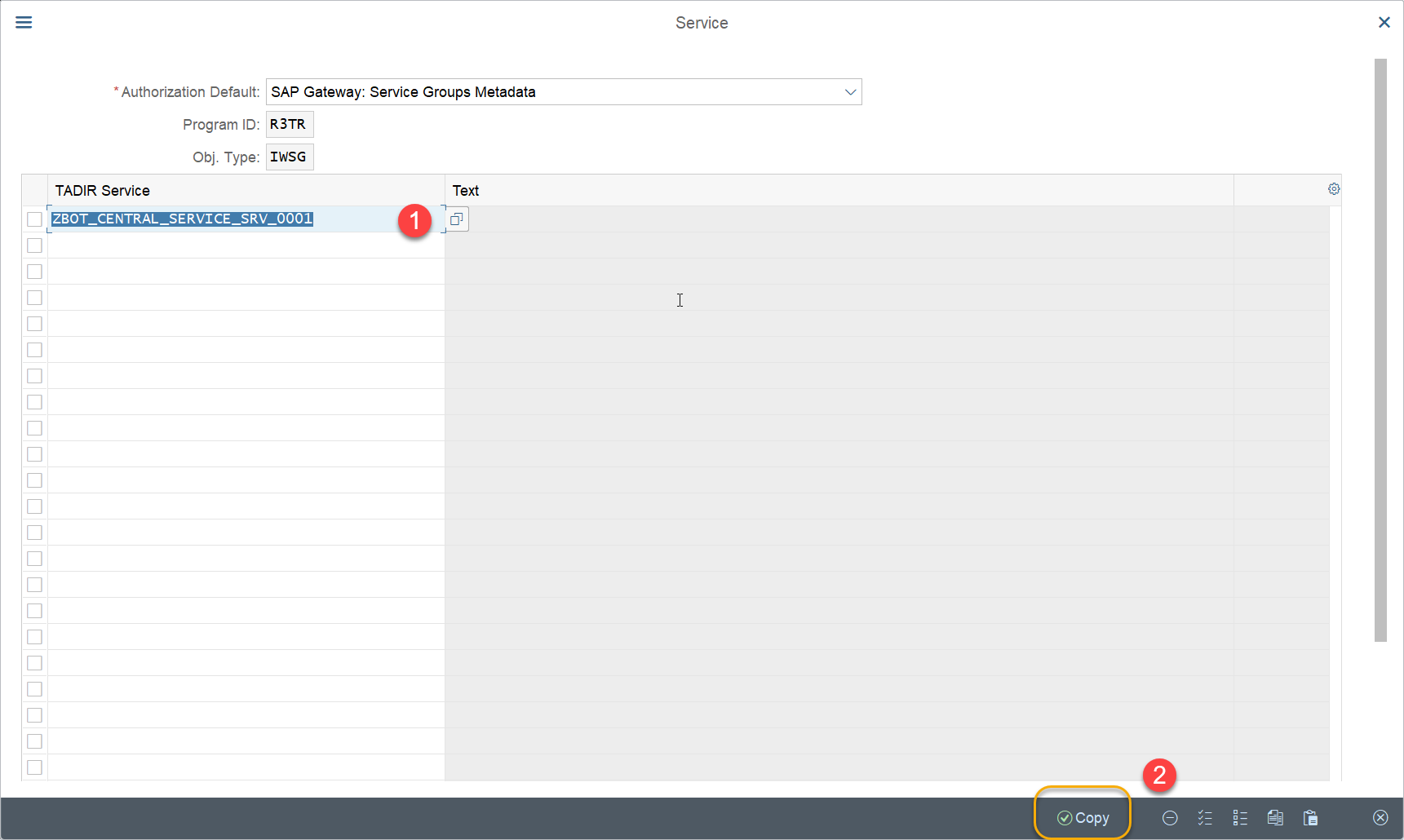
Step 11. Select the name of the central oData service publication maintained during the installation of Business AI Scenarios Package (Section oData Services Maintenance ) (1) and press Copy (2)
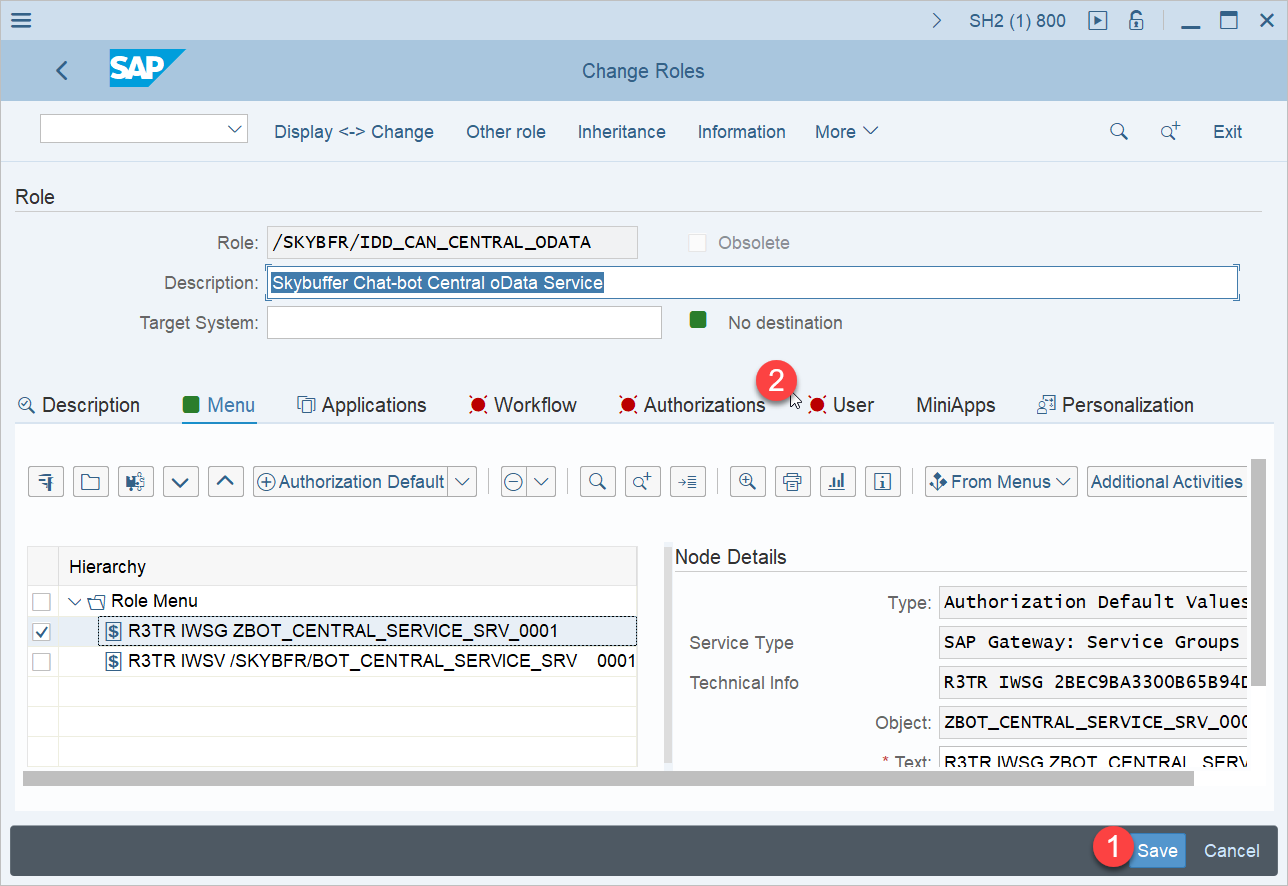
Step 12. Save the role (1) and switch to Authorizations tab (2)
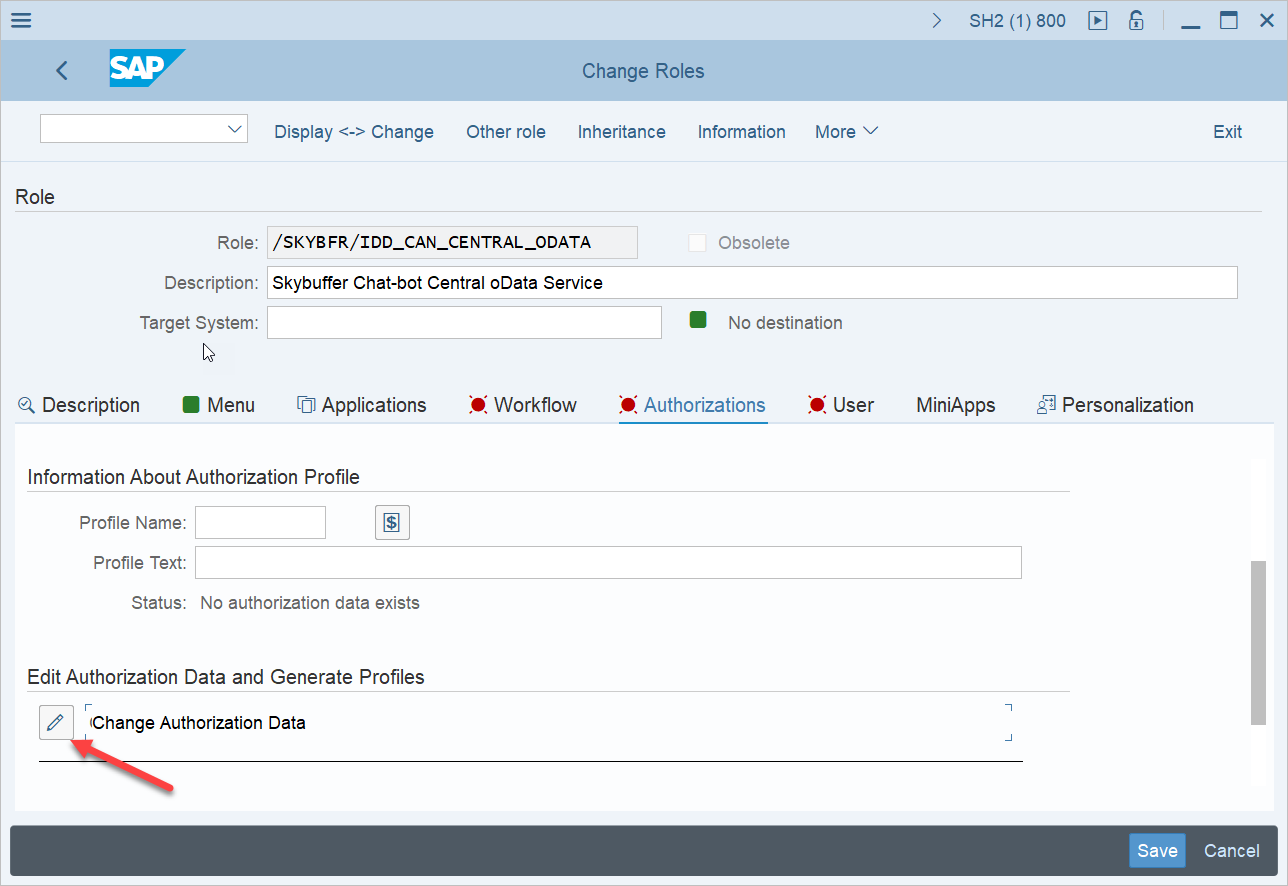
Step 13. In Authorizations tab press Change Authorization Data in Edit Authorization Data and Generate Profiles section:
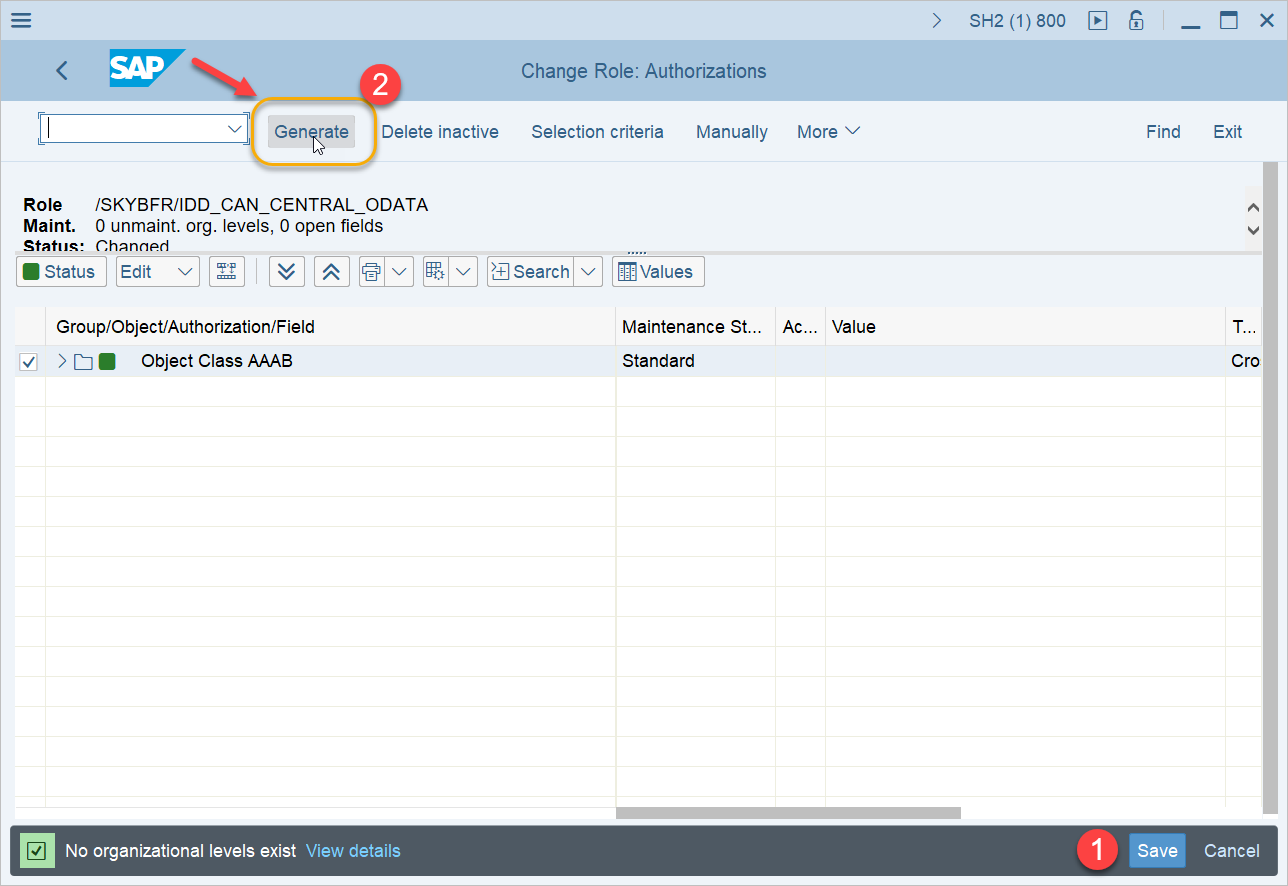
Step 14. On the screen Change Roles: Authorizations, press Save (1) and select Generate (2)
Step 15. press Execute:
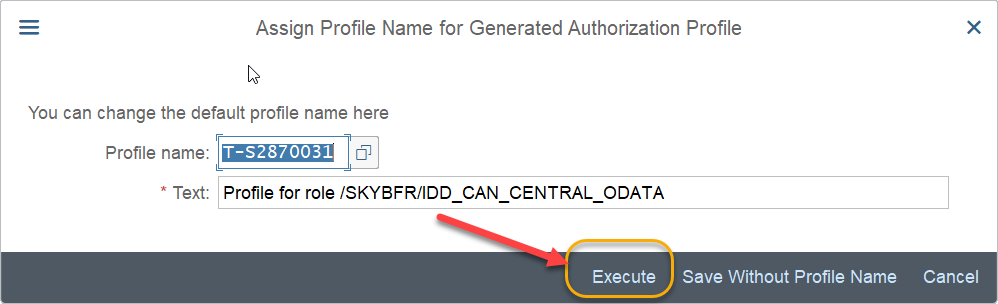
Result: role for oData service is created.
SOAP Service Authorization Role Maintenance
Define the authorization role for the execution of the Skybuffer SOAP service that will later be assigned to the Technical User.
SOAP Service: /SKYBFR/YAI_CENTRAL
Procedure:
Step 1. Execute PFCG transaction code.
Step 2. Enter the new role name and select Single Role.
Step 3. Enter the role description and press Save.
Step 4. Switch to the Menu tab (1), go to the selection of authorization type (2), and select Authorization Default (3).

Step 5. On the Service screen, select the appropriate Web Service authorization default.
Step 6. In the available services, search for /SKYBFR/YAI_CENTRAL and select it.
Step 7. Press Copy to add the service to the role.
Adding the SOAP service automatically adds the required S_SERVICE authorization to the role.
Step 8. Save the role and switch to the Authorizations tab.
Step 9. In the Authorizations tab, press Change Authorization Data in the Edit Authorization Data and Generate Profiles section.
Step 10. Review the generated authorization data and ensure that the required S_SERVICE authorization for /SKYBFR/YAI_CENTRAL is included.

Step 11. Press Save and select Generate to generate the authorization profile.
Step 12. Press Execute.
Result: The authorization role for the /SKYBFR/YAI_CENTRAL SOAP service is created and can be assigned to the Technical User.