
MCP Channel
What is the Model Context Protocol (MCP)?
MCP (Model Context Protocol) is an open-source standard for connecting AI applications to external systems. Using MCP, AI applications like Claude or ChatGPT can connect to data sources (e.g. local files, databases), tools (e.g. search engines, calculators) and workflows (e.g. specialized prompts)—enabling them to access key information and perform tasks. Think of MCP like a USB-C port for AI applications. Just as USB-C provides a standardized way to connect electronic devices, MCP provides a standardized way to connect AI applications to external systems. [source]
Channel Creation
Section titled “Channel Creation”Step 1. Open the _AI Agent Configurato_r application in the AI Agent group.
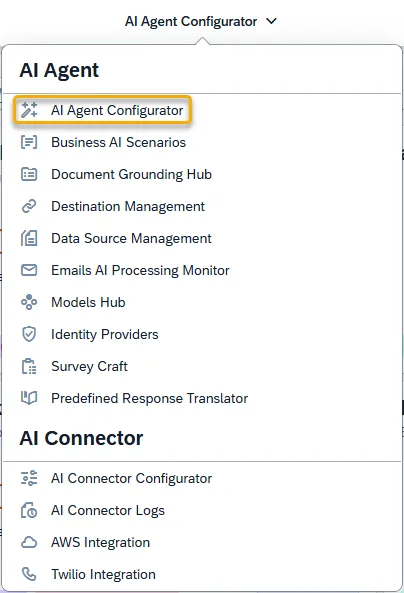
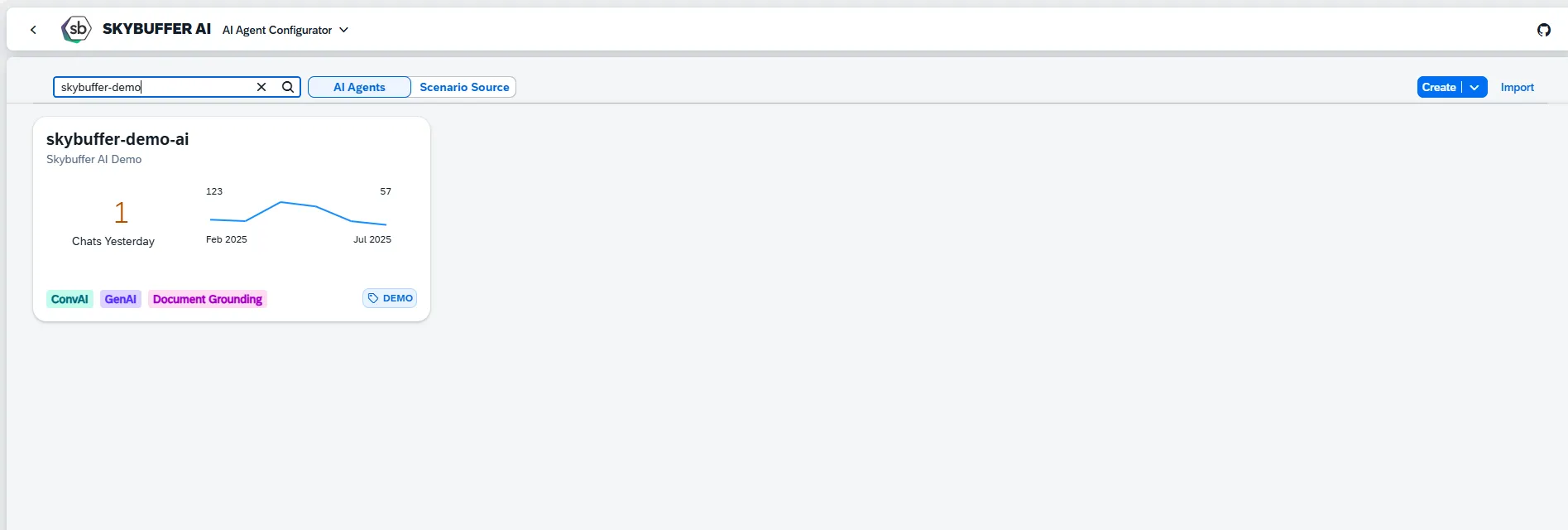
Step 2. After opening the application, you will see a screen displaying all available AI Agents. Each tile represents one Agent, including its name, description, and deployment status. Click on the Agent you want to work with to proceed.
Step 3. Open the Channel management application- Communication Channels.
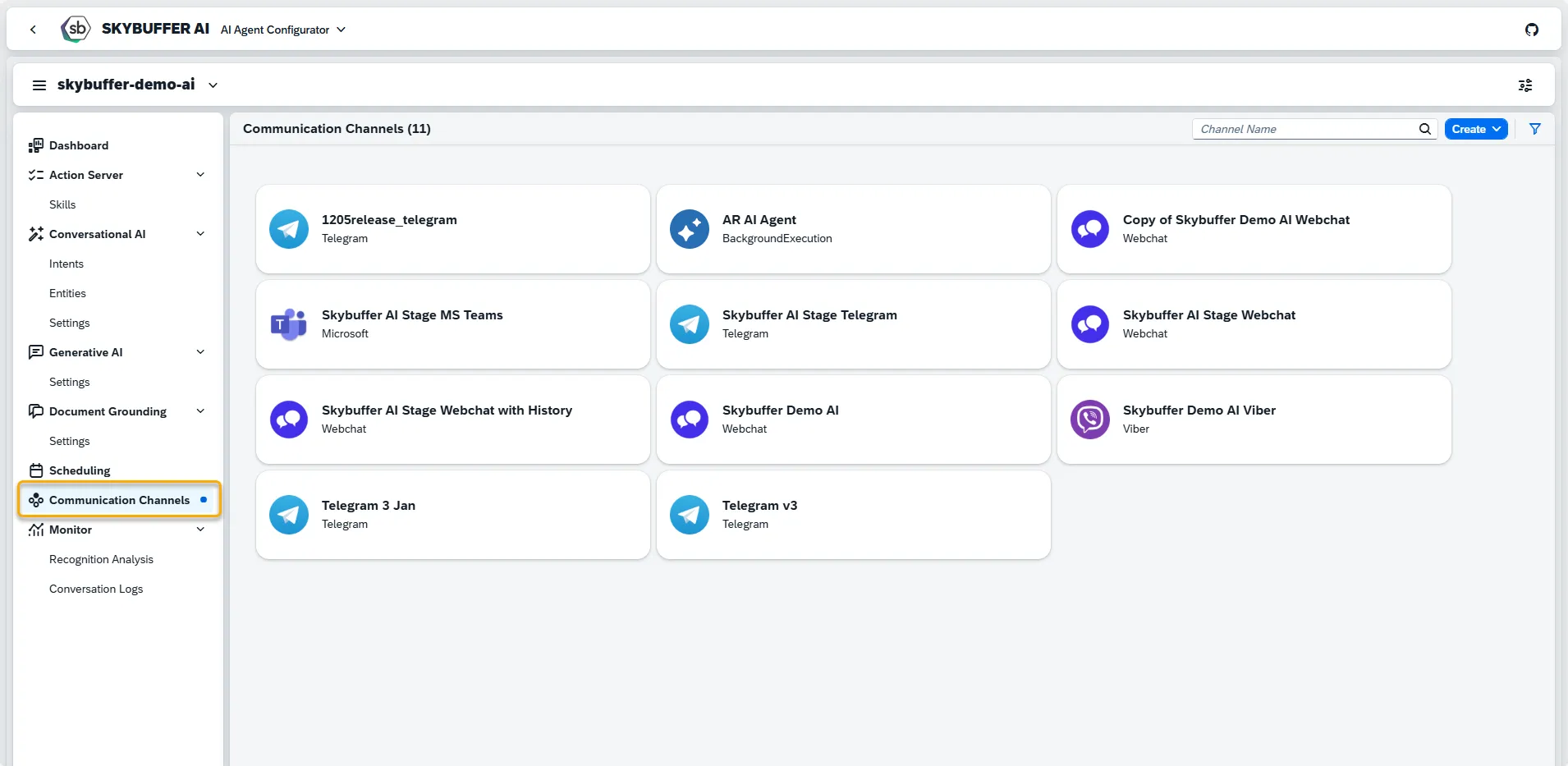
Step 4. Channel creation.
You can create a new Channel from scratch or Copy the Existing Channel.
To create a new Channel, click the Create button:
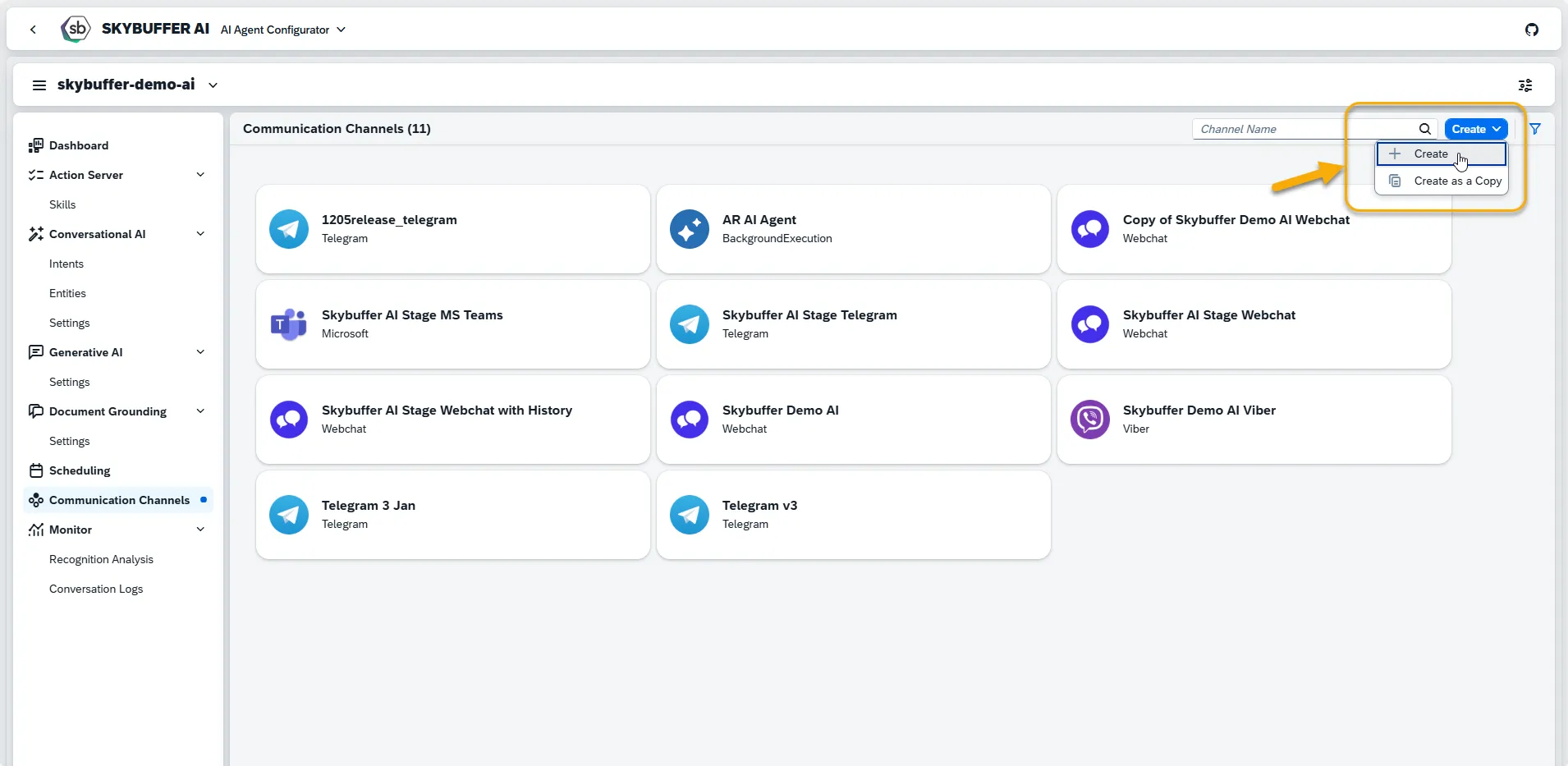
Step 5. Initial Parameters
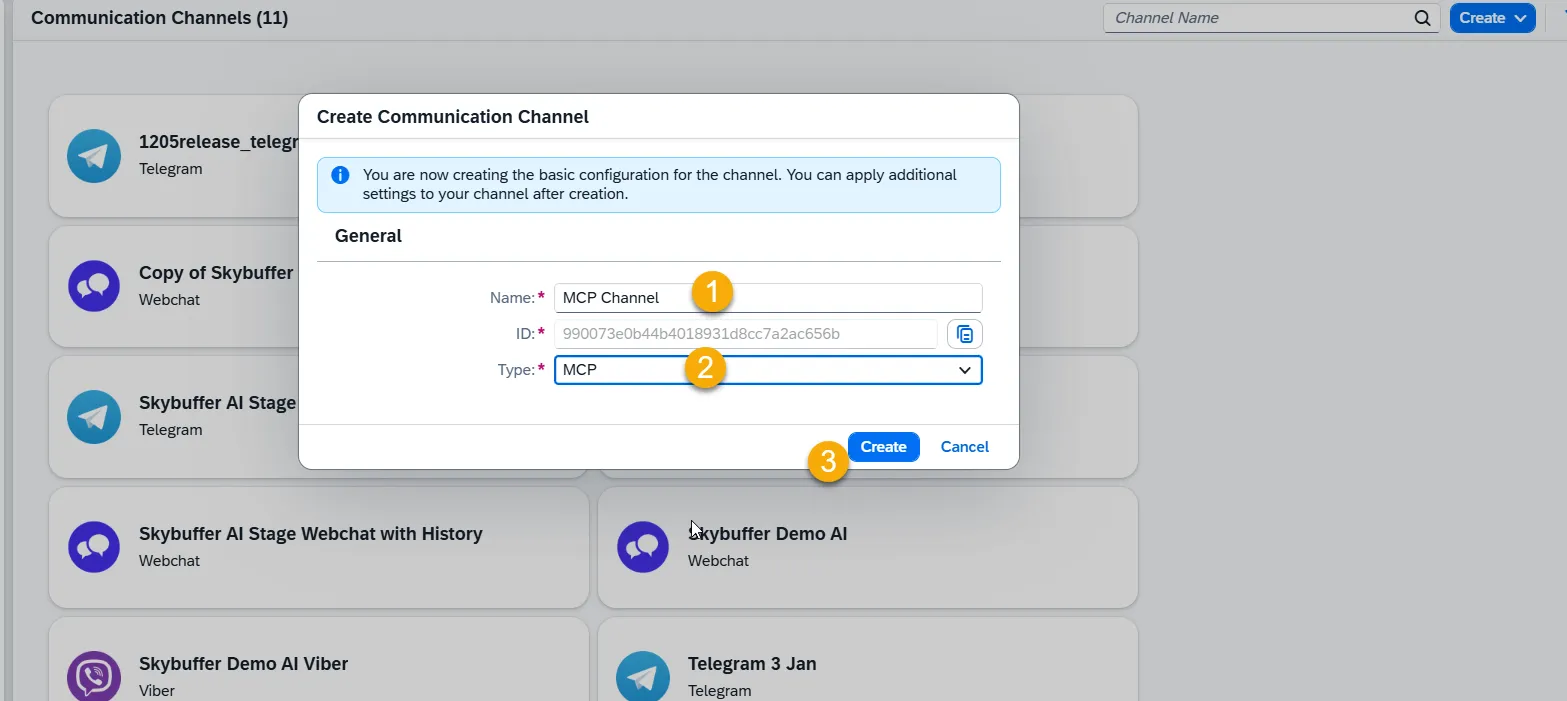
Fill in the initial parameters for the new Channel. The form includes:
- Channel Name — follow your organization’s naming convention.
- Channel ID — this field is auto-generated.
- Channel Type — select from a list of available types (e.g., Webchat, Microsoft, Telegram).
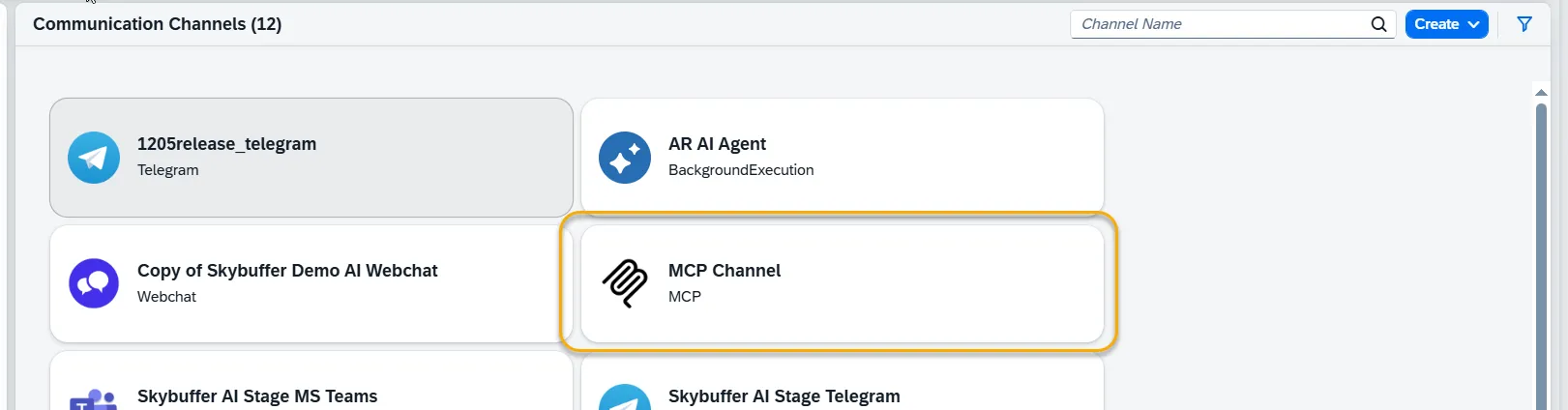
Channel is created, and is present on the list:
Step 6. Channel Settings.
To configure additional Channel Settings for your channel, click the Edit button.
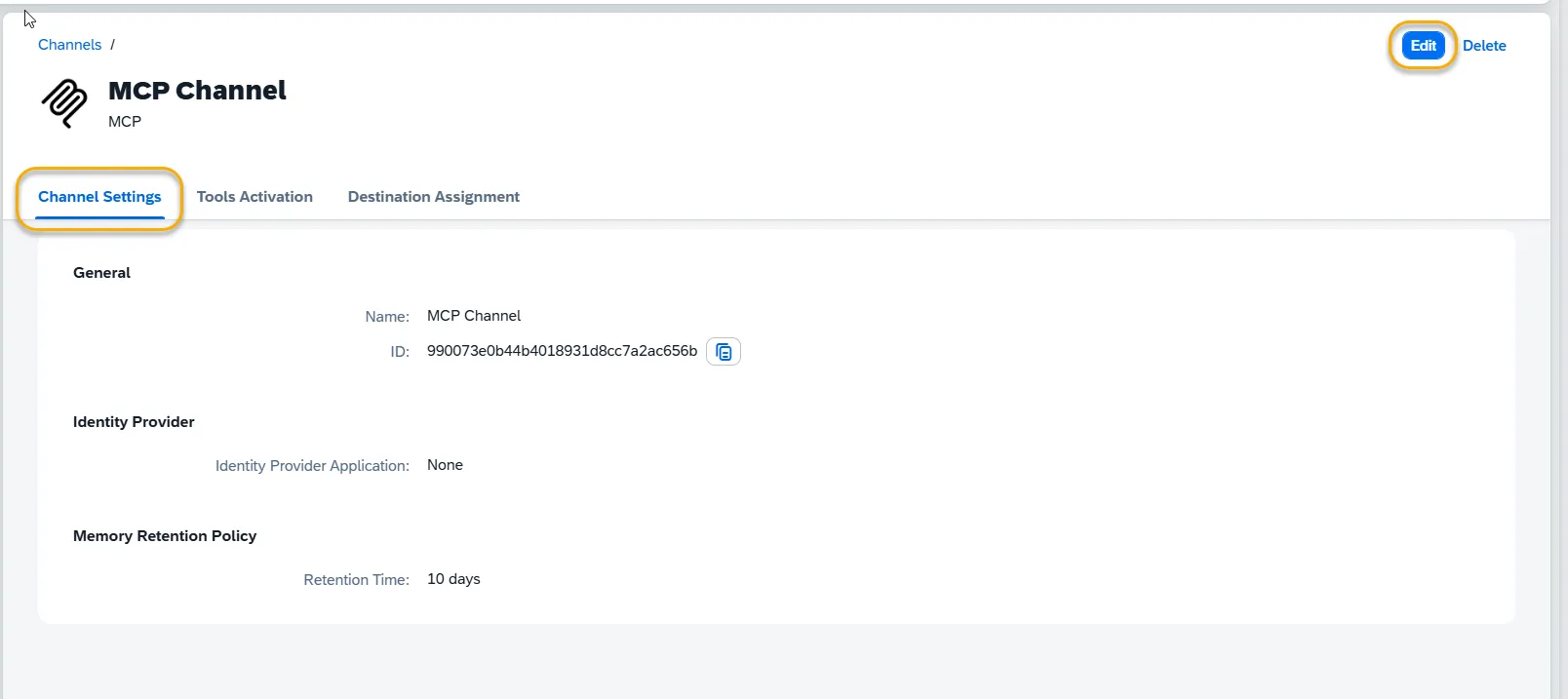
General
Section titled “General”Name — editable custom name for the channel
ID – not editable, identifier for the channel
Identity Provider
Section titled “Identity Provider”Identity Provider Application: choose the Identity Provider application from the list. This must be configured beforehand in the Identity Providers Application (see: Identity Providers)
Memory Retention Policy
Section titled “Memory Retention Policy”Retention time — specify the number of days for which chat data will be stored. After this period, the system automatically deletes stored conversation data according to your retention rules.
Step 7. Tools Activation
Once your Channel is created, you can activate or deactivate tools defined within your AI Agent.
For more information, visit: Tools Activation.
Step 8. Destination Assignment
This setting allows you to assign destinations to tools that have backend-connected actions.
For more information, visit: Destination Assignment.