
Emails AI Processing Monitor
The Email AI Processing Monitor is an inbound AI email application that provides a centralized view of emails received in an integrated mailbox. It allows you to monitor the processing status of incoming emails, filter and search messages, manually adjust their status when needed. The application serves as the main entry point for reviewing AI-processed emails.
Prerequisites
Section titled “Prerequisites”Before using the Email AI Processing Monitor, the following setup is required:
- At least one Inbound Email Destination must be created in the Models Hub This defines which mailbox and folder are monitored and how incoming emails are handled. Follow the setup instructions here: Models Hub
- Mailbox Integration – the mailbox must be integrated to use Email Processing Actions. Follow the instructions here: Office 365 Shared Mailboxes (IMAP) Integration
Step 1. Open Email AI Processing Monitor Application
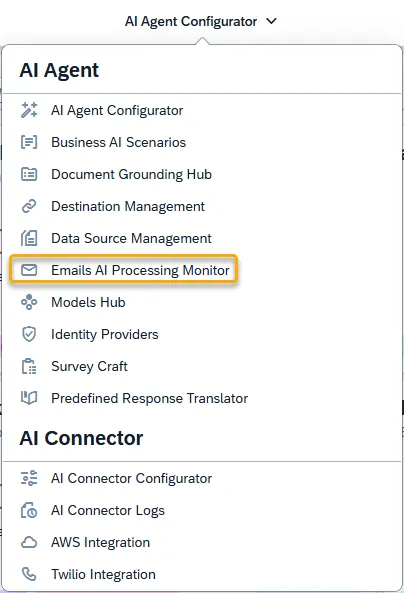
Open the Email AI Processing Monitor application in the AI Agent group:
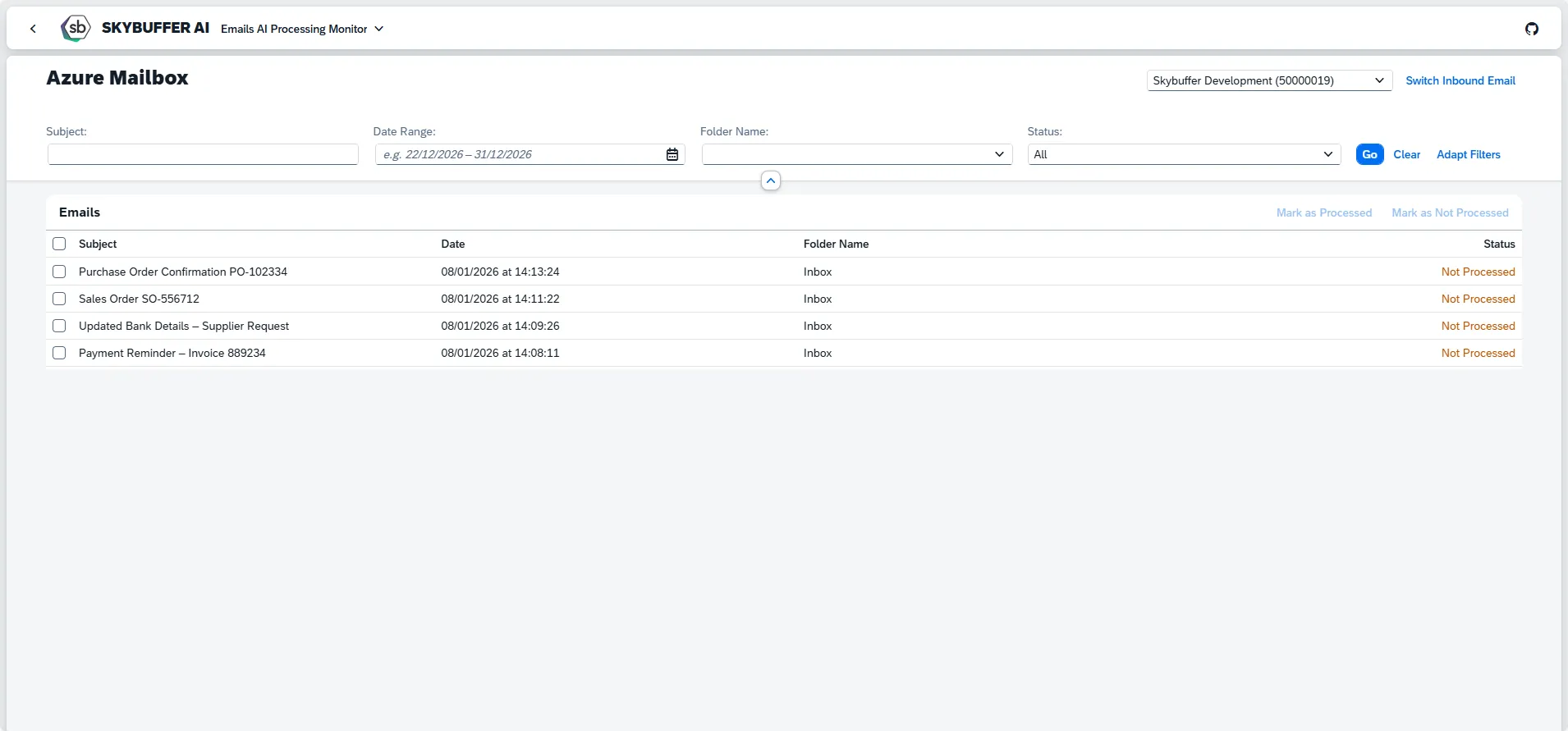
Once opened, the main view displays all emails from the selected inbound email destination.
Step 2. Switch Inbound Email Destination
Section titled “Step 2. Switch Inbound Email Destination”Inbound Email Destinations are configured in Models Hub. If multiple destinations exist, you can easily switch between them.
To switch the destination:
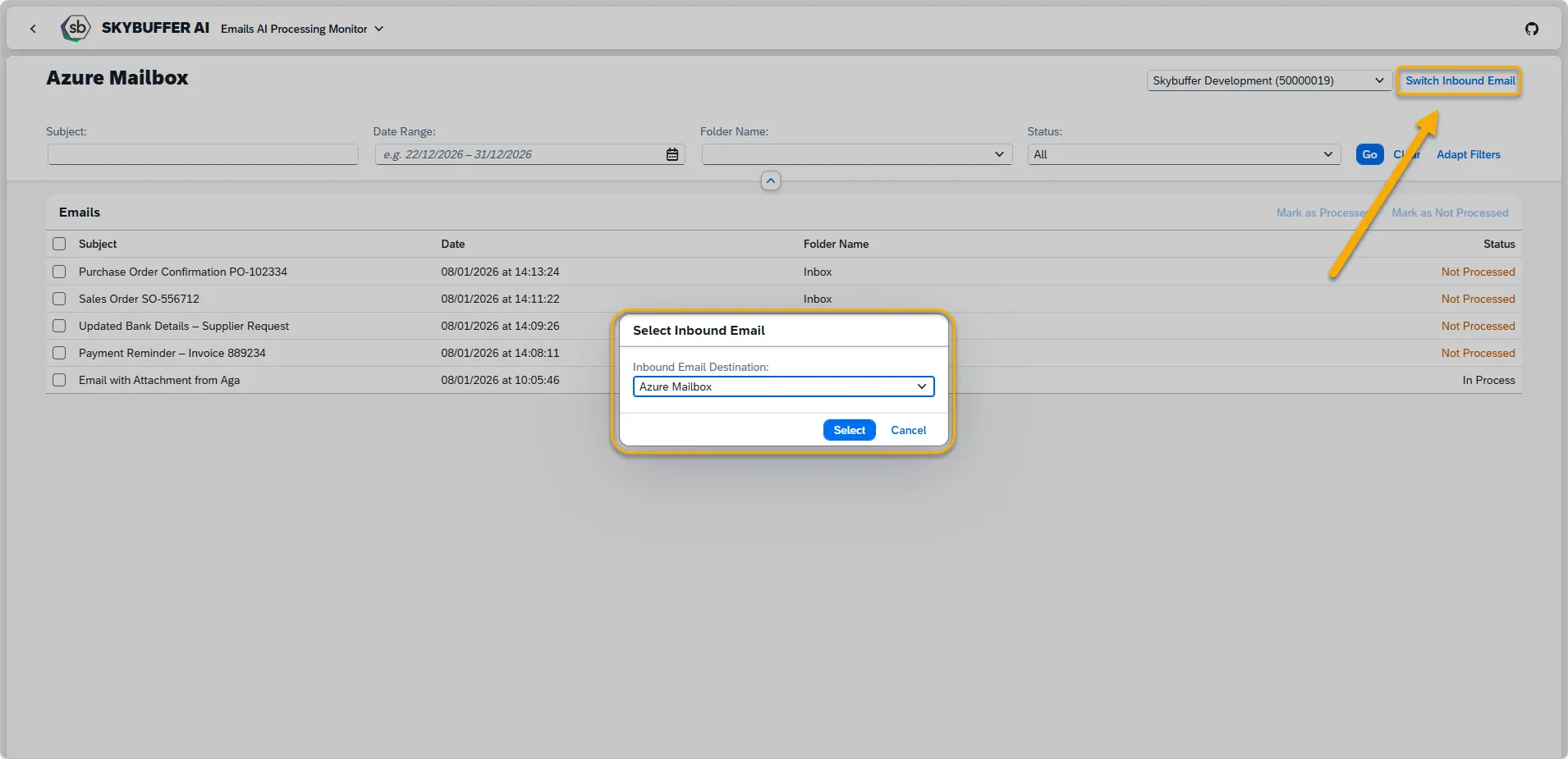
Click Switch Inbound Email in the top-right corner and select the desired destination.
The email list refreshes to show emails from the selected destination.
Step 3. Filtering options
Section titled “Step 3. Filtering options”Press the icon on the right side of each filter to see possible options or type in a value for search. Press the Go button to see the search results.
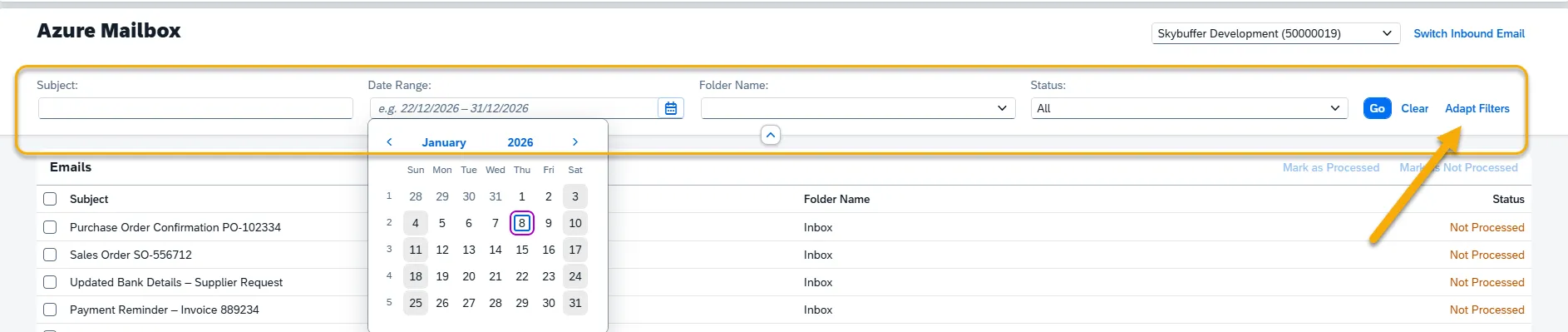
Adapt Filters
Section titled “Adapt Filters”Click Adapt Filters to customize the filter panel.
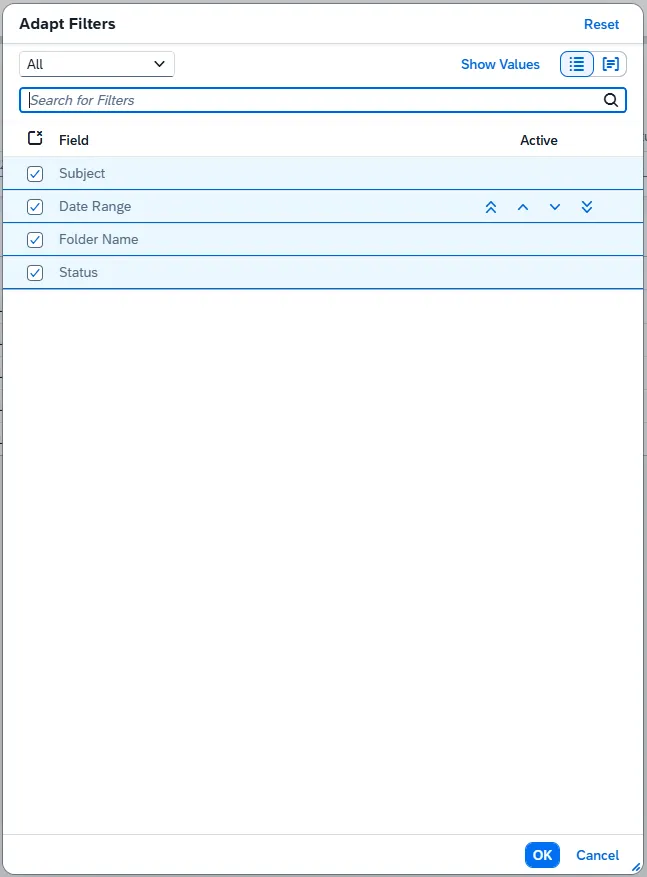
Tick / untick fields to show or hide filters and use up/down arrows to reorder filters.
Available Filters
Section titled “Available Filters”Subject: The subject (title) of the email.
Date Range: Filters emails based on the received date.
Folder Name: The mailbox folder from which the email was received (e.g. Inbox, Subfolder).
Object ID: Business object identifier extracted from the email content (for example, order, case, or ticket ID).
DMS Link: Link to a document created or stored in the Document Management System during email processing.
Status: Filters by processing state:
-
All – shows all emails
-
Not Processed – newly received, not yet processed by AI
-
In Process – currently being processed
-
Processed – successfully processed
-
Error – processing failed
Step 4. Email View and Manual Status Update
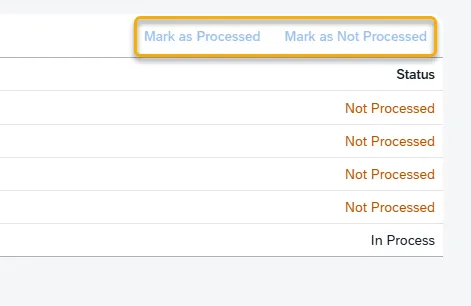
Section titled “Step 4. Email View and Manual Status Update”The email view displays all messages from the monitored folder together with their current processing status. If required, the status of one or more emails can be changed manually by selecting the corresponding checkboxes and choosing either Mark as Processed or Mark as Not Processed. This is useful for handling exceptions or re-processing emails when necessary.