• IDD
  • IDD
  • Skybuffer AI
    • Skybuffer AI Installation and Initial Setup
      • On Business Technology Platform (BTP)
        • Skybuffer AI Installation Guide on BTP
      • On Premise: XSA Runtime and SAP HANA EE
        • Installing SAP HANA Including XS Runtime
        • XS Deployment Process
      • Post Installation User Guide
    • AI Agent
      • AI Agent Configurator
        • Register New AI Agent
        • Intents and Entities Creation
        • Tool Creation and Management
        • Actions
          • Message and Content Actions
            • Structured Messages
            • Adaptive Card
          • Email Processing Action
          • Email Post-Processing Action
          • File Parsing Action
          • Destination Calls Actions
          • Conversation Flow and Memory Actions
          • AI Actions
            • Generative AI Action
            • Document Grounding Action
            • Log Insight Action
            • Tools Orchestration Action
        • Translation
        • Scheduling
        • Communication Channels
          • Copy the Existing Channel
          • Tools Activation
          • Destination Assignment
          • Webchat Communication Channel Setup
          • Facebook Messenger Communication Channel Setup
          • Zoom Communication Channel Setup
          • Slack Communication Channel Setup
          • MS Teams Communication Channel Setup
          • Telegram Communication Channel Setup
          • Viber Communication Channel Setup
          • WhatsApp Communication Channel Setup
          • FLP Chat Communication Channel Setup
          • Background Execution Communication Channel Setup
          • MCP Channel
        • Monitor Section
      • Business AI Scenarios
      • Document Grounding Hub
      • Destination Management
      • Emails AI Processing Monitor
      • Models Hub
      • Identity Providers
      • Survey Craft
      • Predefined Response Translator
    • AI Connector
      • AI Connector Configurator
      • AI Connector Logs
      • AWS Integration
      • Twilio Integration
    • SAP Backend for Business AI
      • Business AI Scenarios Package Administration
        • Installation Guide
        • Uninstallation Guide
      • Business AI Scenarios Package Maintenance Guide
        • Product License
        • Configuration of Email Sending Mechanism
          • Configuration Settings
          • Setup of Specific Email Sending Control
        • Technical User Setup
          • Central oData Service Authorization Role Maintenance
          • Technical User ID Creation
        • Assigning Business AI Scenarios to ABAP RIK Classes
        • Simplified User Creation Scenario Setup (Without Approval Workflow)
          • Maintain and Assign Reference Users for User Creation Scenario
          • Activate Notification for New User Creation (Optional)
        • User Creation Scenario Setup with Approval Workflow
          • Configure Approval Workflow for User Creation Scenario
          • Set Up Approval Steps for Different User Types Creation
    • Hybrid Chats
      • Hybrid Chats Maintenance Guide
        • Business and Technical Users Setup
          • Create Business and Technical Users
          • Create Business Partners
        • Tenant Configuration
        • Live Pool Management and Configuration
          • Start Live Pool
          • Manage Live Pool
        • System Configuration
          • Configure Status Profile
          • Set Up Technical Messages for Hybrid Chats
        • Hybrid Chats Configuration
        • Hybrid Chats Categorization
          • Categorization Management
          • Categorization Mapping
          • Translate Categories
      • Hybrid Chats User Manual
        • Hybrid Chats
          • HC Archive Mode
          • HC Active Mode
        • HC My Data
          • Edit Personal Data and Profile Picture
          • Default Settings Management
          • Notification and Dialogue Manual Mode Management
          • Quick Replies Management
            • Standard User Mode - Quick Replies
            • Administrator User Mode - Quick Replies
        • HC Analytics
          • HC Analytics
          • Operator Activity Analytics
          • Exit Survey Analytics
        • HC Teams
          • Access HC Teams Application
          • Create New Team
          • Create New Team Member
          • Edit Agent
          • Edit Team Name
    • HOW-TO Guides
      • MS Teams Integration. Single Sign-On
        • Create Azure Bot Service
        • Configure Azure Bot Service and Connect to the AI Agent MS Teams Channel
        • Create Middleware SSO Application
        • Configure Bot Service Application SSO
        • Create Azure AD Enterprise Application for SAP Backend
        • Configure oAuth2 in SAP System
        • Assign Identity Provider in AI Agent Channel Configuration
        • Deploy Your App into Microsoft Teams
        • Managing Application Keys
      • Office 365 Shared Mailboxes (IMAP) Integration
      • Skybuffer AI PoC Setup
        • SAP BTP
      • SAP AI Core Integration. Ollama Server Setup
      • MS SharePoint Integration. Add-in Registration
    • Troubleshooting
      • Edge Browser Access Issue

Email Post-Processing Action

9 views 0

Email Post-Processing Action

This action updates the status of processed emails, extracts selected properties into memory for further use, and can automatically notify the sender when processing is complete.

Step 1. Create a Email Post-Processing Action by pressing the button Process Data at the bottom of an Action Group:

Step 2. A new Email Post-Processing Action will appear and be ready to be filled in. Let’s set up this block step by step.
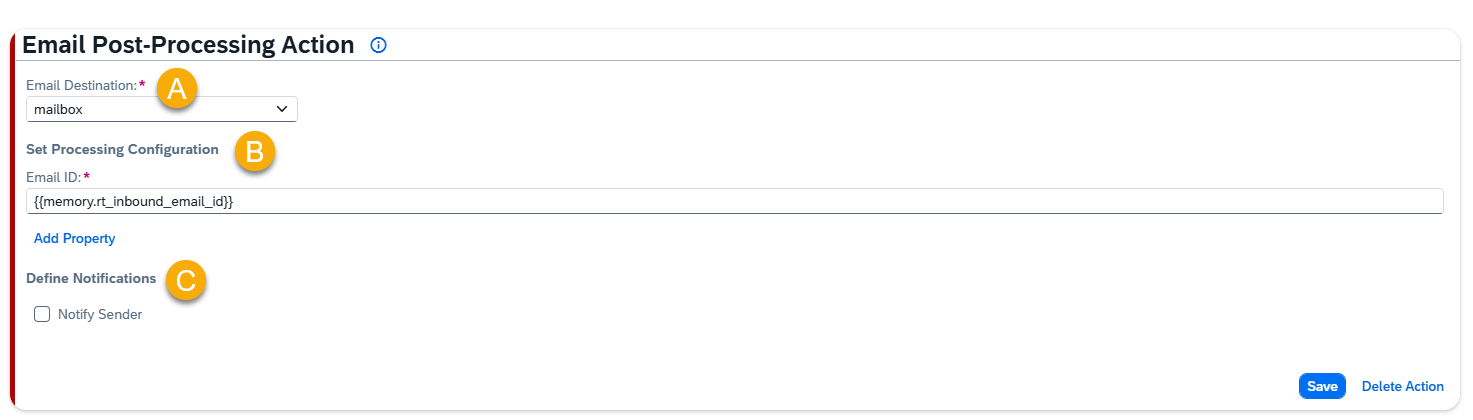
A – Email Destination 

Select the Email Destination (created in Models Hub) to determine which emails will be post-processed. 

B – Set Processing Configuration

Email ID

Select the memory parameter that contains the Email ID you want to post-process.

Use Add Property to create a new condition row.

Each row allows you to select a Property to be Updated, define its Property Requirement (whether the parameter is mandatory for setting the Processed status), and assign a Value where the extracted data will be stored for future processing.

Examples:

• Property: Object in SAP Type → Value: {{memory.rt_object_in_sap}}
• Property: Object ID → Value: {{memory.rt_object_id}}
• Property: DMS Link → Value: {{memory.rt_dms_link}}

NOTE: Each property type can be used only once.

C – Define Notifications 

Define Notifications

Enable Notify Sender if the sender should receive an automated message after post-processing is complete.
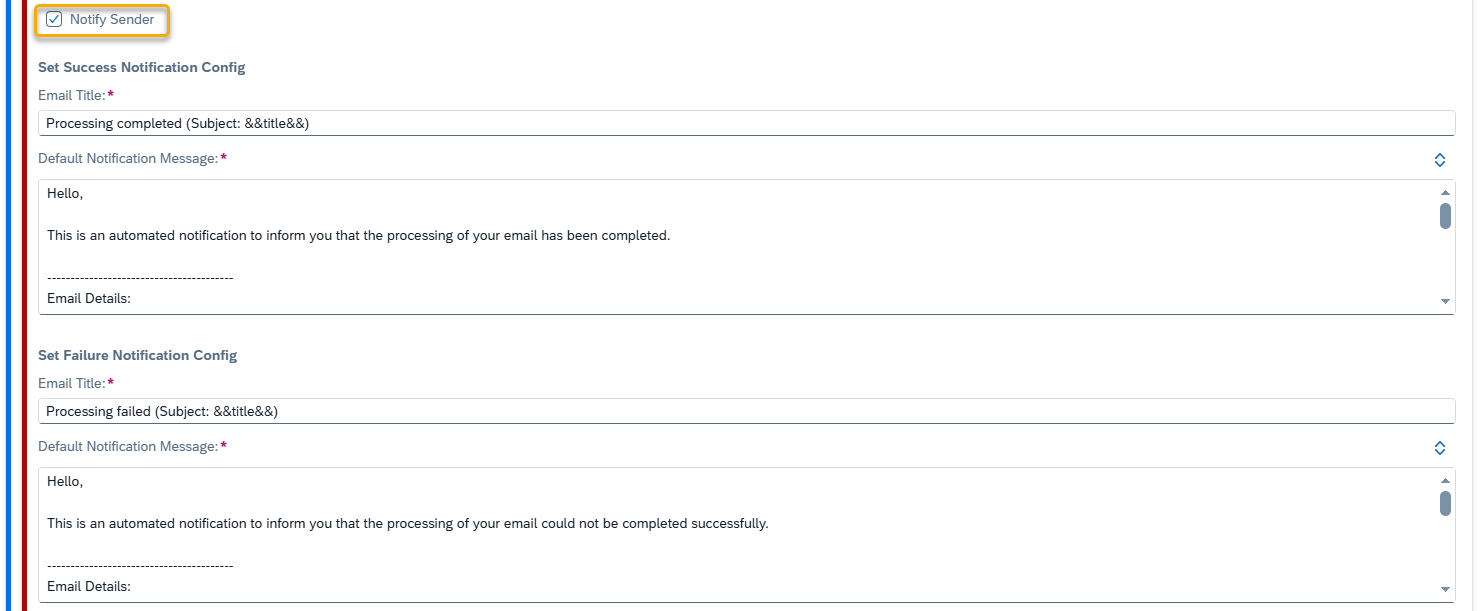
Set Success Notification Config

Email Title
Enter the subject line of the notification email. Supports variables such as &&referenceId&&.

Default Notification Message
This is the message body sent to the email sender.

Set Failure Notification Config

Email Title
Enter the subject line of the notification email. Supports variables such as &&referenceId&&.

Default Notification Message
This is the message body sent to the email sender.

Was this helpful?

Yes  No
Related Articles
  • MCP Channel
  • File Parsing Action
  • Email Processing Action
  • Emails AI Processing Monitor
  • Translation
  • Office 365 Shared Mailboxes (IMAP) Integration
Copyright 2022 Skybuffer.com. All Rights Reserved.