Sending a push notification message is now possible in Microsoft Team Channels. Messages of various types can be sent ( text message, buttons or even adaptive cards). The Recipients group is defined by email addresses.
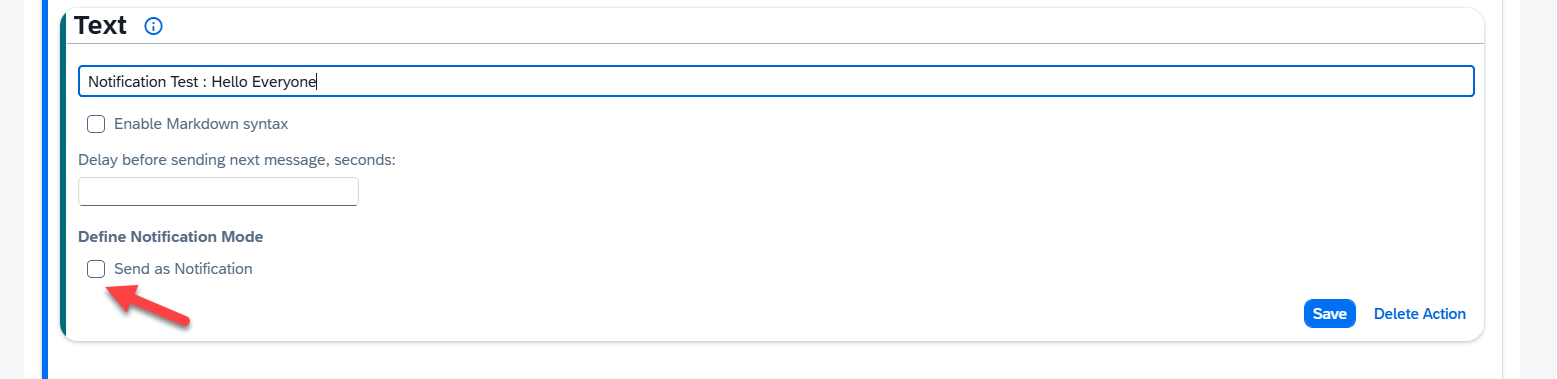
Step 1. To activate notification mode, scroll down to the bottom of the action. Under “Define Notification Mode”- tick the “Send as Notification” Field
Step 2. Press the “Add Recipient of Notification” button to move forward:
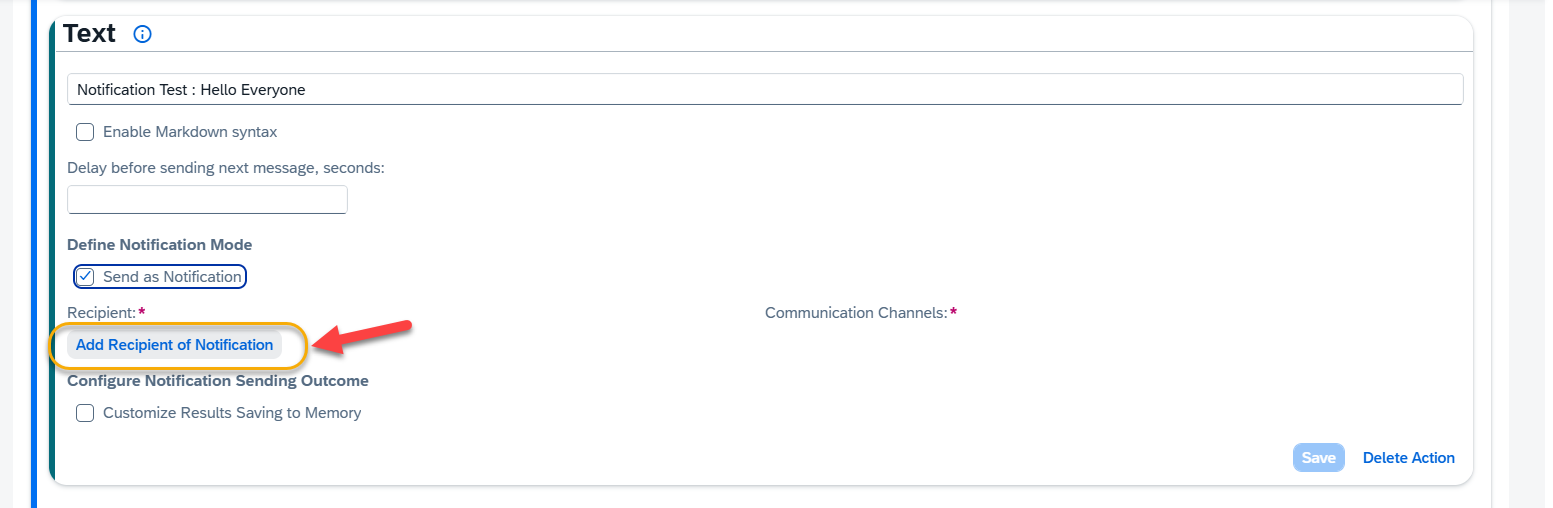
Step 3. Declare Recipients.
We will need a predefined group of recipients saved in memory.
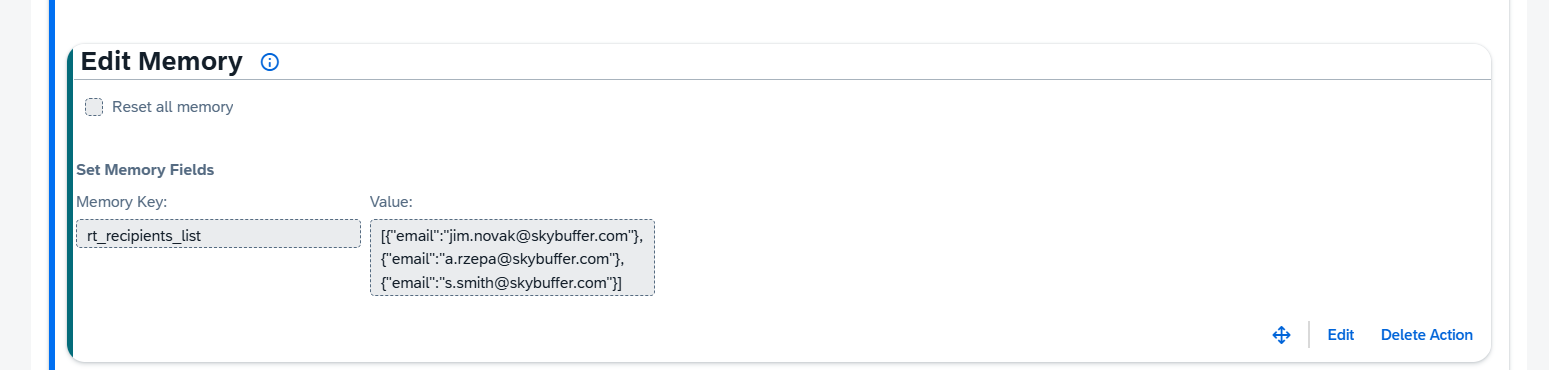
You can define the recipients array manually:
Use an array :[ {“email” : “email@domain.com”}, …] where each person is identified by email at least. Save it into a memory variable of your choice. Here: “rt_recipients_list” is used.
Next, paste the memory variable into the “Recipient” field. As we are accessing memory, we need to put the variable name into {{memory.variable_name}} construct. Following that, select the correct channel names from the dropdown list. You can select a few at once:
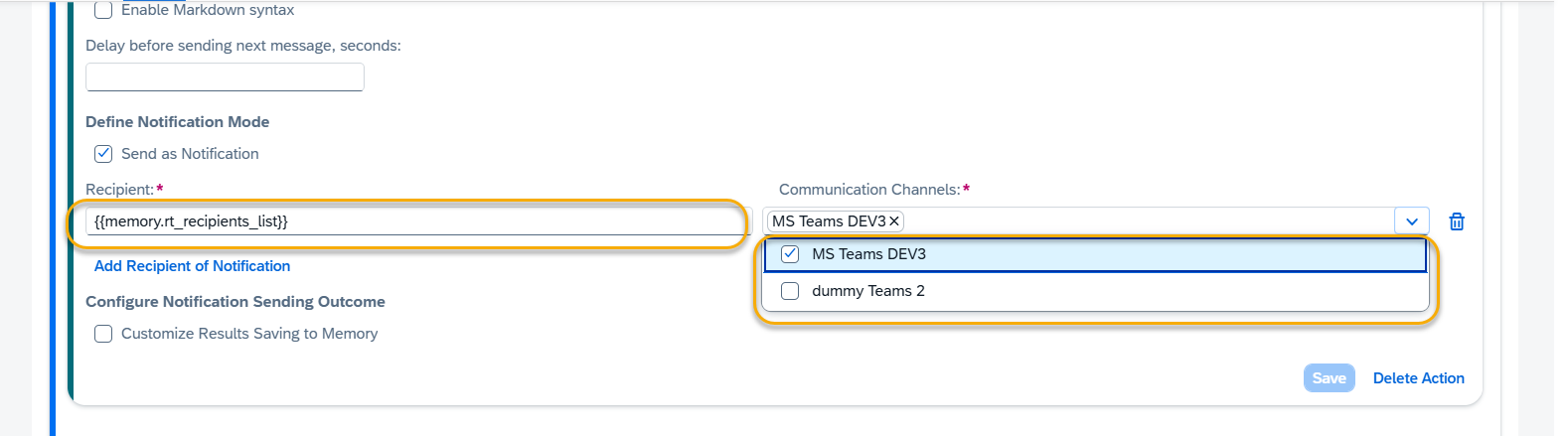
You can define multiple rows of recipient/channel pairs.
Step 4. Customize Output Parameter
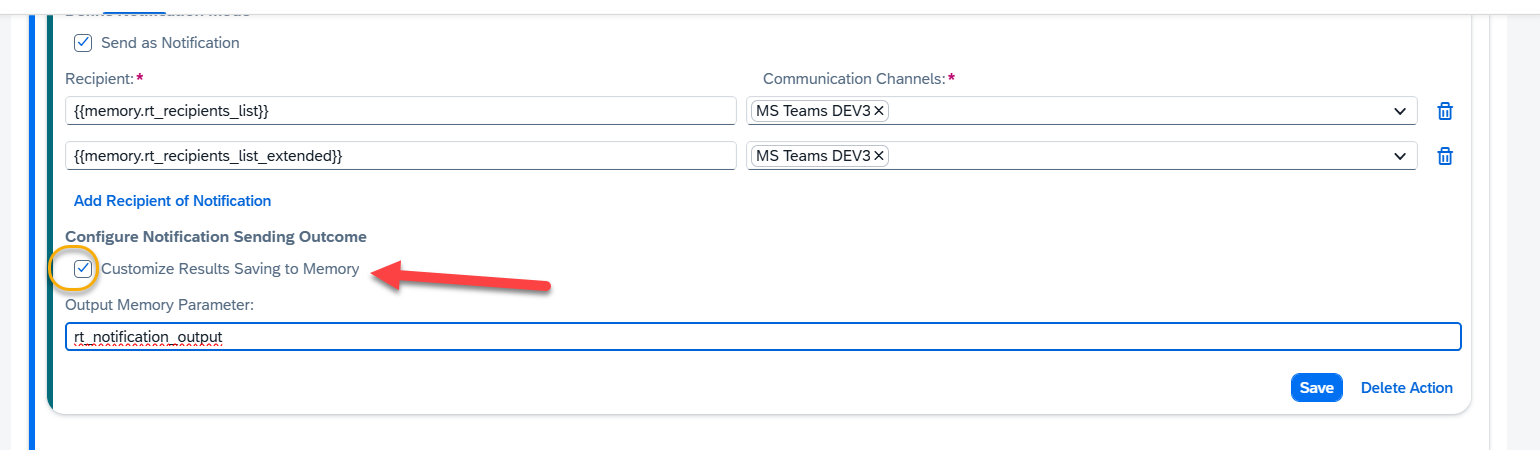
The results of notification sending are saved to memory. By default they are in “rt_notification_output” variable, but you can change it to your liking.
Tick off the “Customize Results Saving to Memory” field. You can now change the “Output Memory Parameter” name:
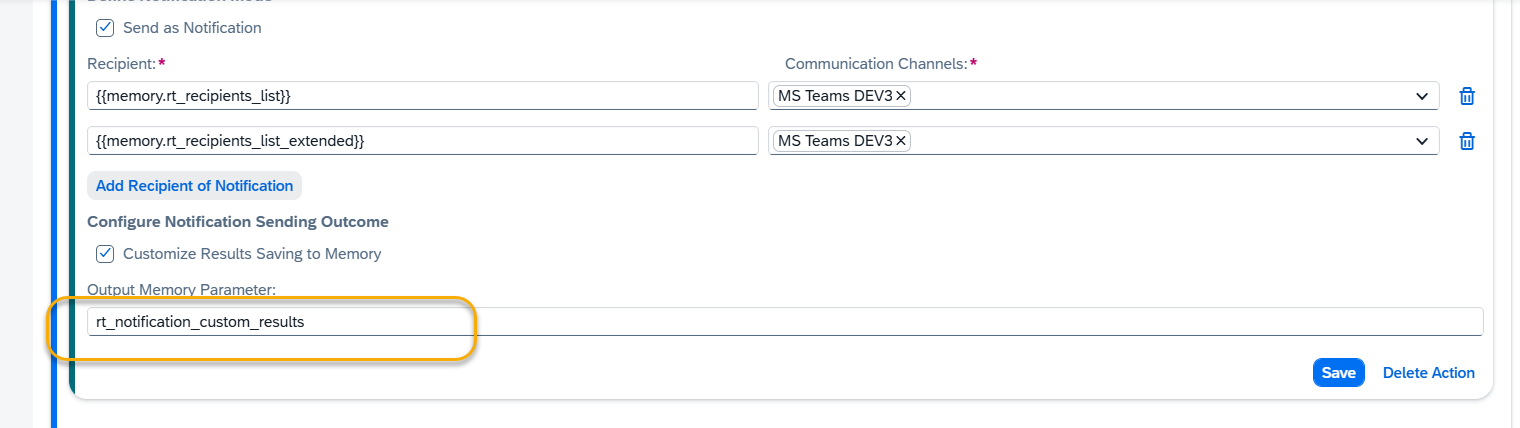
Let us change it to “rt_notification_custom_results”:
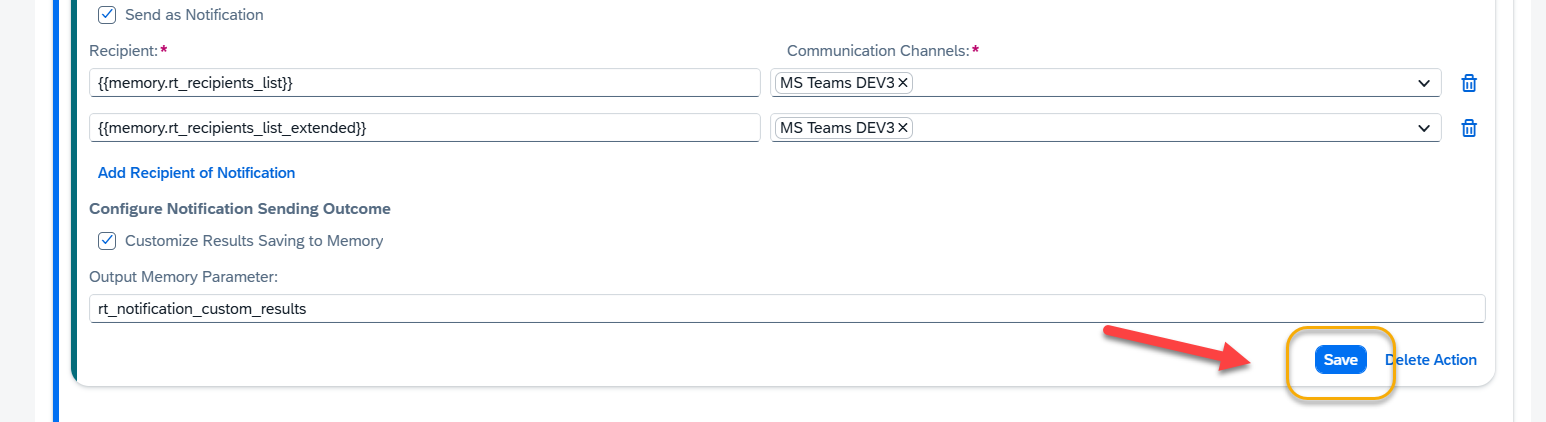
Step 5. Save Your Changes :
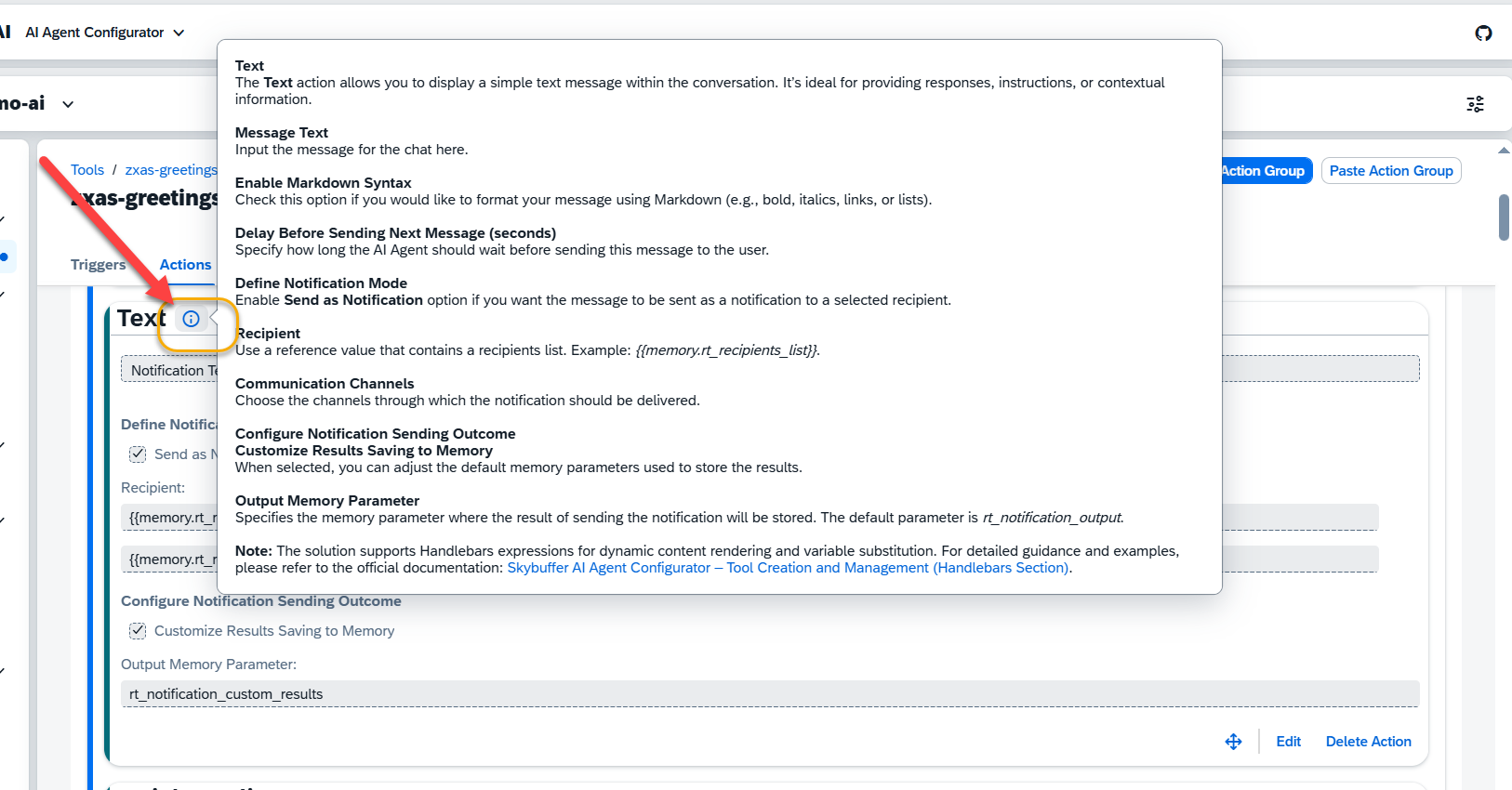
Remember, you can always access Help Dialogue next to each Action to see a quick information on how to set it up. Just press the notification icon at the top of an action:
Step 6. Trigger the notifications. Trigger the tool with notification action from any channel .
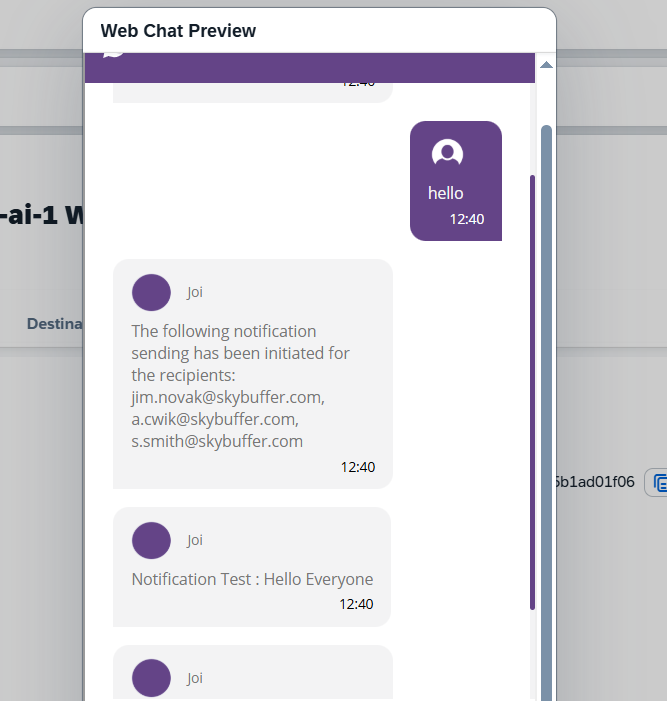
What the person triggering the notification sees:
– Message listing the recipients of notification. “The following notification sending has been… “. Mind that this list just shows emails listed as recipients, it doesn’t take success or failure of notifications into account.
– The actual notification message, even if sender wasn’t among recipients.
What do recipients see : just a notification text !

In case of failure there is an error value explaining the cause.

Important: To receive notifications, the recipient must have already initiated a conversation within the specified Teams channel.