Upload File to Document Grounding
Use this action to upload a file to a Document Grounding Hub.
The action works with:
– an existing File ID ( that a user uploaded via chat, or is parsed from email) or
– a new File Name and File Content, to generate completely new file
It does not upload a physical file directly. Instead, it uses provided data and returns:
– upload status
– uploaded file GUID
This allows automated uploads inside larger workflows, for example:
generate data → create a file → upload it to Document Grounding Hub.
Step 1. Create an Upload File to Document Grounding action by pressing the button Process Data at the bottom of an Action Group:

Step 2. A new Upload File to Document Grounding action will appear and be ready to be filled in. Let’s set up this block step by step.
Provide either:
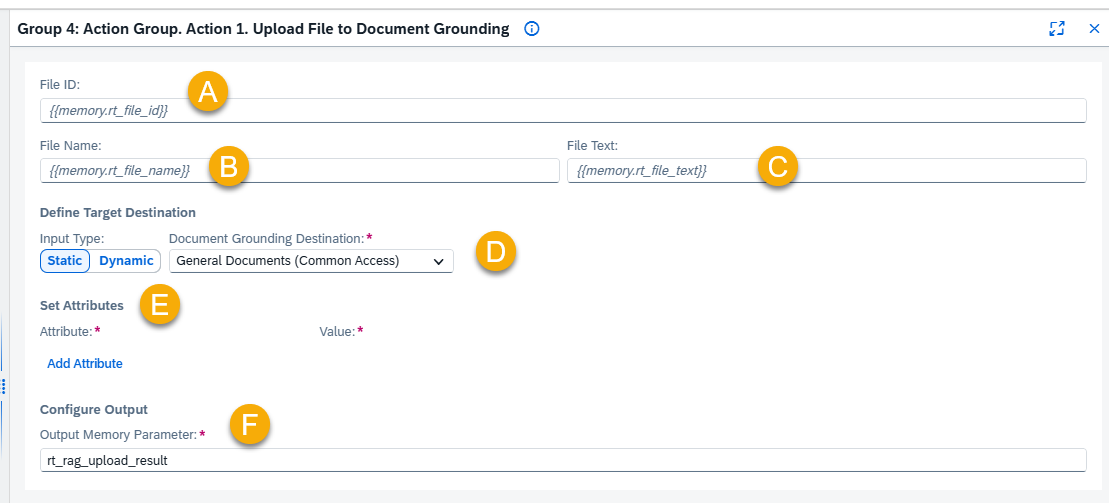
– existing File ID (A)
– or File Name (B) and File Text (C):
A – File ID Memory Parameter
Select the memory parameter that contains the File ID you want to parse. The action will retrieve the file using this ID and process its contents.
Examples:
{{memory.rt_file_id}}
B – File Name
Set a name for the new file, directly or via memory variable.
Examples:
{{memory.rt_file_name}} or “File_Example”
C – File Text
Set contents for the file. Paste in text directly or via memory variable.
Examples:
{{memory.rt_file_text}} or “This is example file content…”
D – Define Target Destination
Input Type:
- Static Mode
Select destination and attributes from dropdown lists. - Dynamic Mode
Provide destination and attribute values using memory variables. In that case you need to find Destination and attribute names on your own, and provide them via memory parameters.
Document Grounding Destination
Select the Document Grounding Space where the file will be uploaded.
E – Set Attributes
Optionally add attributes and values.
(For example, set attribute “Version” to “2.0”, or “Validity Date” to “23-01-2027”, or whatever attributes are present in your system)

F – Configure Output
Define memory variable where result of action will be stored. Keep the default or set your own.
Step 3. Execute and see the results.
Run the action.
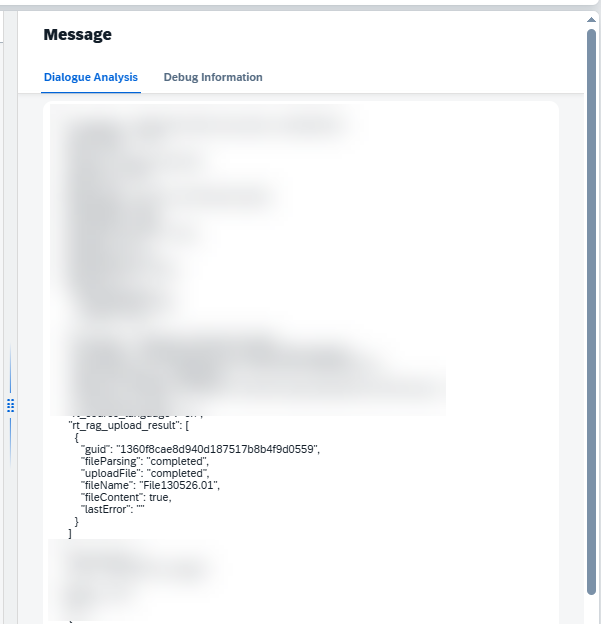
After successful upload:
- the file will appear in the Document Grounding Hub
- upload details will be available in Conversation Logs / Dialogue Analysis
If the upload fails, check the logs for error details.