• IDD
  • IDD
  • Skybuffer AI
    • Skybuffer AI Installation and Initial Setup
      • On Business Technology Platform (BTP)
        • Skybuffer AI Installation Guide on BTP
      • On Premise: XSA Runtime and SAP HANA EE
        • Installing SAP HANA Including XS Runtime
        • XS Deployment Process
    • AI Agent
      • AI Agent Configurator
        • Register New AI Agent
        • Intents and Entities Creation
        • Tool Creation and Management
        • Actions
          • Message and Content Actions
            • Structured Messages
            • Adaptive Card
            • Sending Notifications
          • Destination Calls Actions
          • Conversation Flow and Memory Actions
          • Process Data Actions
            • Email Processing Action
            • Email Post-Processing Action
            • File Parsing Action
            • Send Email Action
            • Upload File to Document Grounding
          • AI Actions
            • Generative AI Action
            • Document Grounding Action
            • Log Insight Action
            • Tools Orchestration Action
        • Translation
        • Scheduling
        • Communication Channels
          • Tools Activation
          • Destination Assignment
          • Copy the Existing Channel
          • Webchat Communication Channel Setup
          • Facebook Messenger Communication Channel Setup
          • Zoom Communication Channel Setup
          • Slack Communication Channel Setup
          • MS Teams Communication Channel Setup
          • Telegram Communication Channel Setup
          • Viber Communication Channel Setup
          • WhatsApp Communication Channel Setup
          • FLP Chat Communication Channel Setup
          • Background Execution Communication Channel Setup
          • OpenAiCompatible Channel Setup
          • MCP Channel
          • Direct Line Channel
        • Monitor Section
      • Business AI Scenarios
      • Document Grounding Hub
      • ABAP Code Intelligence
      • Destination Management
      • Vectorized Data Sources
      • Data Source Management
        • Data Source Configuration
        • Authorization Administration
          • Organizational Authorization for Data Sources
          • Proposing Organizational Mappings
      • Emails AI Processing Monitor
      • Models Hub
      • Identity Providers
      • Survey Craft
      • Predefined Response Translator
    • AI Connector
      • AI Connector Configurator
      • AI Connector Logs
      • AWS Integration
      • Twilio Integration
    • SAP Backend for Business AI
      • Business AI Scenarios Package Administration
        • Installation Guide
        • Uninstallation Guide
      • Business AI Scenarios Package Maintenance Guide
        • Product License
        • Configuration of Email Sending Mechanism
          • Configuration Settings
          • Setup of Specific Email Sending Control
        • Technical User Setup
          • Central oData Service Authorization Role Maintenance
          • Technical User ID Creation
        • Assigning Business AI Scenarios to ABAP RIK Classes
        • Simplified User Creation Scenario Setup (Without Approval Workflow)
          • Maintain and Assign Reference Users for User Creation Scenario
          • Activate Notification for New User Creation (Optional)
        • User Creation Scenario Setup with Approval Workflow
          • Configure Approval Workflow for User Creation Scenario
          • Set Up Approval Steps for Different User Types Creation
      • MCP Server
        • MCP Server Configuration in ABAP System
        • MCP Tools Creation
    • Hybrid Chats
      • Hybrid Chats Maintenance Guide
        • Business and Technical Users Setup
          • Create Business and Technical Users
          • Create Business Partners
        • Tenant Configuration
        • Live Pool Management and Configuration
          • Start Live Pool
          • Manage Live Pool
        • System Configuration
          • Configure Status Profile
          • Set Up Technical Messages for Hybrid Chats
        • Hybrid Chats Configuration
        • Hybrid Chats Categorization
          • Categorization Management
          • Categorization Mapping
          • Translate Categories
      • Hybrid Chats User Manual
        • Language settings and RTL Support
        • Hybrid Chats
          • HC Archive Mode
          • HC Active Mode
        • HC My Data
          • Edit Personal Data and Profile Picture
          • Default Settings Management
          • Notification and Dialogue Manual Mode Management
          • Quick Replies Management
            • Standard User Mode - Quick Replies
            • Administrator User Mode - Quick Replies
        • HC Analytics
          • HC Analytics
          • Operator Activity Analytics
          • Exit Survey Analytics
        • HC Teams
          • Access HC Teams Application
          • Create New Team
          • Create New Team Member
          • Edit Agent
          • Edit Team Name
    • HOW-TO Guides
      • Exchange On-Premises Shared Mailbox Integration
      • MS Teams Integration. Single Sign-On
        • Create Azure Bot Service
        • Configure Azure Bot Service and Connect to the AI Agent MS Teams Channel
        • Create Middleware SSO Application
        • Configure Bot Service Application SSO
        • Create Azure AD Enterprise Application for SAP Backend
        • Configure oAuth2 in SAP System
        • Assign Identity Provider in AI Agent Channel Configuration
        • Deploy Your App into Microsoft Teams
        • Managing Application Keys
      • Office 365 Shared Mailboxes (IMAP) Integration
      • SAP AI Core Integration. Ollama Server Setup
      • DGX Spark Server Configuration
      • Skybuffer AI PoC Setup
        • SAP BTP
      • MS SharePoint Integration. Add-in Registration
      • Job Scheduler Services Creation
    • Troubleshooting
      • Edge Browser Access Issue

Direct Line Channel

38 views 0

The Direct Line channel type allows external applications and tools to communicate with the solution through the Microsoft Direct Line API. It provides a way to connect conversational agents while keeping the communication between the client, Direct Line service, and backend secure and consistent.

The channel also supports Single Sign-On (SSO) through Microsoft Entra ID, allowing the user’s identity to be maintained across the conversation. This makes Direct Line suitable for integrating the solution with external Microsoft tools and agent-based applications.

Channel Creation

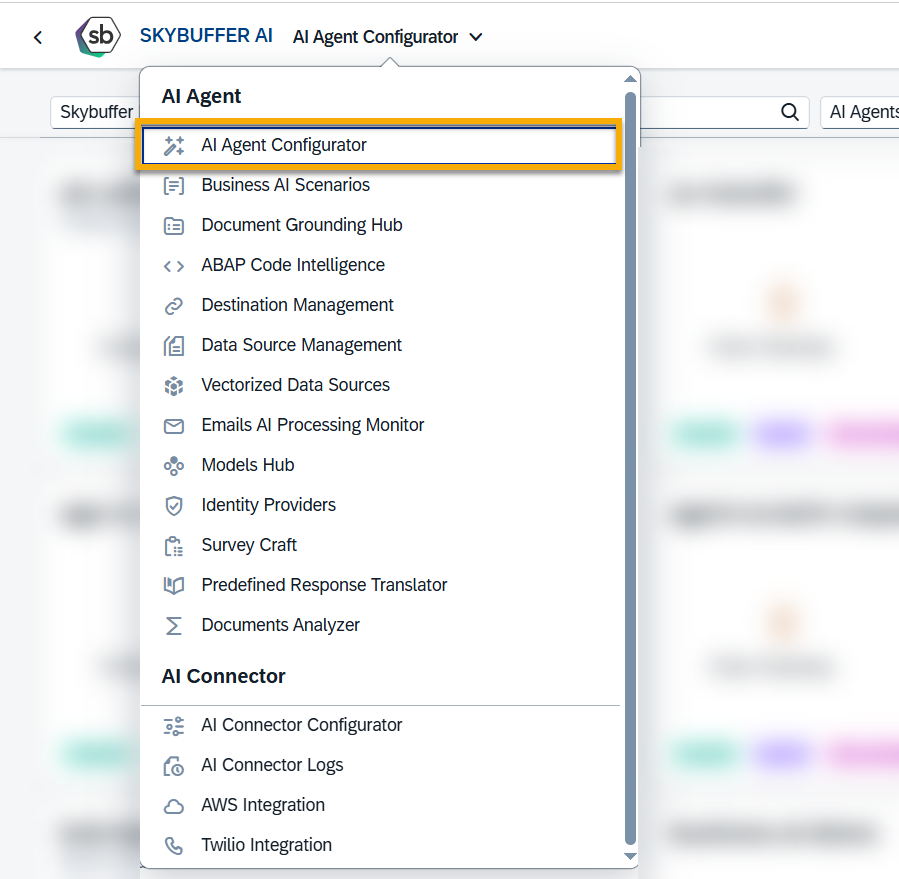
Step 1. Open the AI Agent Configurator application in the AI Agent group.
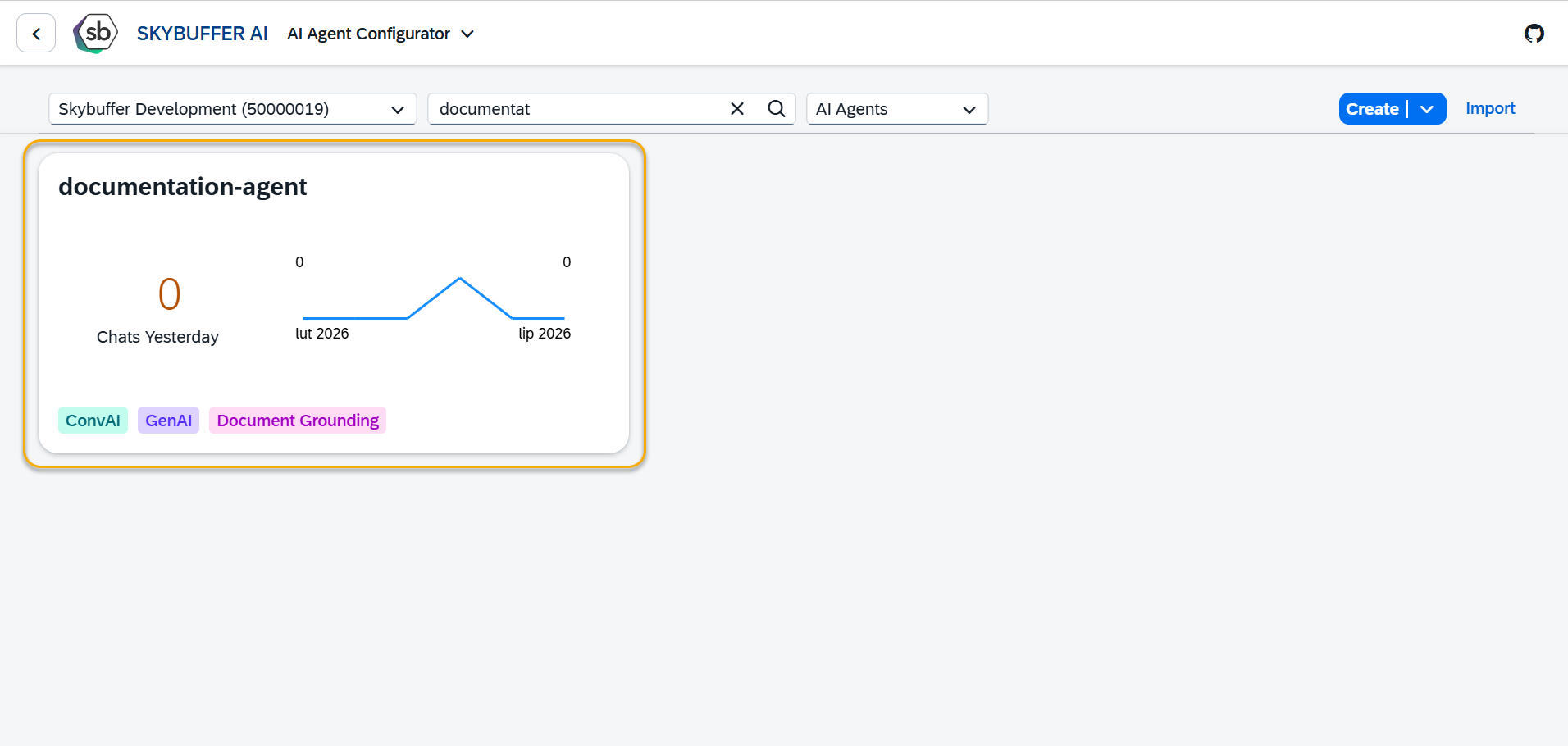
Step 2. After opening the application, you will see a screen displaying all available AI Agents. Each tile represents one Agent, including its name, description, and deployment status. Click on the Agent you want to work with to proceed.
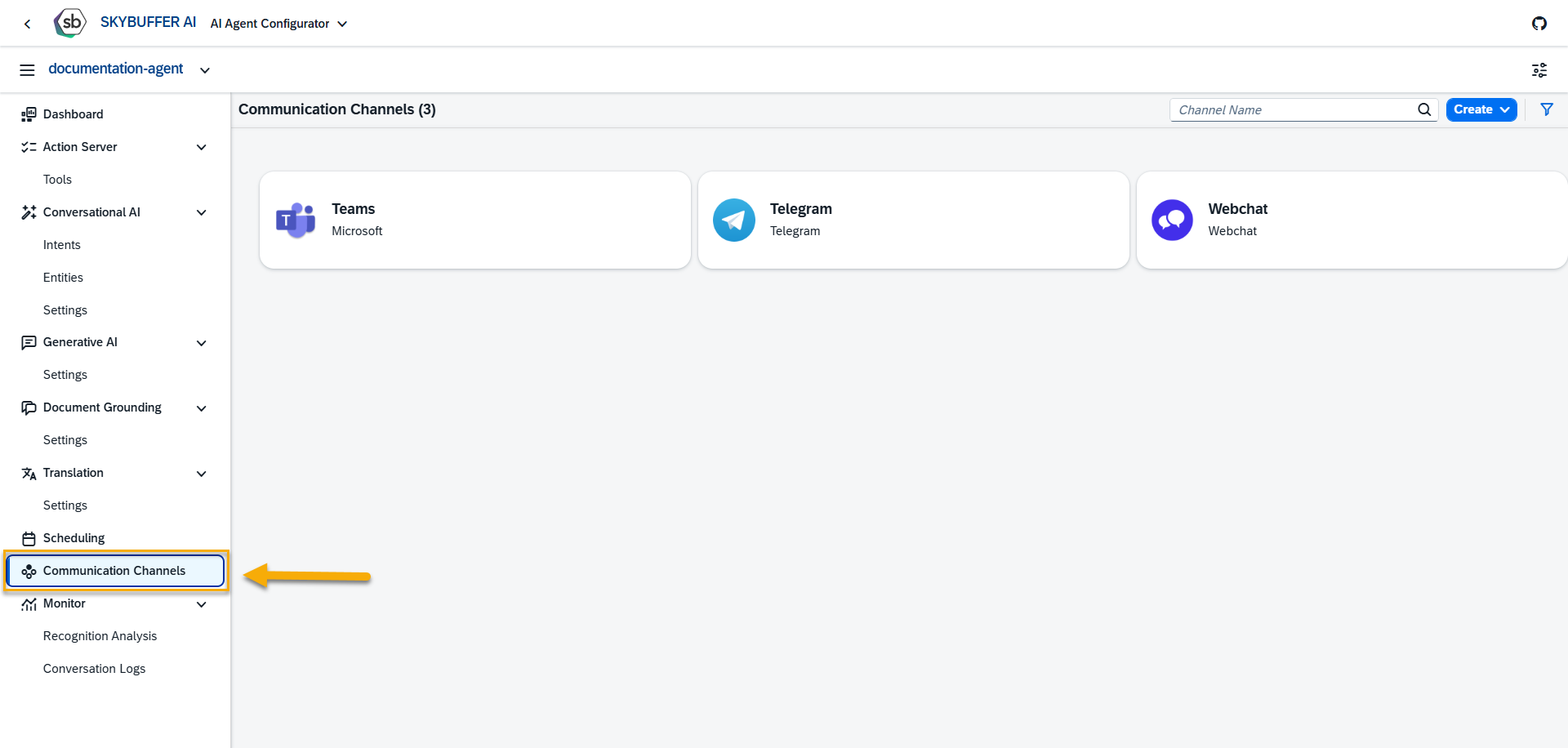
Step 3. Open the Channel management application of Communication Channels.
Step 4. Channel creation.

You can create a new channel from scratch or Copy the Existing Channel.

To create a new channel, click the Create button:
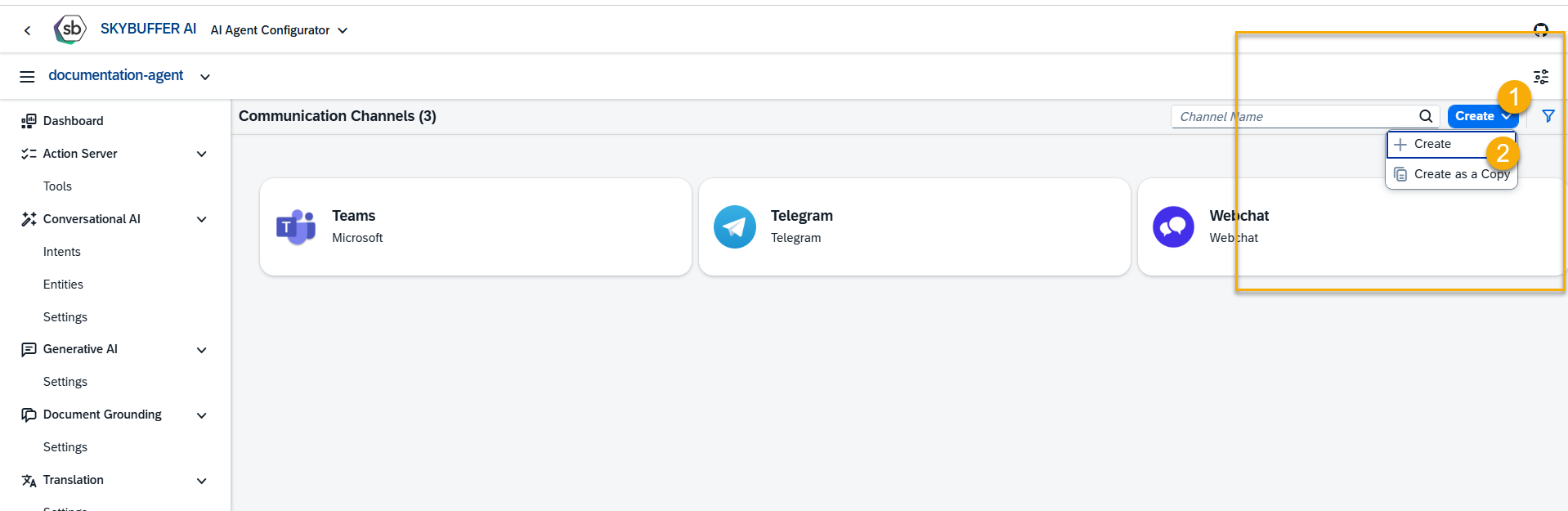
Step 5. Initial Parameters

Fill in the initial parameters for the new channel. The form includes:

  • Channel Name — follow your organization’s naming convention.
  • Channel ID — this field is auto-generated.
  • Channel Type — select from a dropdown list of available types (e.g. Webchat, Microsoft, Telegram).
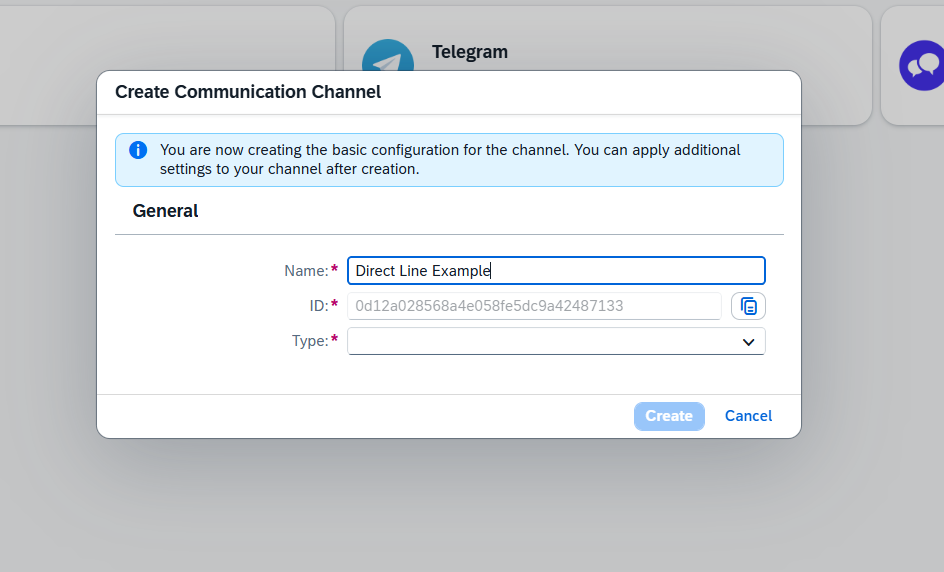
Once the Direct Line channel type is selected, additional fields appear. Fill in the remaining information:

  • Azure Bot ID – should be provided by Azure Administrator.
  • Azure Bot Password – should be provided by Azure Administrator.
  • Direct Line Secret – should be provided by Azure Administrator. Scroll down to the Azure Direct Line Configuration section for details on how to generate it.
  • Token Endpoint URL – should be provided by Azure Administrator. Optional field necessary if a regional url is used.
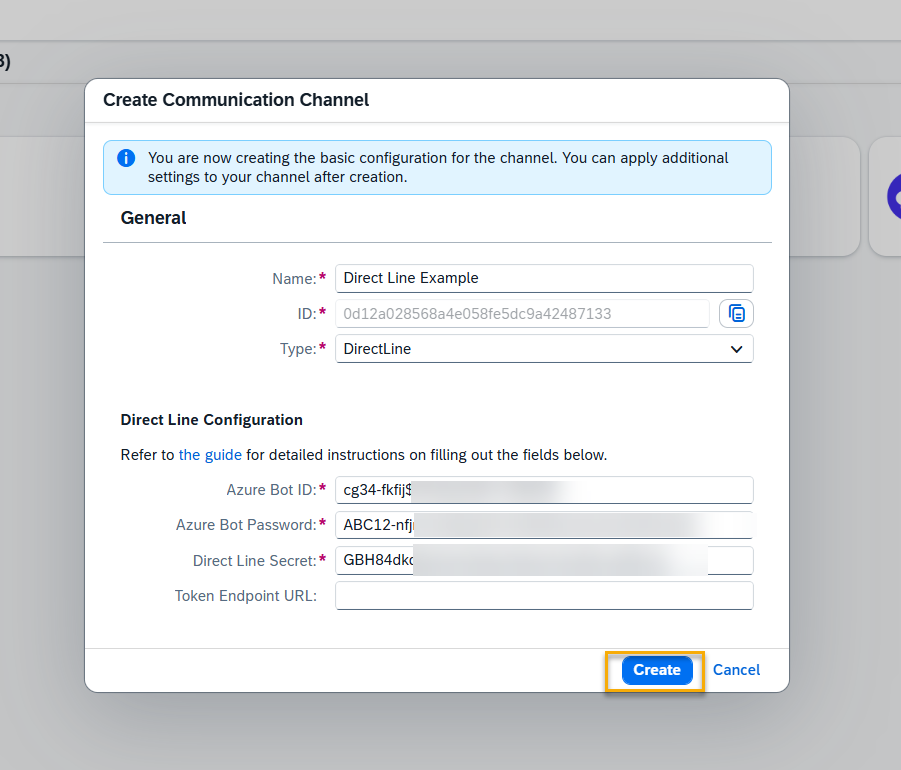
Note: The password values shown are fictitious and are included for demonstration purposes only, to illustrate the expected structure and format.

A new channel is created, and is present on the list. Click on it to edit the settings.
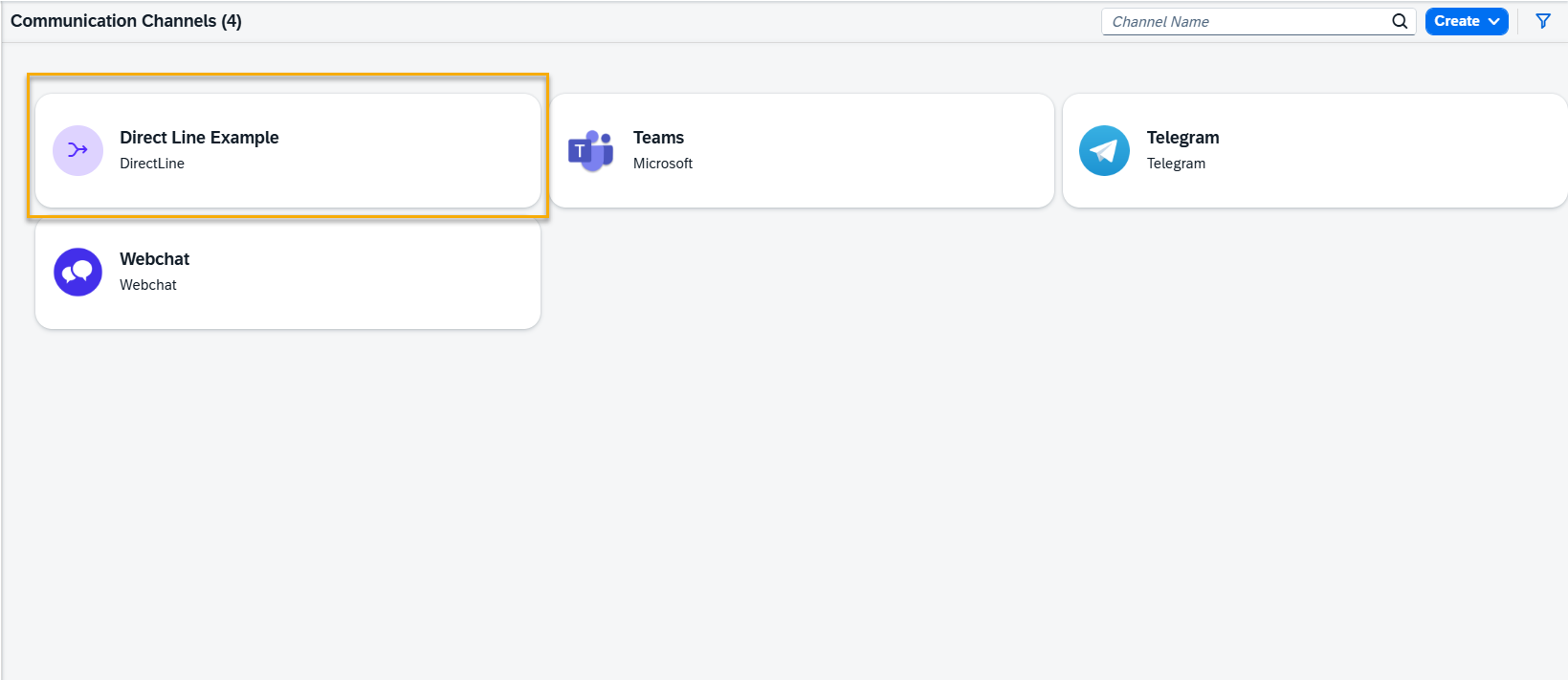
Step 6. Channel Settings.

To configure additional Channel Settings for your channel, click the Edit button.
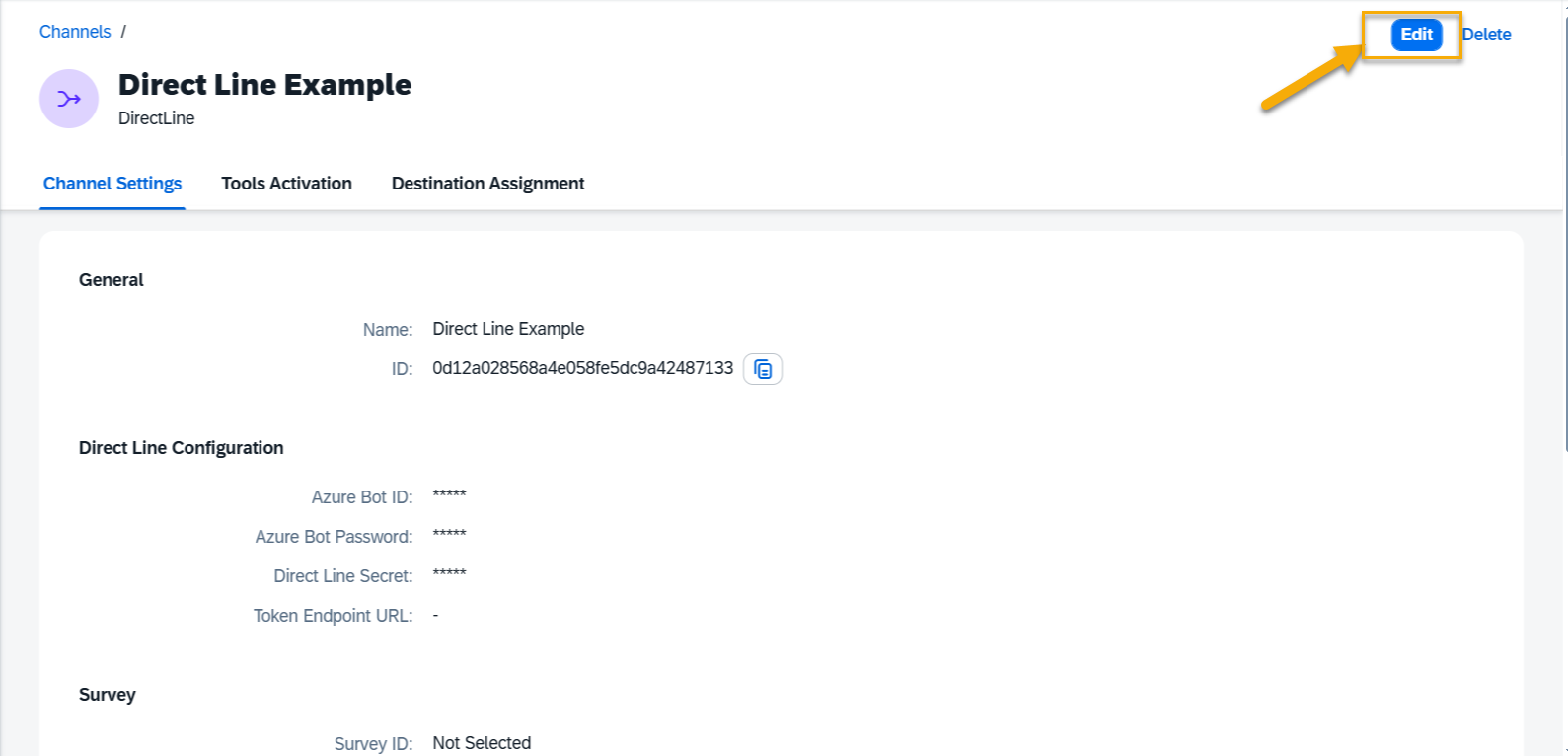
The following is the list of the settings available:

General 

  • Name – editable custom name for the channel
  • ID – not editable, identifier for the channel

Direct Line Configuration

  • Azure Bot Id –  editable
  • Azure Bot Password – editable
  • Direct Line Secret – editable
  • Token Endpoint URL – editable

Survey

  • Survey ID – select exit survey form id and name
  • Send Survey Automatically – On/Off

Authenticated Message

  • Send Initial Authenticated Message – On/Off. When active, a message will be sent when a chat window is opened.
  • Initial Authenticated Message Text – Text of the authenticated message.

Identity Provider

  • Identity Provider Application: choose the Identity Provider application from the list. This must be configured beforehand in the Identity Providers Application (see: Identity Providers)

Memory Retention Policy

  • Retention time — specify the number of days for which chat data will be stored. After this period, the system automatically deletes stored conversation data according to your retention rules.

Step 7. Tools Activation

Once your channel is created, you can activate or deactivate the tools defined within your AI Agent.
For more information, visit: Tools Activation.

Step 8. Destination Assignment

This setting allows you to assign destinations to tools that have backend-connected actions.
For more information, visit: Destination Assignment.

Azure Direct Line Configuration

Step 1. Open the Azure bot.

Go to Azure Portal.
Open Azure Bot (Bot Service).
Select your bot resource. 

Step 2.  Enable the Direct Line channel.

In the bot menu, open Channels.
Under Available channels, select Direct Line.
Click Apply / Save. 

Direct Line is now enabled. Azure creates a default site. 

Step 3. Configure the Direct Line site.

On the Direct Line Channel page, open Default_Site (or click New site).
Set: Site name — e.g. skybuffer-portal
Save.

Step 4. Copy the Direct Line secret.

Open the site configuration.
Under Secret keys, click the eye icon.
Copy Key 1 (this is the site secret, not a token). 

Store this as Direct Line Secret ( DIRECT_LINE_SECRET ) in the Skybuffer channel config.
Do not put this secret in the browser. Only the backend should use it. 

Step 5. Set the Direct Line API URL. 

Default (global):
https://directline.botframework.com/v3/directline 

If the bot is in a regional environment (Europe, etc.), use the regional URL, for example:
https://europe.directline.botframework.com/v3/directline 

Store this in the Token Endpoint URL (TOKEN_ENDPOINT_URL) field.

Was this helpful?

Yes  No
Related Articles
  • Send Email Action
  • Proposing Organizational Mappings
  • Organizational Authorization for Data Sources
  • Authorization Administration
  • Data Source Management
  • ABAP Code Intelligence
Copyright 2022 Skybuffer.com. All Rights Reserved.