• IDD
  • IDD
  • Skybuffer AI
    • Skybuffer AI Installation and Initial Setup
      • On Business Technology Platform (BTP)
        • Skybuffer AI Installation Guide on BTP
      • On Premise: XSA Runtime and SAP HANA EE
        • Installing SAP HANA Including XS Runtime
        • XS Deployment Process
      • Post Installation User Guide
    • AI Agent
      • AI Agent Configurator
        • Register New AI Agent
        • Intents and Entities Creation
        • Tool Creation and Management
        • Actions
          • Message and Content Actions
            • Structured Messages
            • Adaptive Card
            • Sending Notifications
          • Destination Calls Actions
          • Conversation Flow and Memory Actions
          • Process Data Actions
            • Email Processing Action
            • Email Post-Processing Action
            • File Parsing Action
            • Upload File to Document Grounding
          • AI Actions
            • Generative AI Action
            • Document Grounding Action
            • Log Insight Action
            • Tools Orchestration Action
        • Translation
        • Scheduling
        • Communication Channels
          • Tools Activation
          • Destination Assignment
          • Copy the Existing Channel
          • Webchat Communication Channel Setup
          • Facebook Messenger Communication Channel Setup
          • Zoom Communication Channel Setup
          • Slack Communication Channel Setup
          • MS Teams Communication Channel Setup
          • Telegram Communication Channel Setup
          • Viber Communication Channel Setup
          • WhatsApp Communication Channel Setup
          • FLP Chat Communication Channel Setup
          • Background Execution Communication Channel Setup
          • OpenAiCompatible Channel Setup
          • MCP Channel
        • Monitor Section
      • Business AI Scenarios
      • Document Grounding Hub
      • ABAP Code Intelligence
      • Destination Management
      • Vectorized Data Sources
      • Data Source Scenarios Management
      • Emails AI Processing Monitor
      • Models Hub
      • Identity Providers
      • Survey Craft
      • Predefined Response Translator
    • AI Connector
      • AI Connector Configurator
      • AI Connector Logs
      • AWS Integration
      • Twilio Integration
    • SAP Backend for Business AI
      • Business AI Scenarios Package Administration
        • Installation Guide
        • Uninstallation Guide
      • Business AI Scenarios Package Maintenance Guide
        • Product License
        • Configuration of Email Sending Mechanism
          • Configuration Settings
          • Setup of Specific Email Sending Control
        • Technical User Setup
          • Central oData Service Authorization Role Maintenance
          • Technical User ID Creation
        • Assigning Business AI Scenarios to ABAP RIK Classes
        • Simplified User Creation Scenario Setup (Without Approval Workflow)
          • Maintain and Assign Reference Users for User Creation Scenario
          • Activate Notification for New User Creation (Optional)
        • User Creation Scenario Setup with Approval Workflow
          • Configure Approval Workflow for User Creation Scenario
          • Set Up Approval Steps for Different User Types Creation
      • MCP Server
        • MCP Server Configuration in ABAP System
        • MCP Tools Creation
    • Hybrid Chats
      • Hybrid Chats Maintenance Guide
        • Business and Technical Users Setup
          • Create Business and Technical Users
          • Create Business Partners
        • Tenant Configuration
        • Live Pool Management and Configuration
          • Start Live Pool
          • Manage Live Pool
        • System Configuration
          • Configure Status Profile
          • Set Up Technical Messages for Hybrid Chats
        • Hybrid Chats Configuration
        • Hybrid Chats Categorization
          • Categorization Management
          • Categorization Mapping
          • Translate Categories
      • Hybrid Chats User Manual
        • Language settings and RTL Support
        • Hybrid Chats
          • HC Archive Mode
          • HC Active Mode
        • HC My Data
          • Edit Personal Data and Profile Picture
          • Default Settings Management
          • Notification and Dialogue Manual Mode Management
          • Quick Replies Management
            • Standard User Mode - Quick Replies
            • Administrator User Mode - Quick Replies
        • HC Analytics
          • HC Analytics
          • Operator Activity Analytics
          • Exit Survey Analytics
        • HC Teams
          • Access HC Teams Application
          • Create New Team
          • Create New Team Member
          • Edit Agent
          • Edit Team Name
    • HOW-TO Guides
      • Exchange On-Premises Shared Mailbox Integration
      • MS Teams Integration. Single Sign-On
        • Create Azure Bot Service
        • Configure Azure Bot Service and Connect to the AI Agent MS Teams Channel
        • Create Middleware SSO Application
        • Configure Bot Service Application SSO
        • Create Azure AD Enterprise Application for SAP Backend
        • Configure oAuth2 in SAP System
        • Assign Identity Provider in AI Agent Channel Configuration
        • Deploy Your App into Microsoft Teams
        • Managing Application Keys
      • Office 365 Shared Mailboxes (IMAP) Integration
      • SAP AI Core Integration. Ollama Server Setup
      • DGX Spark Server Configuration
      • Skybuffer AI PoC Setup
        • SAP BTP
      • MS SharePoint Integration. Add-in Registration
      • Job Scheduler Services Creation
    • Troubleshooting
      • Edge Browser Access Issue

ABAP Code Intelligence

8 views 0

ABAP Code Intelligence Overview

ABAP Code Intelligence provides automated analysis and documentation generation for ABAP development objects from connected SAP systems. The application stores generated artifacts in a dedicated document grounding space, making technical documentation, Clean Core recommendations, user manuals, and object-related insights searchable and available to both users and AI agents.

The scope of analyzed objects and generated document types is determined by the configuration of each SAP destination in the Destination Management Application (link here).

Key Features

  • Automated extraction and analysis of ABAP development objects from connected SAP systems
  • AI-generated technical and functional documentation
  • Clean ABAP and Clean Core recommendations
  • Support for multiple ABAP object types, including classes (CLAS) and programs (PROG)
  • AI-ready knowledge base powered by vectorized ABAP content
  • Grounded Search Simulation for testing AI responses

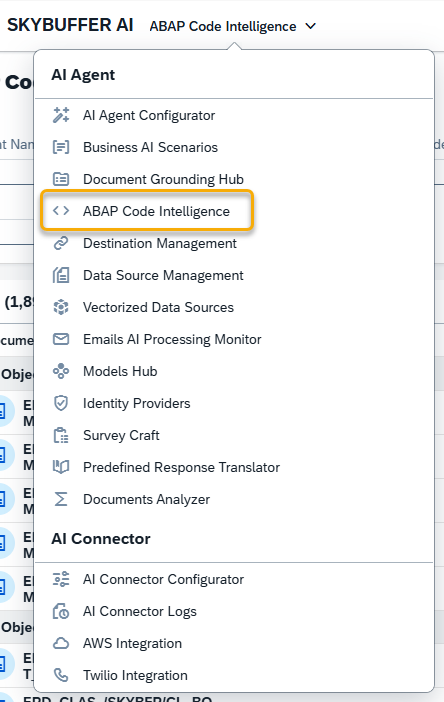
Step 1. Open the ABAP Code Intelligence application in the AI Agent group:
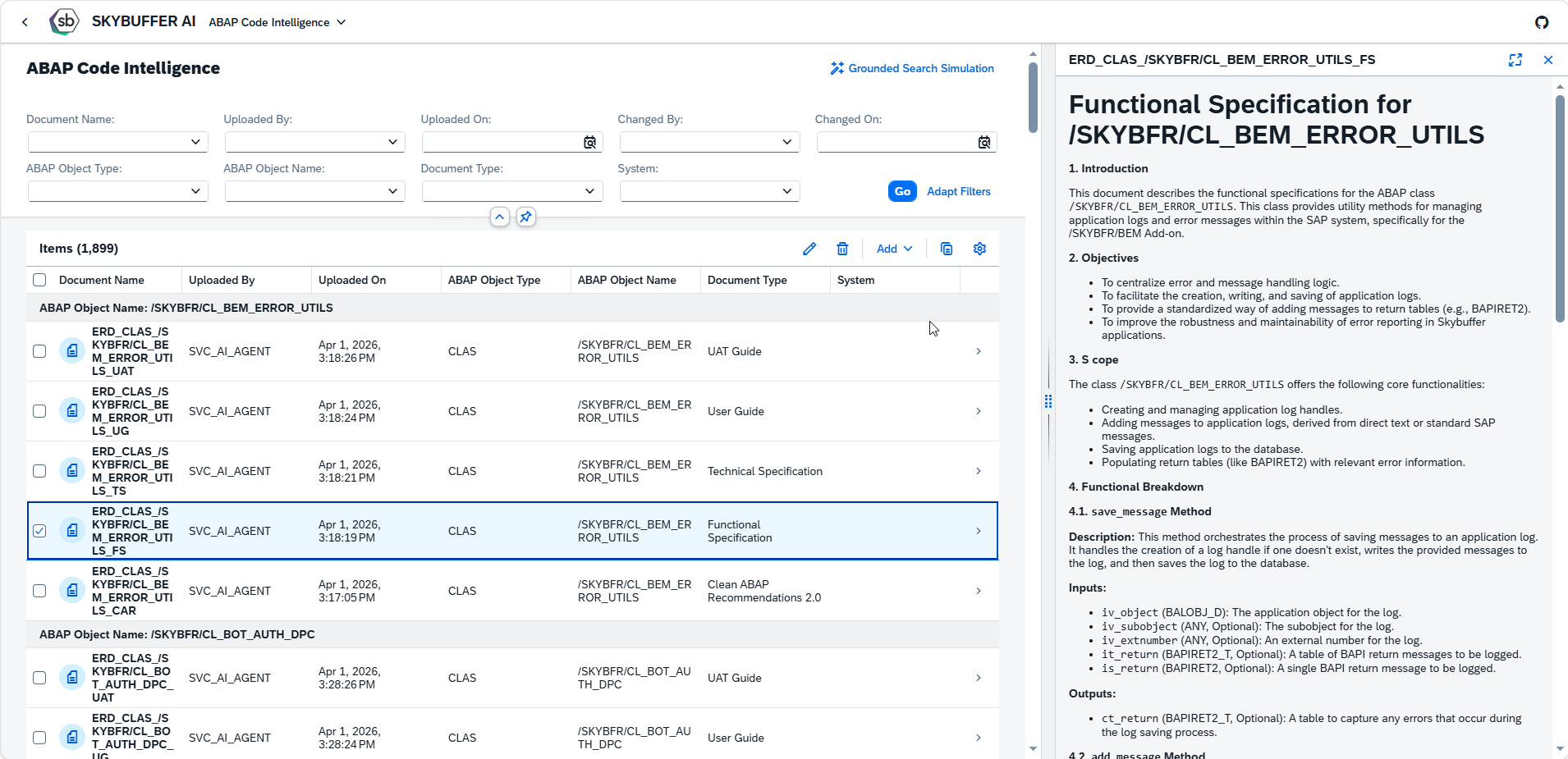
Here is the main application view:

ABAP Object Groups and Documents

Results are grouped by ABAP object.

Each group represents a single ABAP development object and contains all generated documentation and recommendations associated with that object.

Example:

ABAP Object Name: /SKYBFR/CL_BEM_ERROR_UTILS

Available generated artifacts:

  • UAT Guide
  • User Guide
  • Technical Specification
  • Functional Specification
  • Clean ABAP Recommendations

Selecting a document opens its content for review.
ABAP Object Types

The application currently supports the following ABAP object types:

CLAS (ABAP Class)

Represents an ABAP class. The application analyzes the object and generates documentation and recommendations based on its implementation.

PROG (ABAP Program)

Represents an executable ABAP program. The application analyzes the object and generates documentation and recommendations based on its implementation.

Document Types

For each supported ABAP object, the system generates multiple documentation artifacts.

  • Functional Specification: describes the business purpose and functional behavior of the ABAP object.
  • Technical Specification: provides a technical description of the implementation.
  • User Guide: explains how the functionality is used from an end-user perspective.
  • UAT Guide: provides testing guidance for User Acceptance Testing activities.
  • Clean ABAP Recommendations: contains AI-generated recommendations based on Clean ABAP and Clean Core principles.

Step 2. Filtering options

Press the icon on the right side of each filter to see possible options or type in a value for search. You can also start typing in, and matching options will appear.

Filter Description
Document Name Search by generated document name.
Uploaded By Filter documents by the user or service that generated them.
Uploaded On Filter by document creation date.
Changed By Filter by the last user who modified the document.
Changed On Filter by the date of the last modification.
ABAP Object Type Filter by ABAP object category (for example CLAS or PROG).
ABAP Object Name Search for a specific ABAP object.
Document Type Filter by generated document category.
System Filter documents by connected SAP system.

Press the Go button or press Enter on keyboard to see the search results:

Click Adapt Filters to choose which filters should be visible.
Tick or Untick Fields to show/hide them.
Use up/down arrows to change order of filters.
Finally, press OK to save changes.

Step 3. Grounded Search Simulation

Grounded Search Simulation allows users to test how AI-powered assistants retrieve and use information from the ABAP Code Intelligence repository. Press the Grounded Search Simulation button and write a search phrase in the search field.
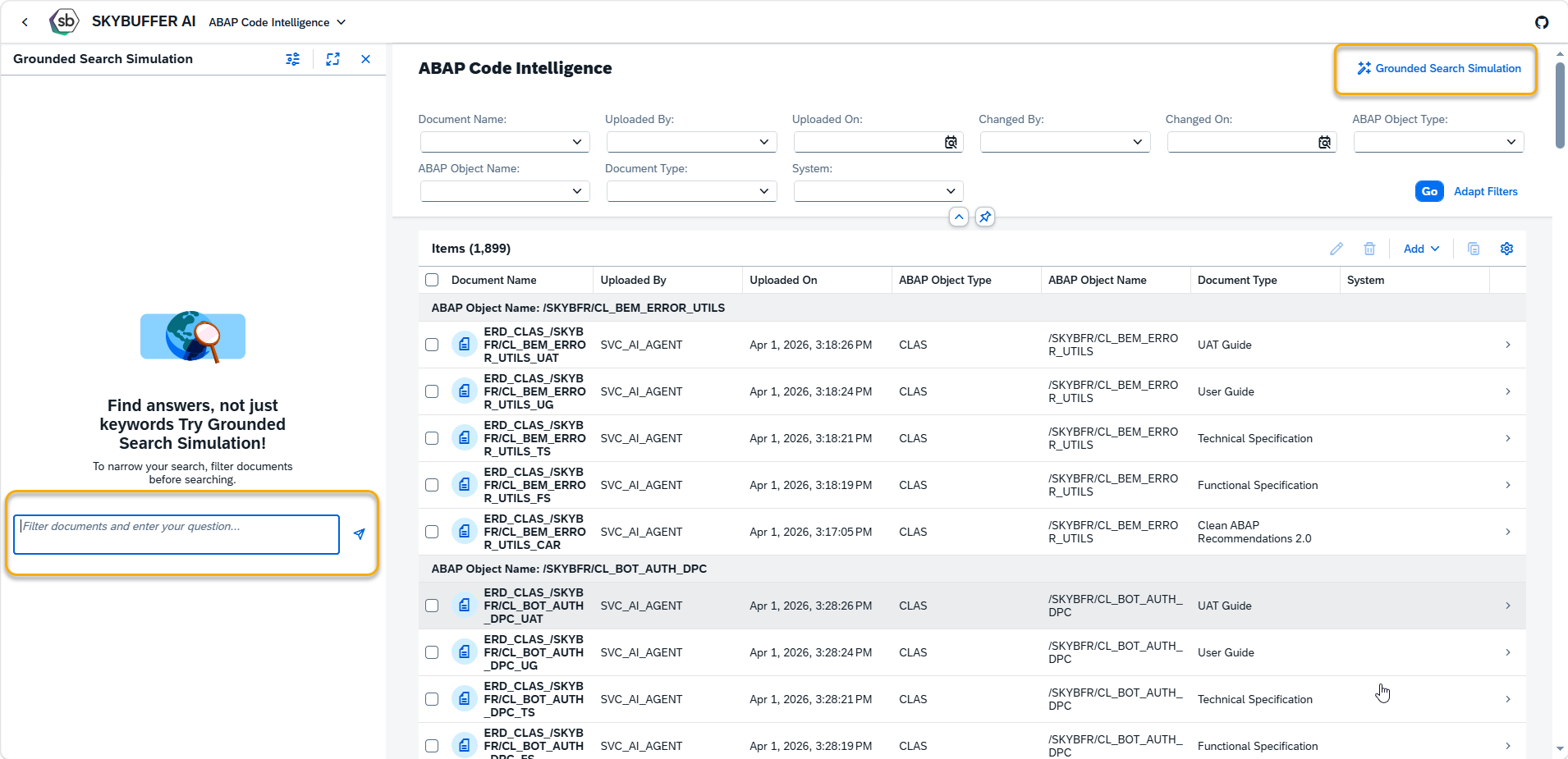


The simulation demonstrates how generated documentation and Clean ABAP recommendations are used as grounding sources for AI responses.

Example Question: What is the purpose of /SKYBFR/CL_BEM_ERROR_UTILS?

Here we have first two results from User Guide and Functional Specification explaining what this ABAP class does.
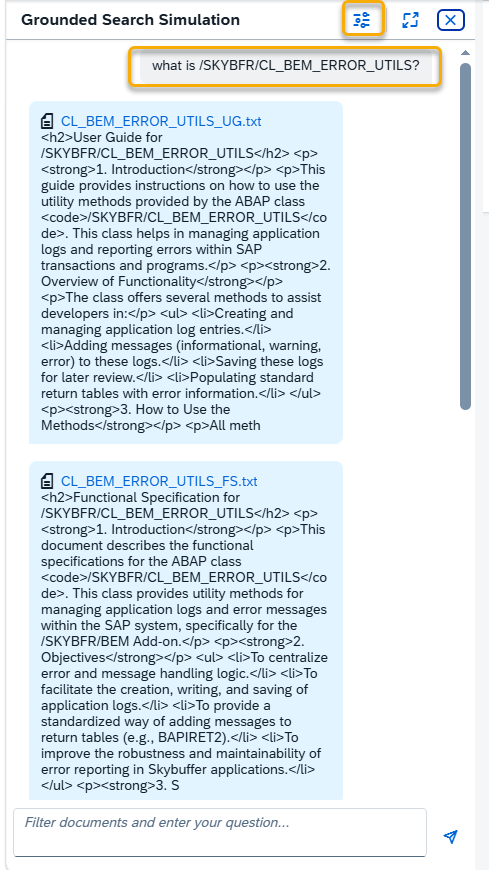
You can modify number of results and search accuracy ( strictness) by pressing the settings button.
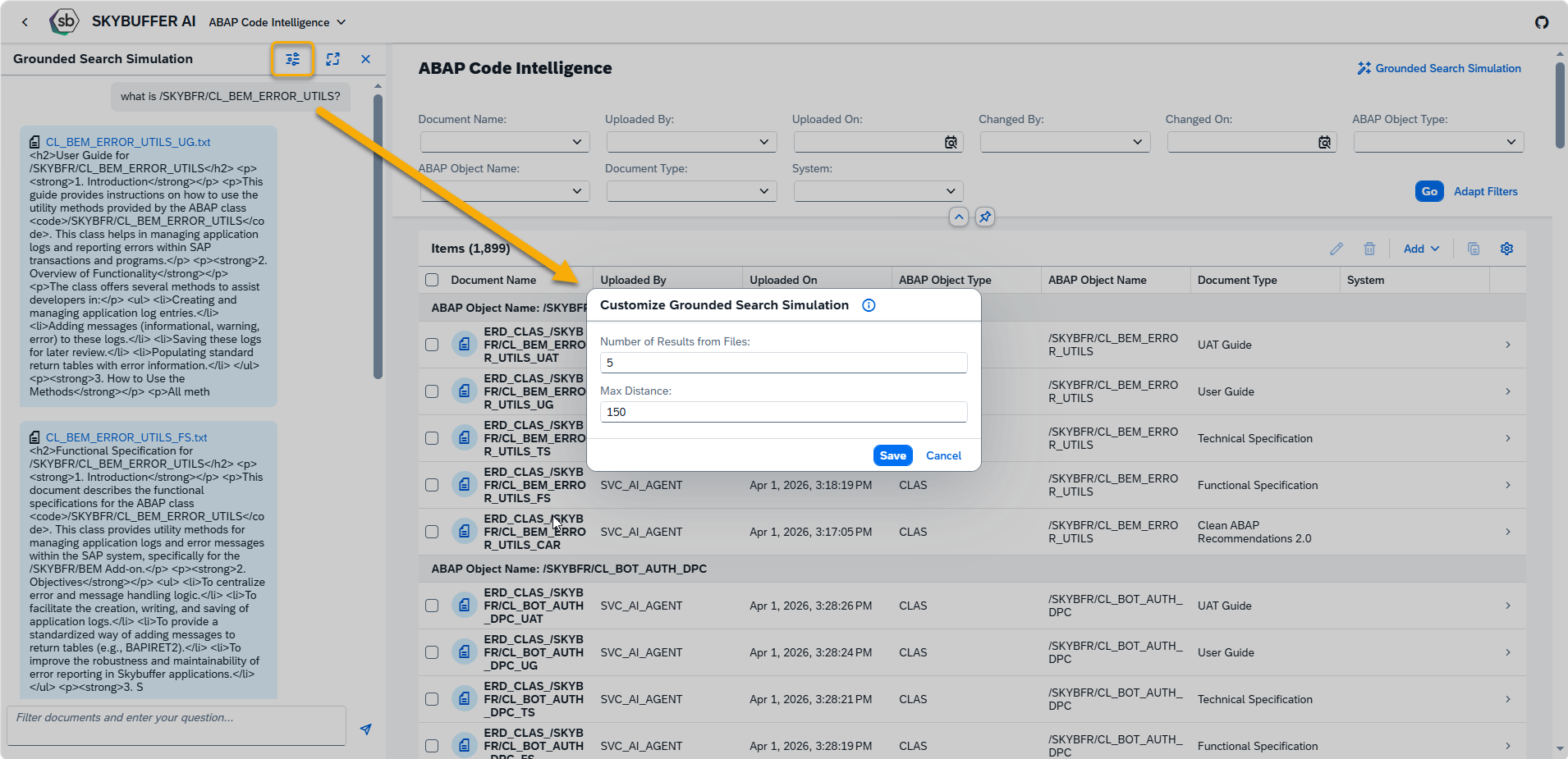
This feature helps evaluate the quality of the generated knowledge base before it is consumed by AI assistants or agents.

Step 4. Manual upload

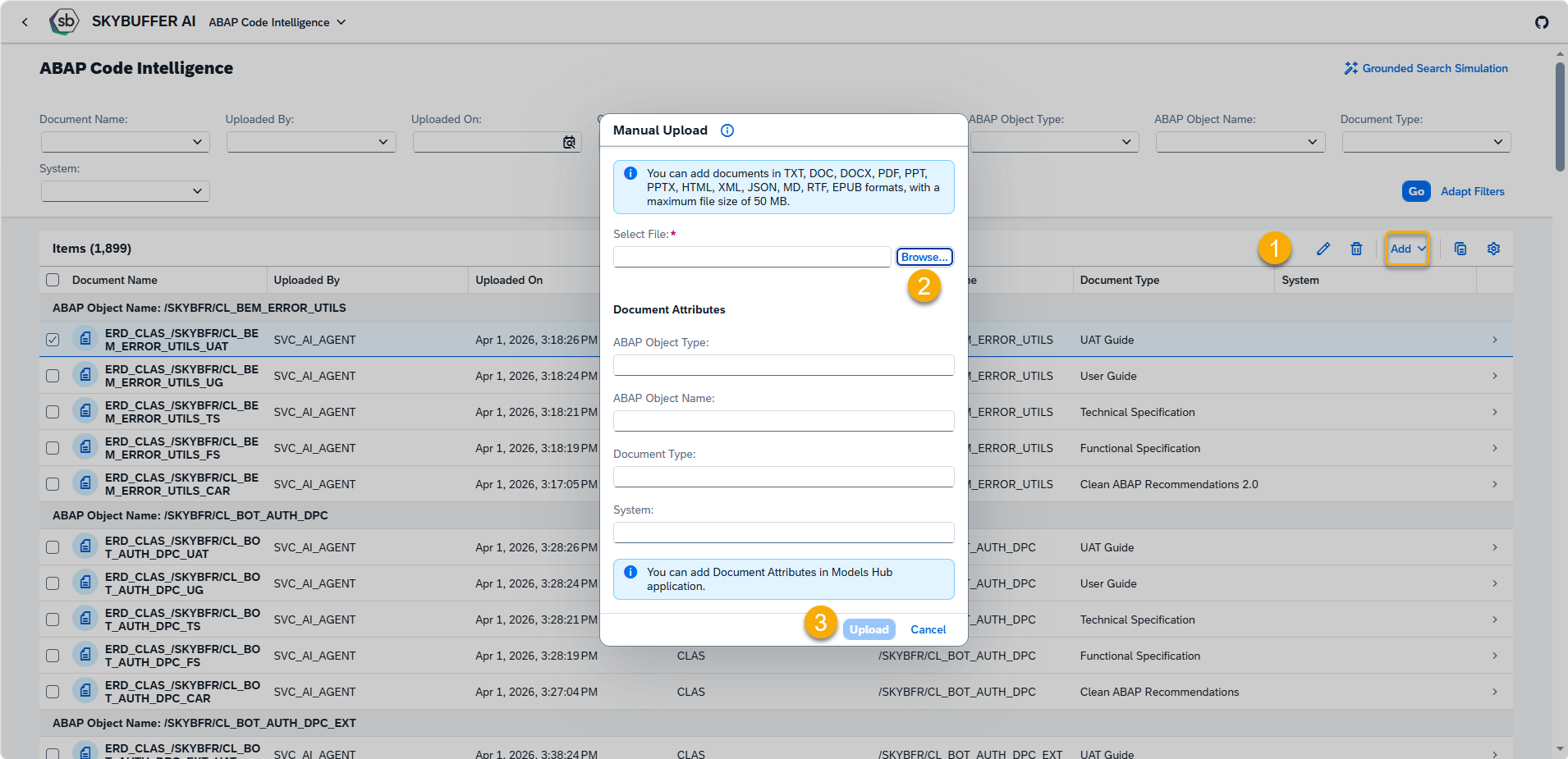
If you want to manually upload a document from your local storage for vectorization click on Add button. If the document changes later, you’ll need to reupload it to ensure the vectorized content reflects the latest version.

Fill in any required document attributes.

Click Upload to begin the document upload and vectorization process.
Step 5. Edit document

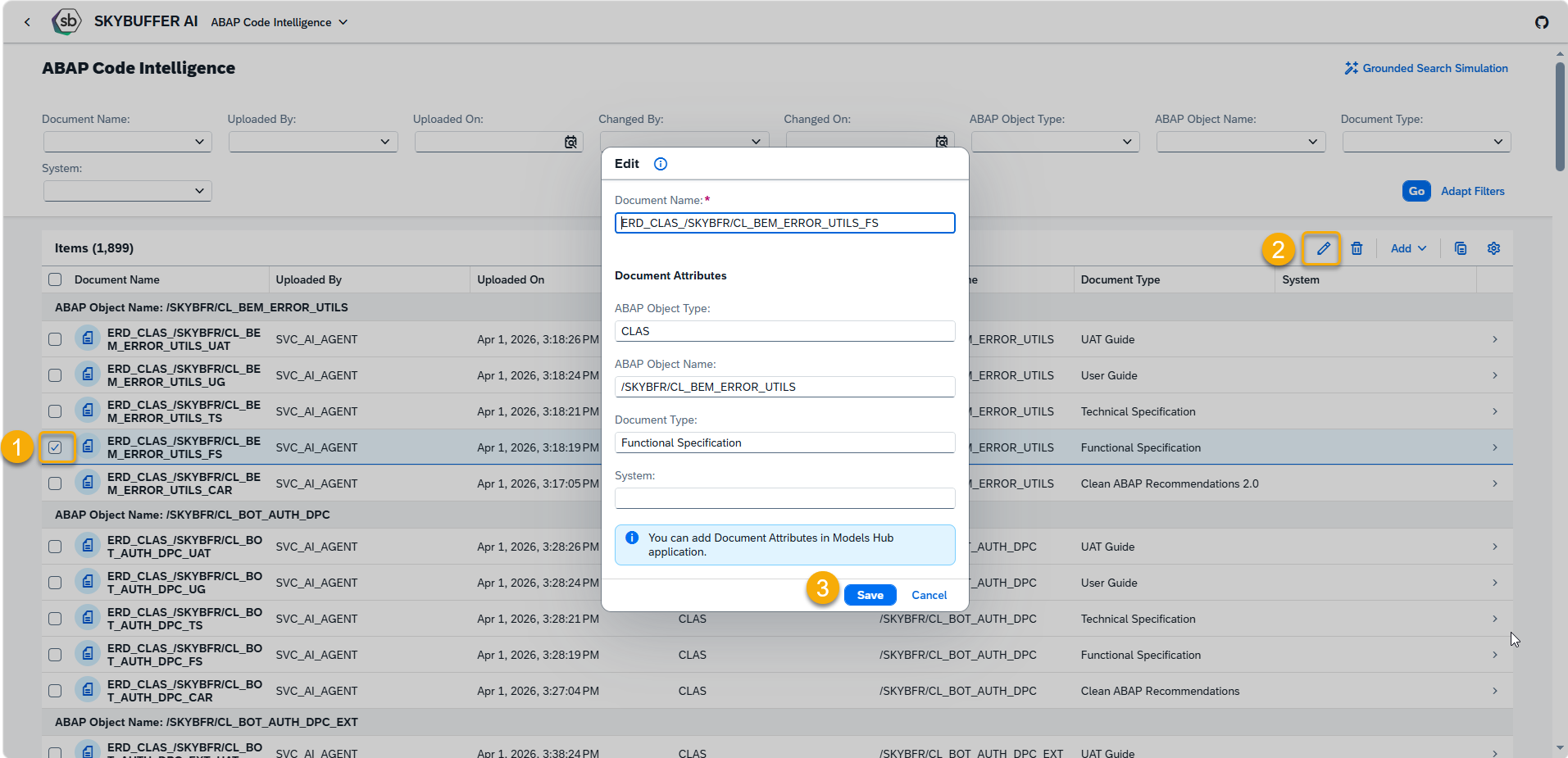
Select document you would like to edit and click Pen icon. You can change Document Name and Documnet Attributes.

Remember to save you entries.
Step 6. Delete Document

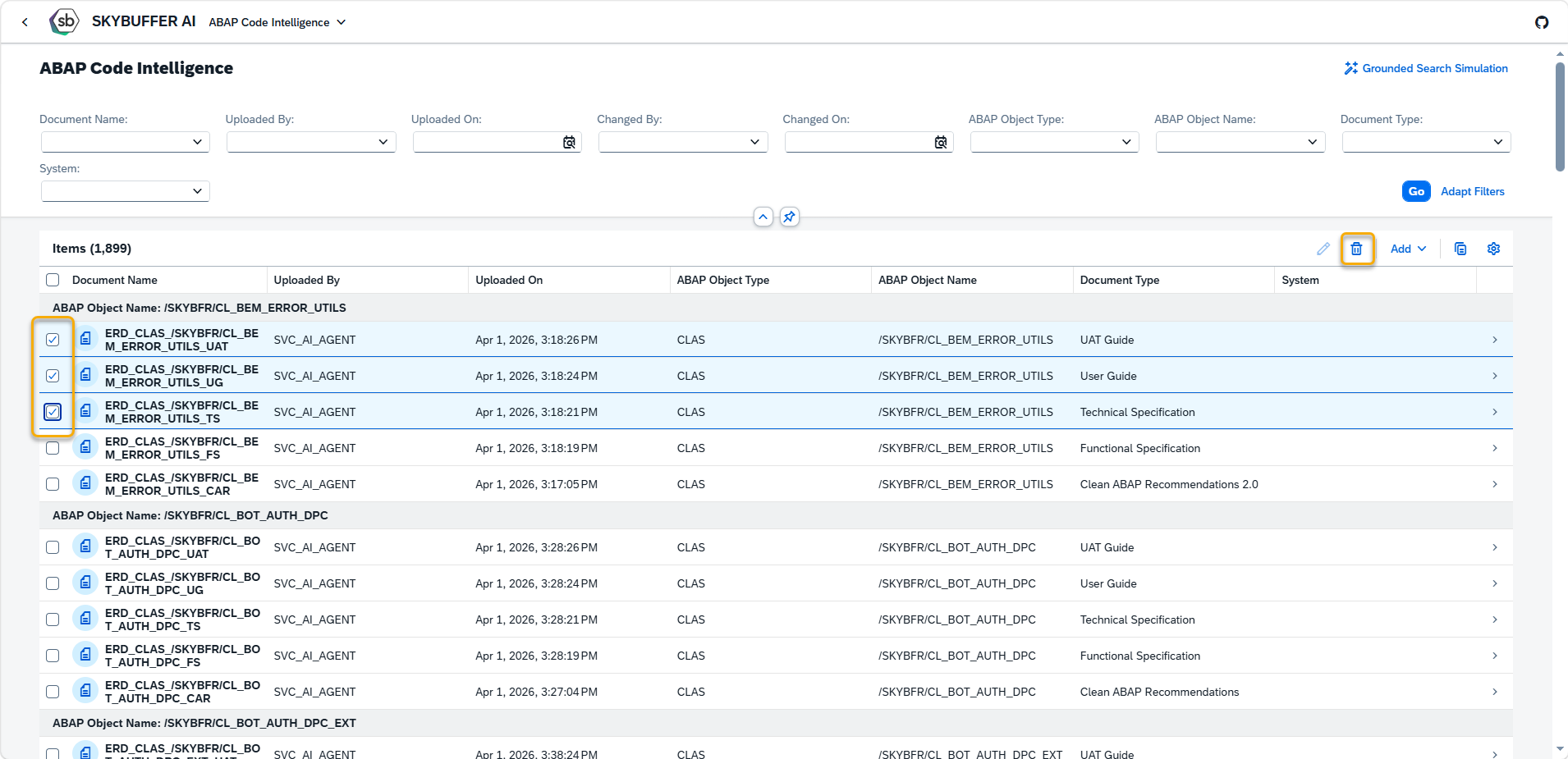
Select one or multiple documents and press the Bin button. Confirm deletion when prompted.
Was this helpful?

Yes  No
Related Articles
  • Language settings and RTL Support
  • Vectorized Data Sources
  • Exchange On-Premises Shared Mailbox Integration
  • MCP Server Configuration in ABAP System
  • MCP Tools Creation
  • Upload File to Document Grounding
Copyright 2022 Skybuffer.com. All Rights Reserved.