The Direct Line channel type allows external applications and tools to communicate with the solution through the Microsoft Direct Line API. It provides a way to connect conversational agents while keeping the communication between the client, Direct Line service, and backend secure and consistent.
The channel also supports Single Sign-On (SSO) through Microsoft Entra ID, allowing the user’s identity to be maintained across the conversation. This makes Direct Line suitable for integrating the solution with external Microsoft tools and agent-based applications.
Channel Creation
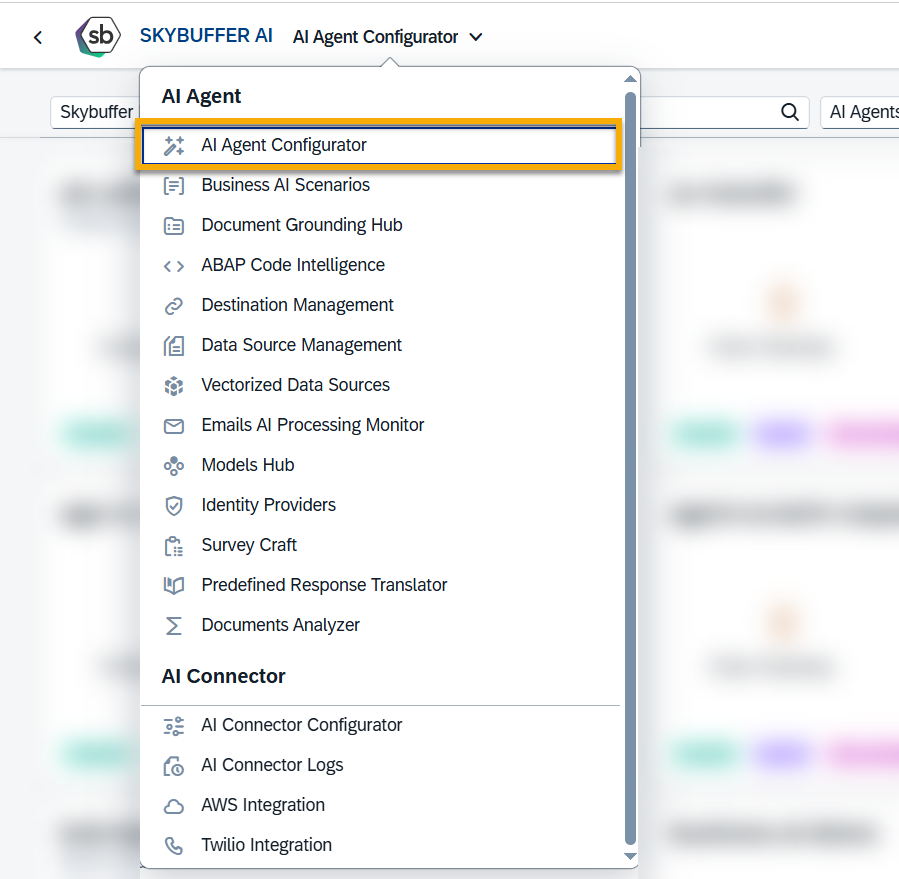
Step 1. Open the AI Agent Configurator application in the AI Agent group.
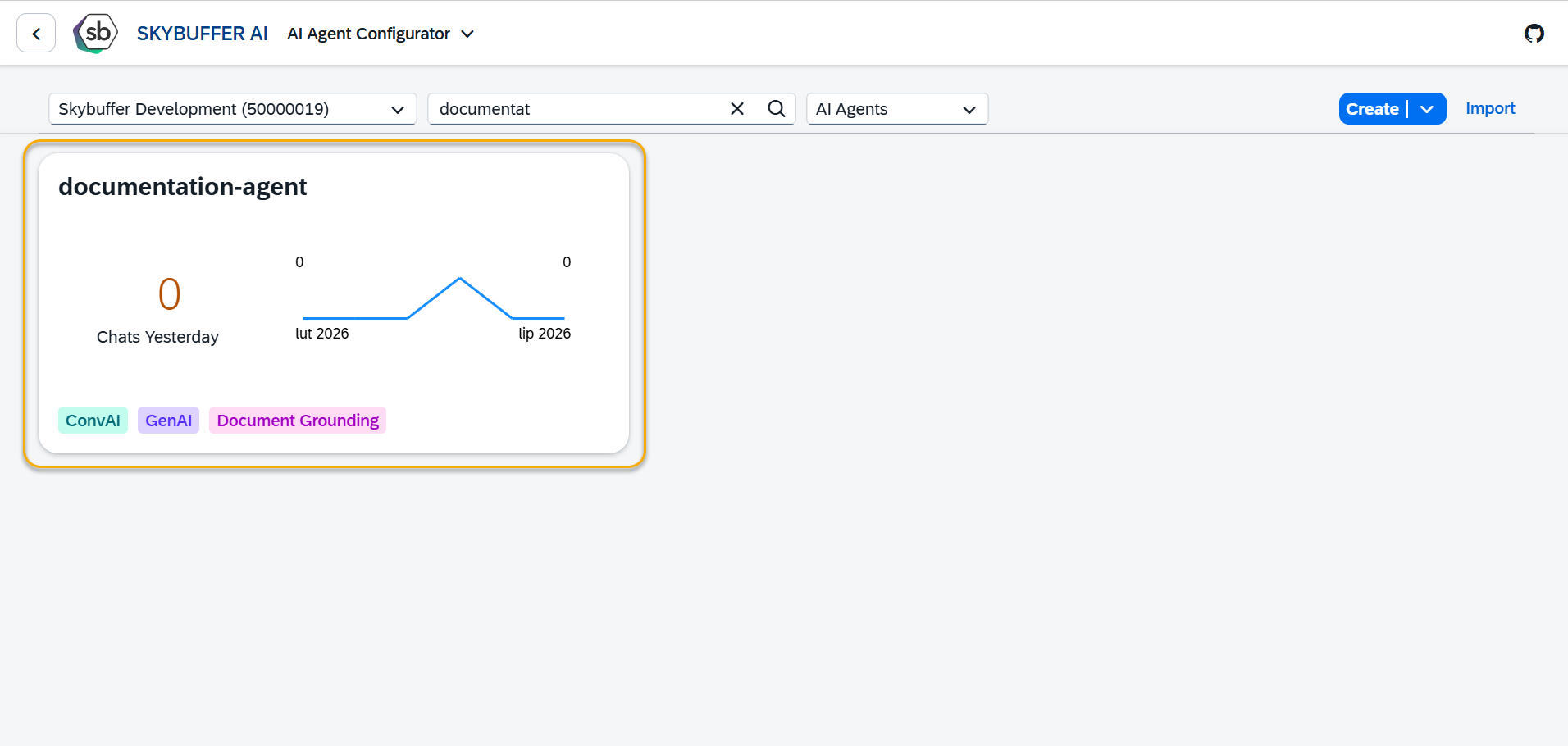
Step 2. After opening the application, you will see a screen displaying all available AI Agents. Each tile represents one Agent, including its name, description, and deployment status. Click on the Agent you want to work with to proceed.
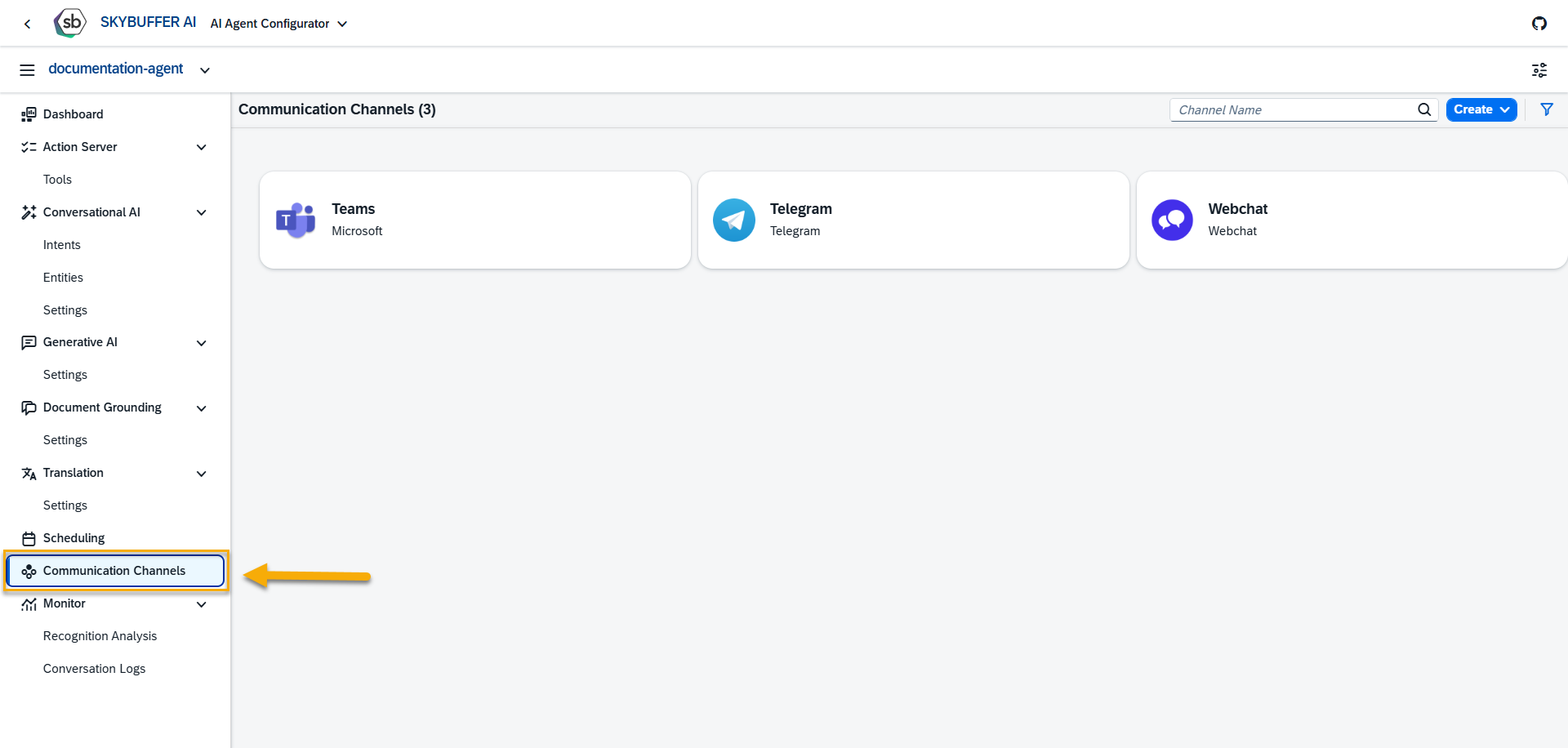
Step 3. Open the Channel management application of Communication Channels.
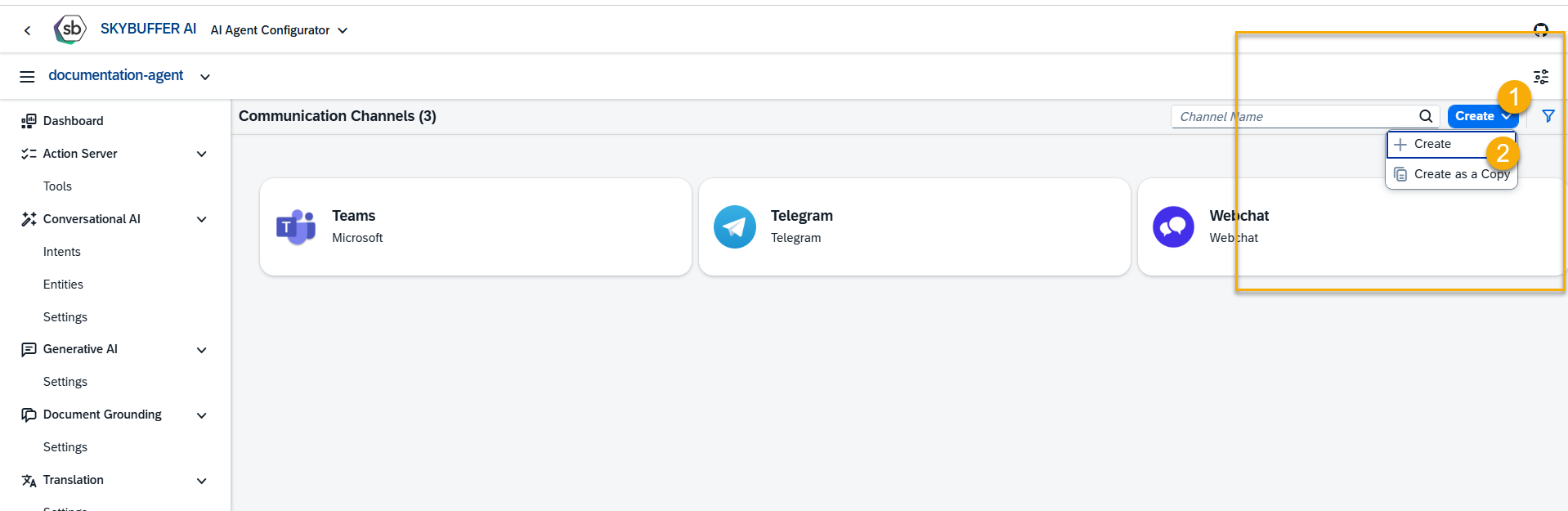
Step 4. Channel creation.
You can create a new channel from scratch or Copy the Existing Channel.
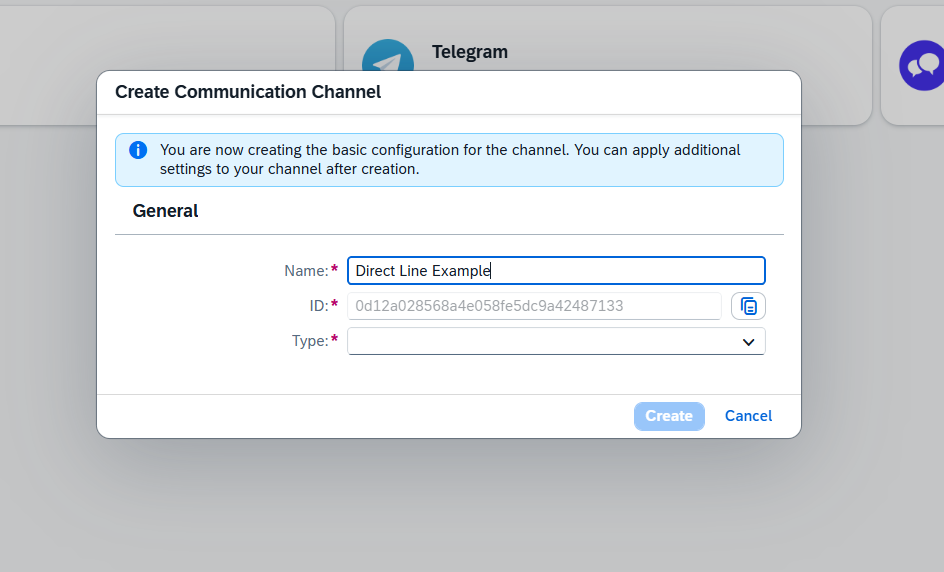
To create a new channel, click the Create button:
Step 5. Initial Parameters
Fill in the initial parameters for the new channel. The form includes:
- Channel Name — follow your organization’s naming convention.
- Channel ID — this field is auto-generated.
- Channel Type — select from a dropdown list of available types (e.g. Webchat, Microsoft, Telegram).
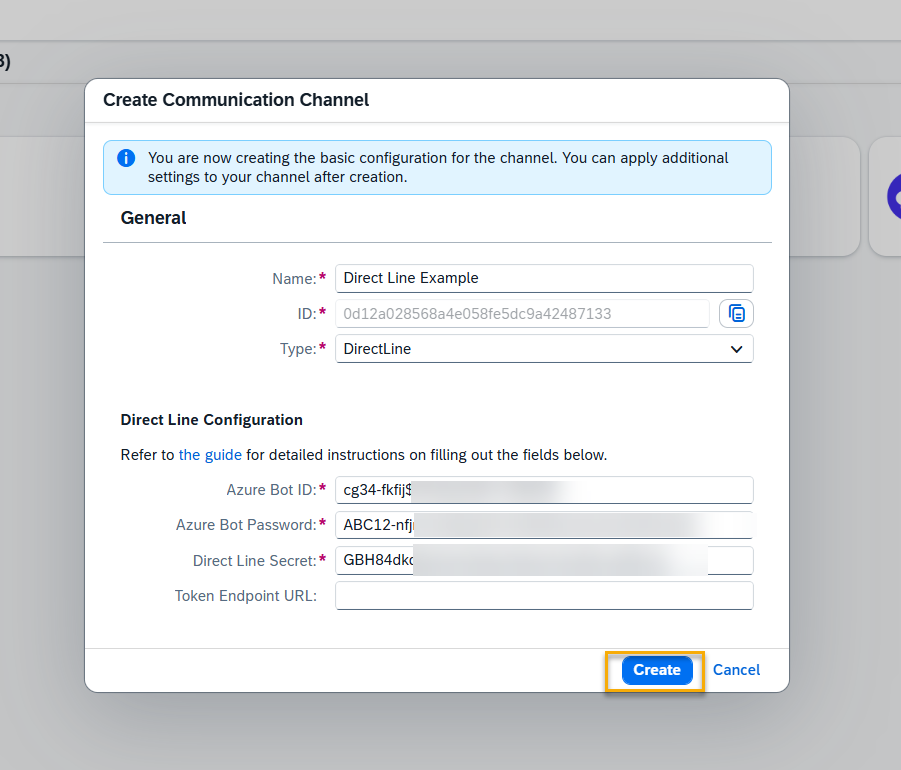
Once the Direct Line channel type is selected, additional fields appear. Fill in the remaining information:
- Azure Bot ID – should be provided by Azure Administrator.
- Azure Bot Password – should be provided by Azure Administrator.
- Direct Line Secret – should be provided by Azure Administrator. Scroll down to the Azure Direct Line Configuration section for details on how to generate it.
- Token Endpoint URL – should be provided by Azure Administrator. Optional field necessary if a regional url is used.
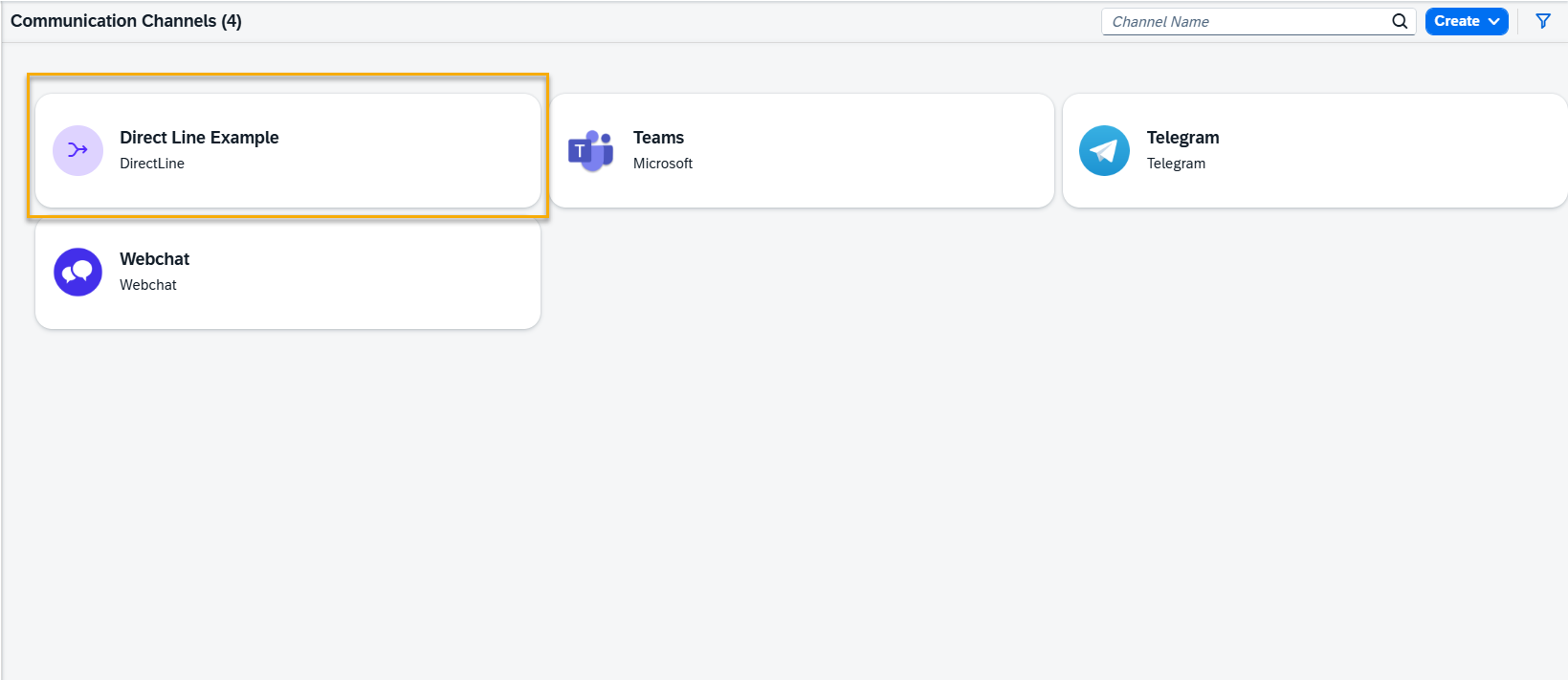
A new channel is created, and is present on the list. Click on it to edit the settings.
Step 6. Channel Settings.
To configure additional Channel Settings for your channel, click the Edit button.
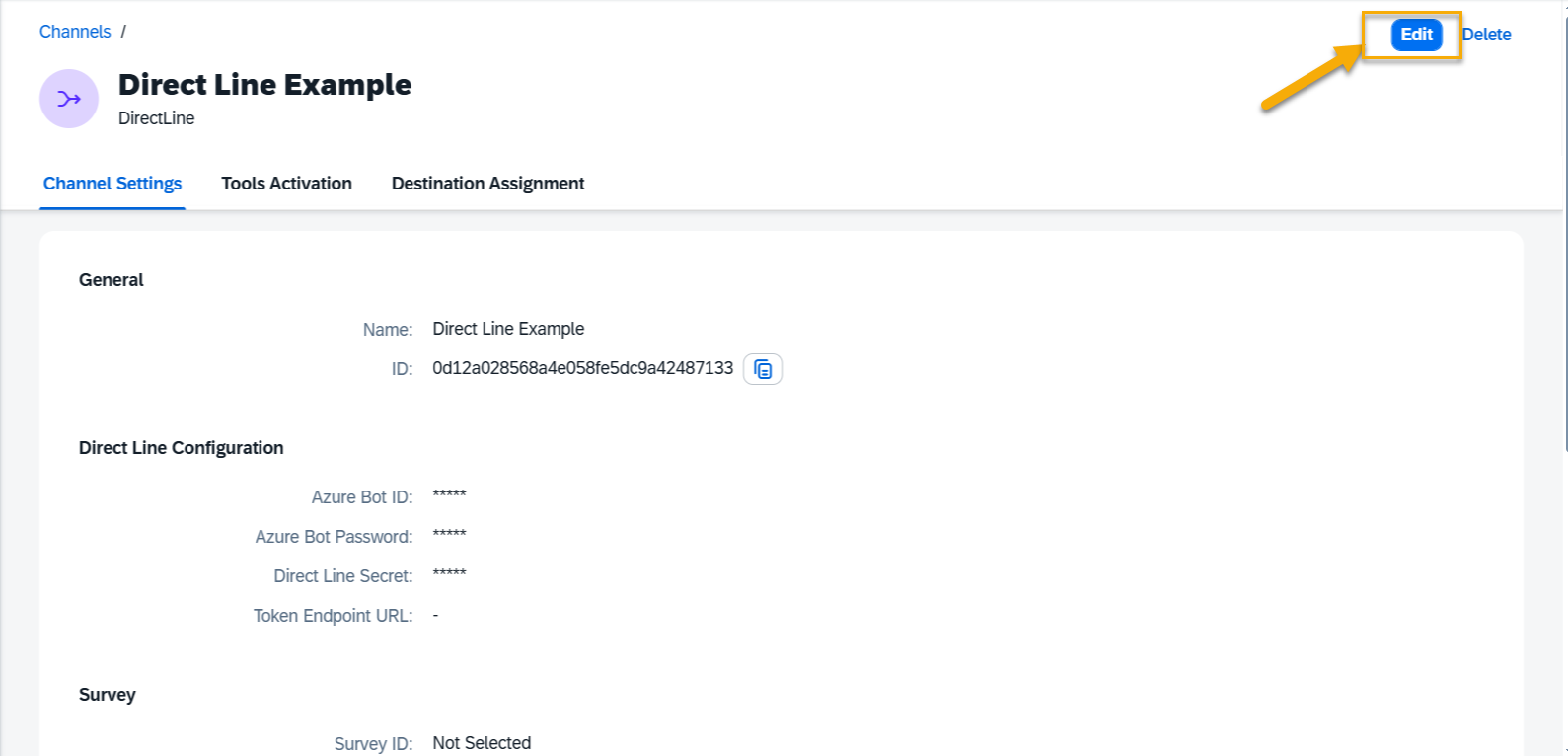
The following is the list of the settings available:
General
- Name – editable custom name for the channel
- ID – not editable, identifier for the channel
Direct Line Configuration
- Azure Bot Id – editable
- Azure Bot Password – editable
- Direct Line Secret – editable
- Token Endpoint URL – editable
Survey
- Survey ID – select exit survey form id and name
- Send Survey Automatically – On/Off
Authenticated Message
- Send Initial Authenticated Message – On/Off. When active, a message will be sent when a chat window is opened.
- Initial Authenticated Message Text – Text of the authenticated message.
Identity Provider
- Identity Provider Application: choose the Identity Provider application from the list. This must be configured beforehand in the Identity Providers Application (see: Identity Providers)
Memory Retention Policy
- Retention time — specify the number of days for which chat data will be stored. After this period, the system automatically deletes stored conversation data according to your retention rules.
Step 7. Tools Activation
Once your channel is created, you can activate or deactivate the tools defined within your AI Agent.
For more information, visit: Tools Activation.
Step 8. Destination Assignment
This setting allows you to assign destinations to tools that have backend-connected actions.
For more information, visit: Destination Assignment.
Azure Direct Line Configuration
Step 1. Open the Azure bot.
Go to Azure Portal.
Open Azure Bot (Bot Service).
Select your bot resource.
Step 2. Enable the Direct Line channel.
In the bot menu, open Channels.
Under Available channels, select Direct Line.
Click Apply / Save.


Direct Line is now enabled. Azure creates a default site.
Step 3. Configure the Direct Line site.
On the Direct Line Channel page, open Default_Site (or click New site).
Set: Site name — e.g. skybuffer-portal
Save.


Step 4. Copy the Direct Line secret.
Open the site configuration.
Under Secret keys, click the eye icon.
Copy Key 1 (this is the site secret, not a token).
Store this as Direct Line Secret ( DIRECT_LINE_SECRET ) in the Skybuffer channel config.
Do not put this secret in the browser. Only the backend should use it.
Step 5. Set the Direct Line API URL.
Default (global):
https://directline.botframework.com/v3/directline
If the bot is in a regional environment (Europe, etc.), use the regional URL, for example:
https://europe.directline.botframework.com/v3/directline
Store this in the Token Endpoint URL (TOKEN_ENDPOINT_URL) field.