Email Processing Action
Action used to automatically process inbound emails received through an Email Destination configured in the Models Hub.
Step 1. Create an Email Processing Action by pressing the button Process Data at the bottom of an Action Group:

Step 2. A new Email Processing Action will appear and be ready to be filled in. Let’s set up this block step by step.
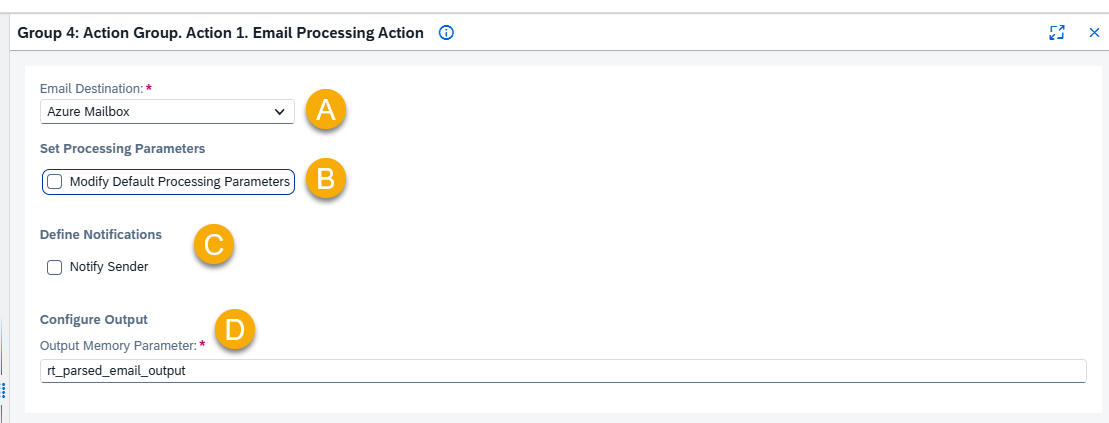 A – Email Destination
Select an Inbound Email Destination created in the Models Hub.
This destination provides the email source that the Email Processing Action will monitor and process. Hre you can find instructions how to create an Inbound Email Destination: Models Hub
B – Set Processing Parameters
Tick the box if you want to make some changes in the default processing parameters.

Order: Specify whether to begin processing from the newest or oldest emails.
Start Date: Select the date from which email processing should begin.
NOTE: If the date is not defined, the respective value from Models Hub will be taken as a Default.
C –Define Notifications
Enable Notify Sender if you want the sender to receive an automated notification when processing begins.
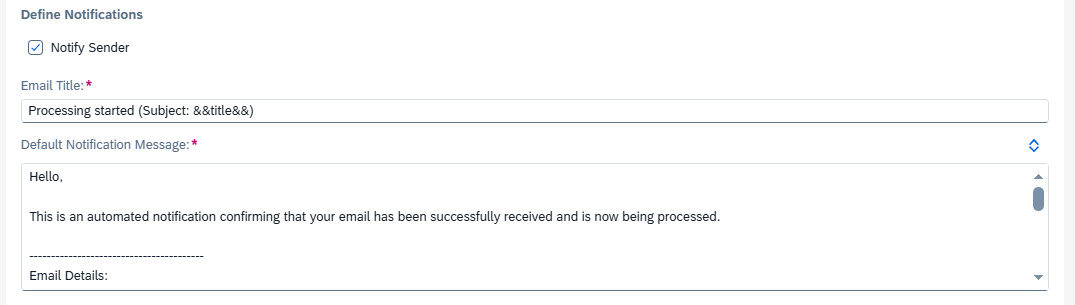
Email Title: Enter the subject line of the notification email. Supports variables such as &&referenceId&&.
Default Notification Message: This is the default message body sent to the email sender, you can modify it if needed:
D – Configure Output
Output Memory Parameter: Select the memory parameter where parsed email data will be saved for further processing.
Default: rt_parsed_email_output.