• IDD
  • IDD
  • Job Scheduler Services Creation
  • Skybuffer AI
    • Skybuffer AI Installation and Initial Setup
      • On Business Technology Platform (BTP)
        • Skybuffer AI Installation Guide on BTP
      • On Premise: XSA Runtime and SAP HANA EE
        • Installing SAP HANA Including XS Runtime
        • XS Deployment Process
      • Post Installation User Guide
    • AI Agent
      • AI Agent Configurator
        • Register New AI Agent
        • Intents and Entities Creation
        • Tool Creation and Management
        • Actions
          • Message and Content Actions
            • Structured Messages
            • Adaptive Card
            • Sending Notifications
          • Destination Calls Actions
          • Conversation Flow and Memory Actions
          • Process Data Actions
            • Email Processing Action
            • Email Post-Processing Action
            • File Parsing Action
            • Upload File to Document Grounding
          • AI Actions
            • Generative AI Action
            • Document Grounding Action
            • Log Insight Action
            • Tools Orchestration Action
        • Translation
        • Scheduling
        • Communication Channels
          • Tools Activation
          • Destination Assignment
          • Copy the Existing Channel
          • Webchat Communication Channel Setup
          • Facebook Messenger Communication Channel Setup
          • Zoom Communication Channel Setup
          • Slack Communication Channel Setup
          • MS Teams Communication Channel Setup
          • Telegram Communication Channel Setup
          • Viber Communication Channel Setup
          • WhatsApp Communication Channel Setup
          • FLP Chat Communication Channel Setup
          • Background Execution Communication Channel Setup
          • OpenAiCompatible Channel Setup
          • MCP Channel
        • Monitor Section
      • Business AI Scenarios
      • Document Grounding Hub
      • Destination Management
      • Vectorized Data Sources
      • Data Source Scenarios Management
      • Emails AI Processing Monitor
      • Models Hub
      • Identity Providers
      • Survey Craft
      • Predefined Response Translator
    • AI Connector
      • AI Connector Configurator
      • AI Connector Logs
      • AWS Integration
      • Twilio Integration
    • SAP Backend for Business AI
      • Business AI Scenarios Package Administration
        • Installation Guide
        • Uninstallation Guide
      • Business AI Scenarios Package Maintenance Guide
        • Product License
        • Configuration of Email Sending Mechanism
          • Configuration Settings
          • Setup of Specific Email Sending Control
        • Technical User Setup
          • Central oData Service Authorization Role Maintenance
          • Technical User ID Creation
        • Assigning Business AI Scenarios to ABAP RIK Classes
        • Simplified User Creation Scenario Setup (Without Approval Workflow)
          • Maintain and Assign Reference Users for User Creation Scenario
          • Activate Notification for New User Creation (Optional)
        • User Creation Scenario Setup with Approval Workflow
          • Configure Approval Workflow for User Creation Scenario
          • Set Up Approval Steps for Different User Types Creation
      • MCP Server
        • MCP Server Configuration in ABAP System
        • MCP Tools Creation
    • Hybrid Chats
      • Hybrid Chats Maintenance Guide
        • Business and Technical Users Setup
          • Create Business and Technical Users
          • Create Business Partners
        • Tenant Configuration
        • Live Pool Management and Configuration
          • Start Live Pool
          • Manage Live Pool
        • System Configuration
          • Configure Status Profile
          • Set Up Technical Messages for Hybrid Chats
        • Hybrid Chats Configuration
        • Hybrid Chats Categorization
          • Categorization Management
          • Categorization Mapping
          • Translate Categories
      • Hybrid Chats User Manual
        • Hybrid Chats
          • HC Archive Mode
          • HC Active Mode
        • HC My Data
          • Edit Personal Data and Profile Picture
          • Default Settings Management
          • Notification and Dialogue Manual Mode Management
          • Quick Replies Management
            • Standard User Mode - Quick Replies
            • Administrator User Mode - Quick Replies
        • HC Analytics
          • HC Analytics
          • Operator Activity Analytics
          • Exit Survey Analytics
        • HC Teams
          • Access HC Teams Application
          • Create New Team
          • Create New Team Member
          • Edit Agent
          • Edit Team Name
    • HOW-TO Guides
      • Exchange On-Premises Shared Mailbox Integration
      • MS Teams Integration. Single Sign-On
        • Create Azure Bot Service
        • Configure Azure Bot Service and Connect to the AI Agent MS Teams Channel
        • Create Middleware SSO Application
        • Configure Bot Service Application SSO
        • Create Azure AD Enterprise Application for SAP Backend
        • Configure oAuth2 in SAP System
        • Assign Identity Provider in AI Agent Channel Configuration
        • Deploy Your App into Microsoft Teams
        • Managing Application Keys
      • Office 365 Shared Mailboxes (IMAP) Integration
      • SAP AI Core Integration. Ollama Server Setup
      • DGX Spark Server Configuration
      • Skybuffer AI PoC Setup
        • SAP BTP
      • MS SharePoint Integration. Add-in Registration
    • Troubleshooting
      • Edge Browser Access Issue

Vectorized Data Sources

7 views 0

The Vectorized Data Source application allows you to verify which configured data sources have been vectorized and are ready to be used by AI Agents.

When a data source replication is initiated (full or delta), a dedicated space for vectorized documents is created automatically. Within this space, you can review all documents that have been vectorized and are available for AI Agent usage.

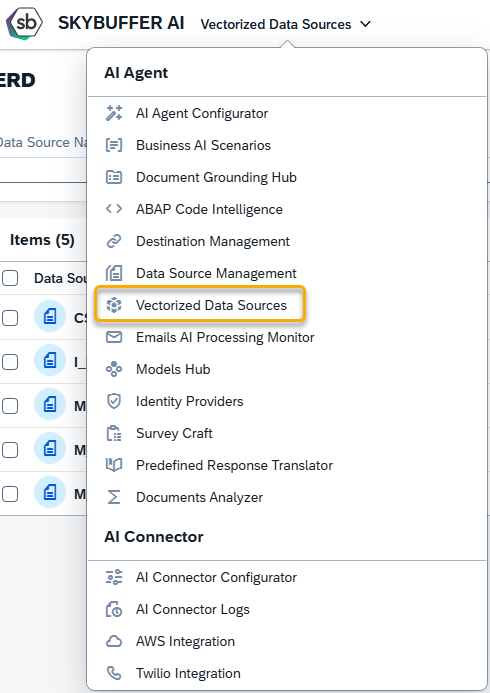
Step 1. Open the Vectorized Data Sources application in the AI Agent group:
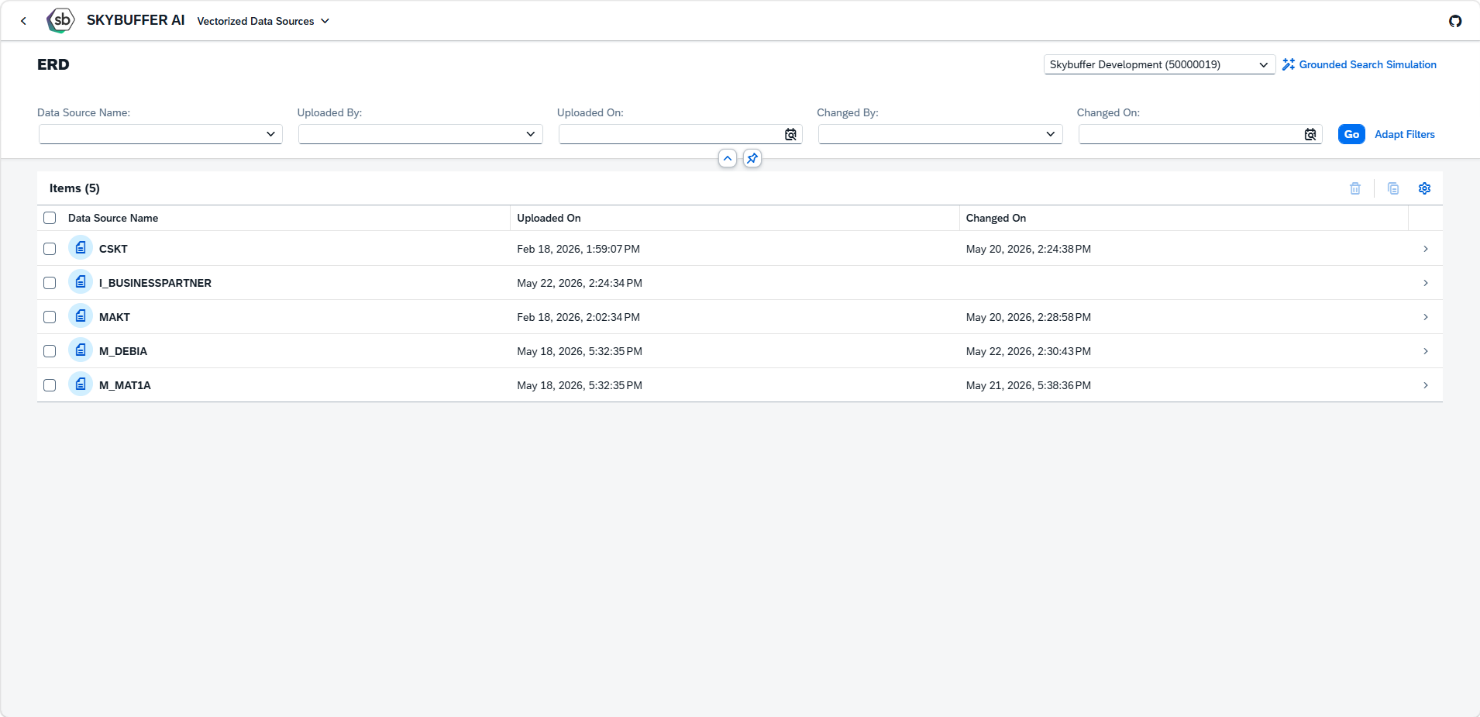
Here is the main application view:
Step 2. Filtering options

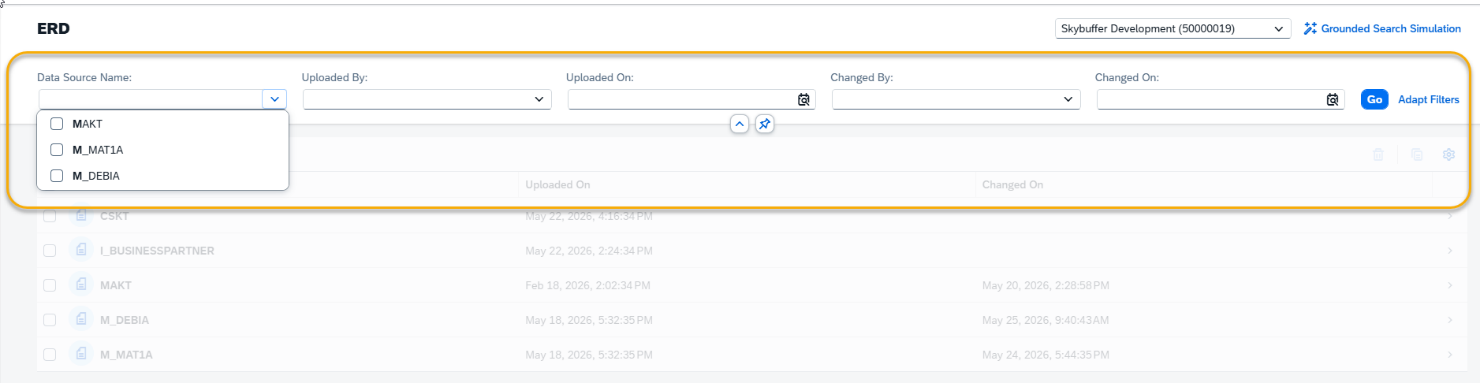
Press the icon on the right side of each filter to see possible options or type in a value for search. You can also start typing in, and matching options will appear.

Press the Go button or press Enter on keyboard to see the search results:
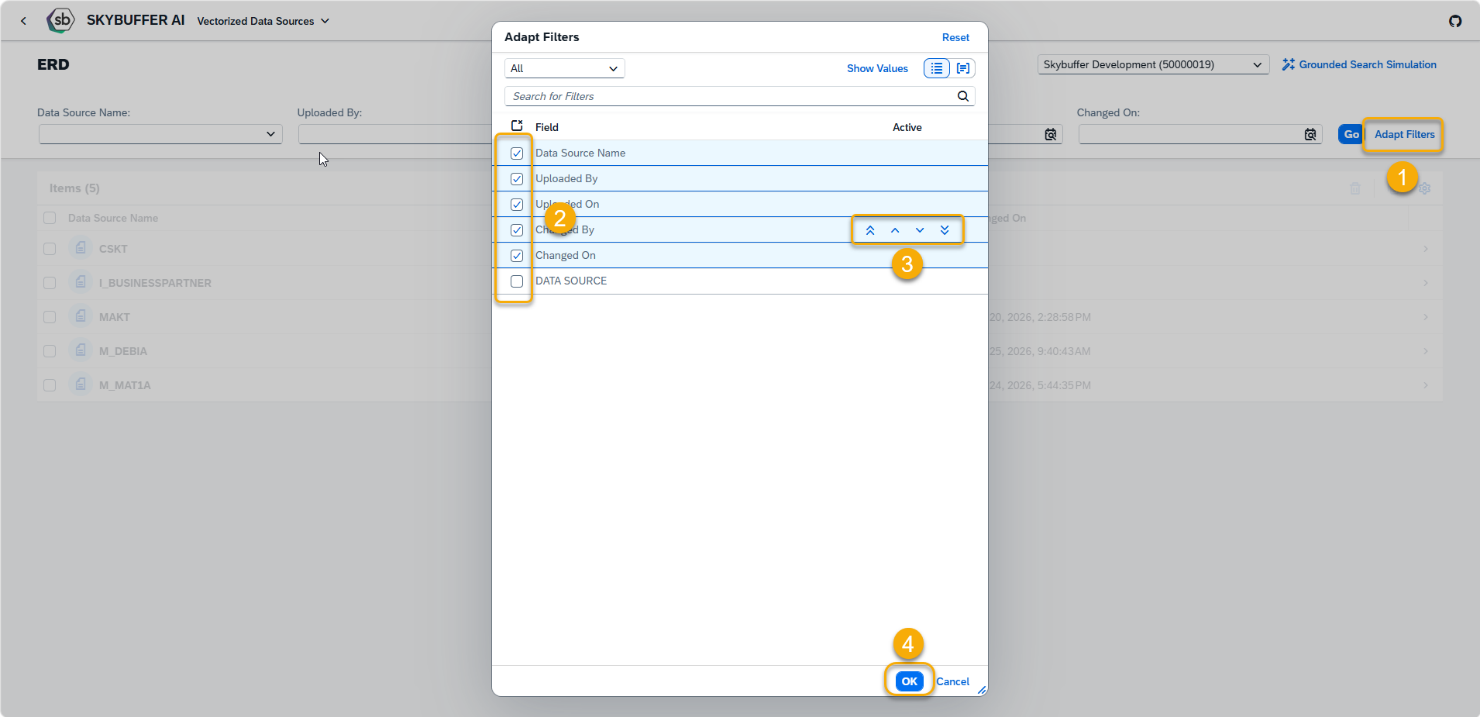
Click Adapt Filters to choose which filters should be visible.
Tick or Untick Fields to show/hide them.
Use up/down arrows to change order of filters.
Finally, press OK to save changes.
Step 3. Search within document

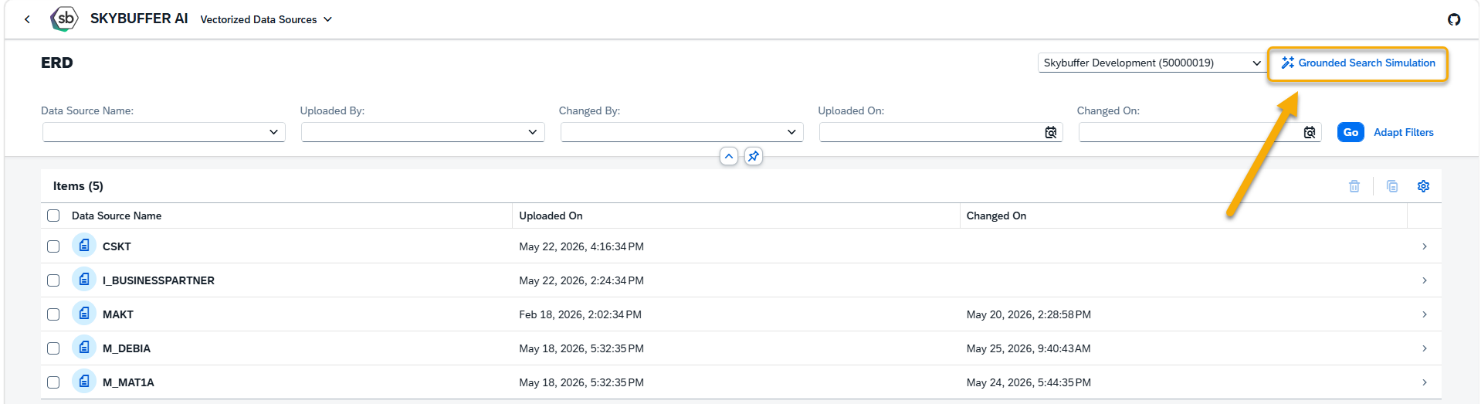
You can search information by direct quote or logical meaning, using Grounded Search Simulation functionality. Press the Grounded Search Simulation button.
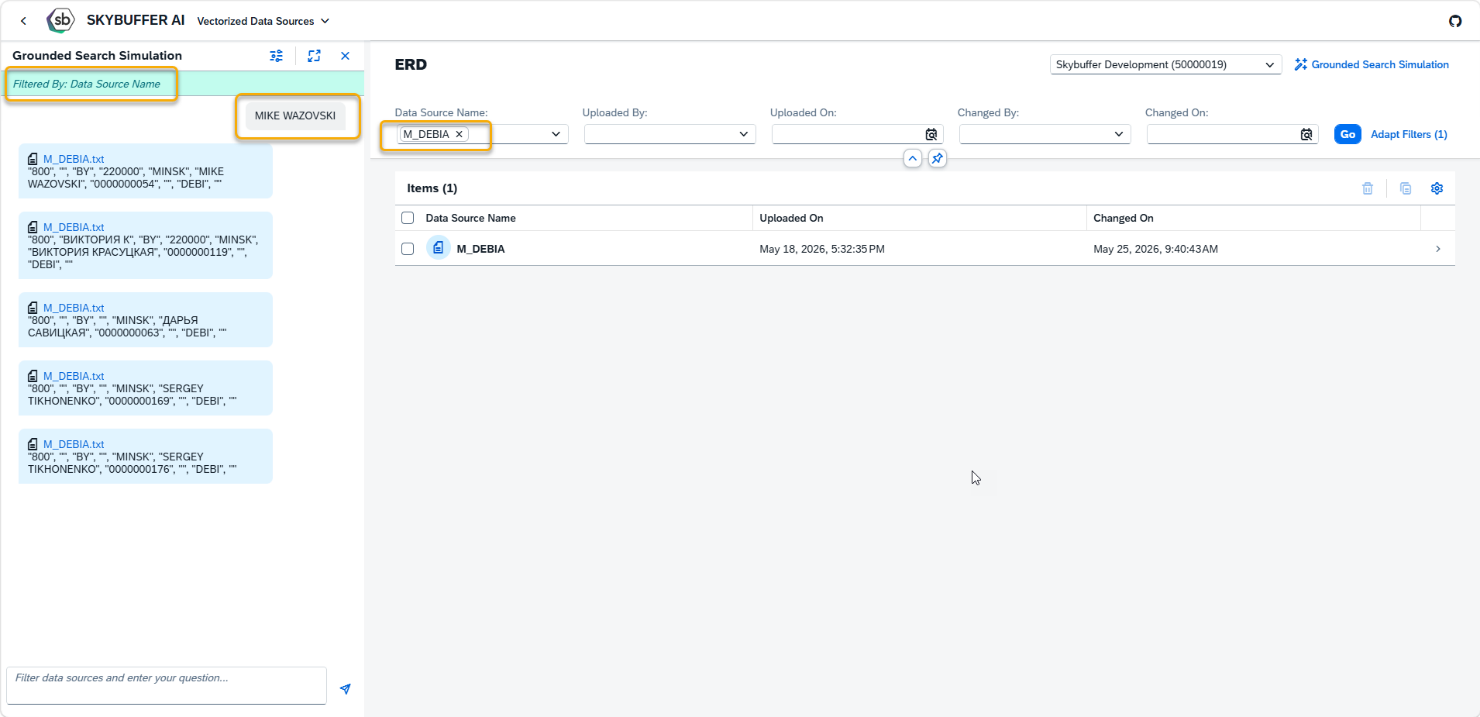
Use filters to pre-filter source documents. Only visible documents (documents that are result of filtering) will be used for retrieving the Grounded Search results.

Write a search phrase in the search field, and press Enter. Or press the arrow icon.
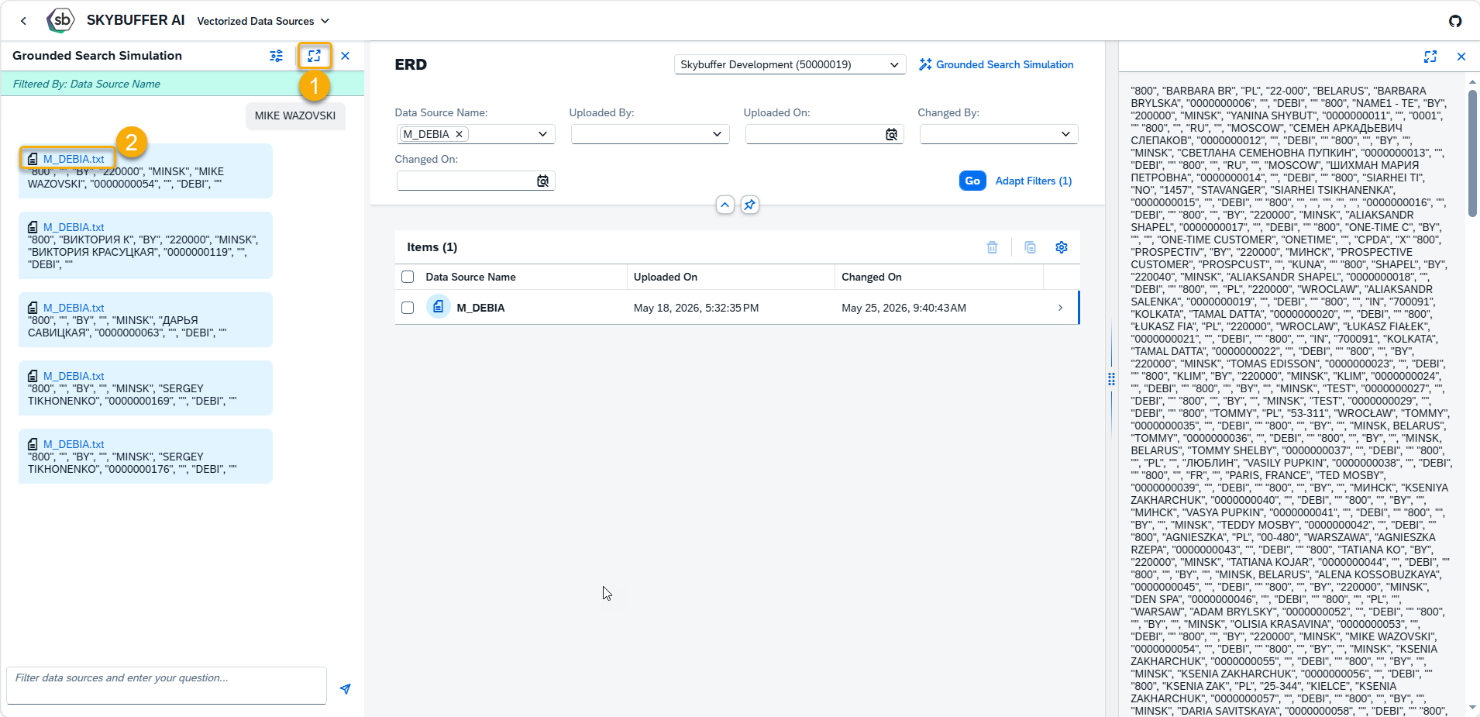
Press the window resize button (1) to set Grounded Search Window to Fullscreen.

Press the blue document name in results (2) to open source document in preview mode.
You can modify number of results and search accuracy ( strictness) by pressing the settings button:
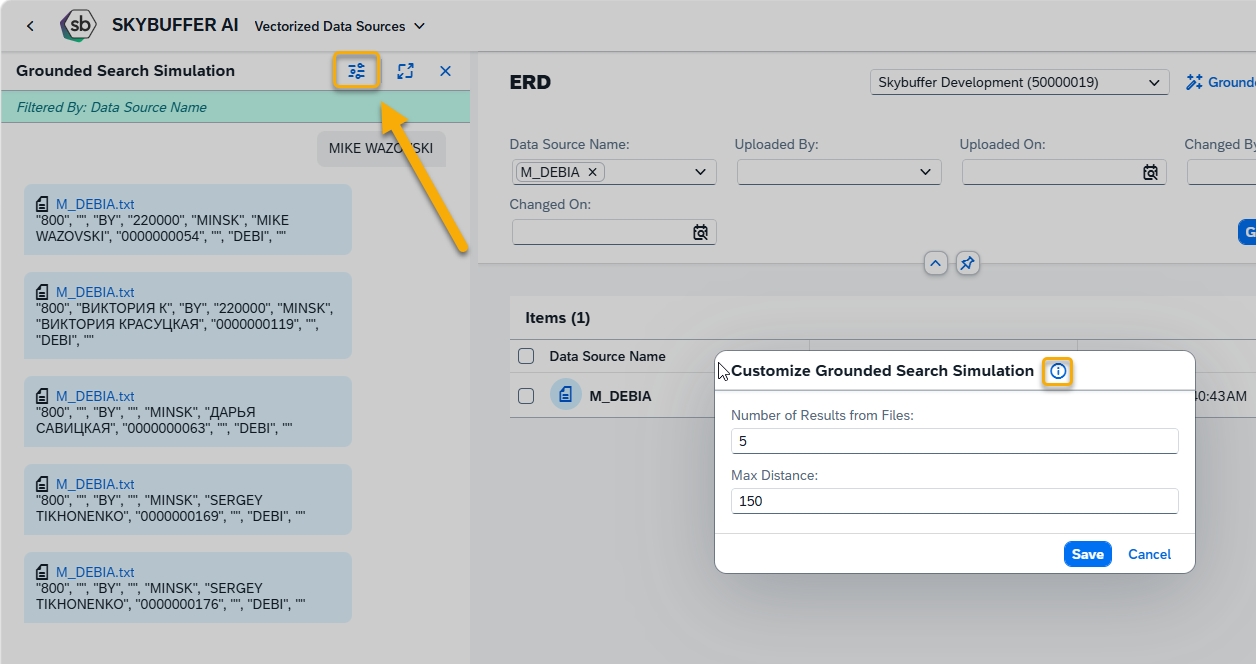
Access the help dialogue by pressing the i Icon.

Edit the values, and press Save.

Step 4. Delete Document

Select one or multiple documents and press the Bin button. Confirm deletion when prompted.
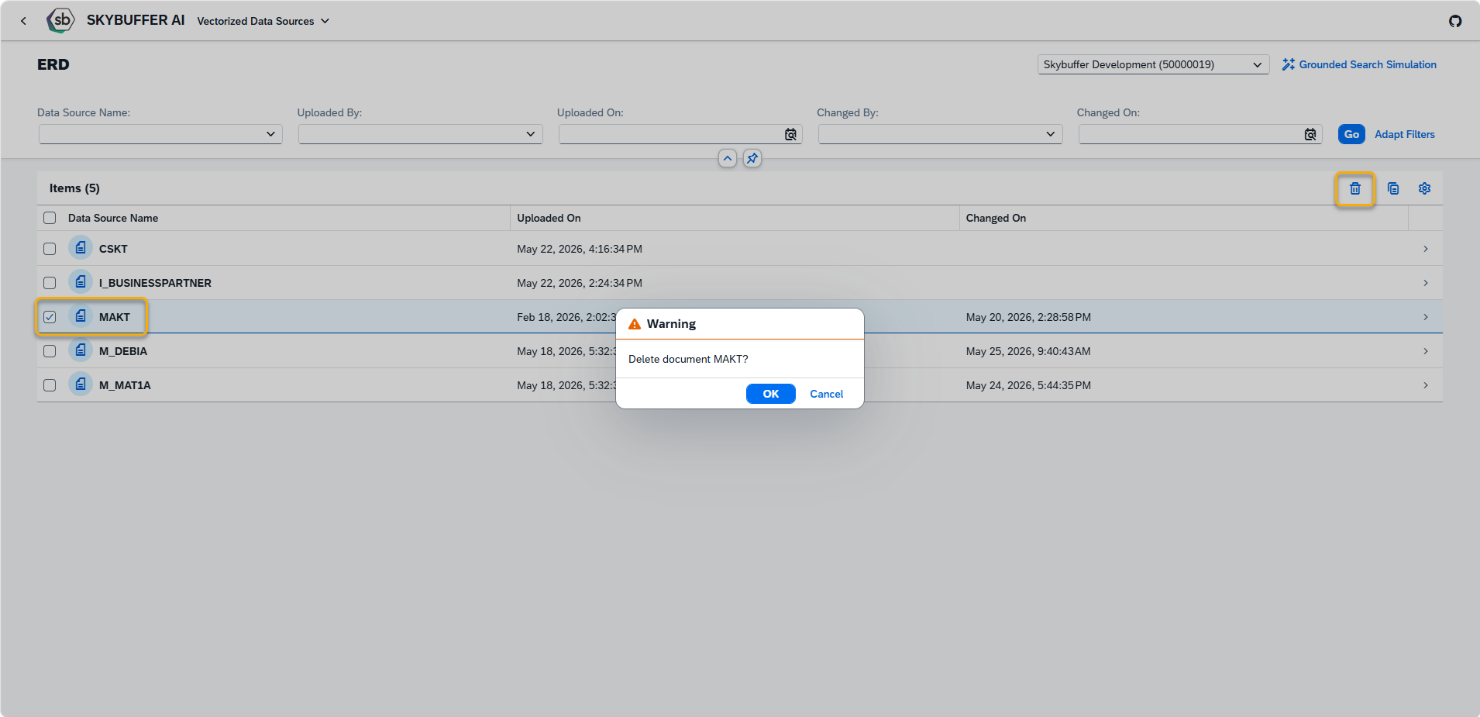
Deleting a document does not remove the data source configured in the Data Source Management application. It only deletes the currently vectorized data. During the next replication cycle, newly fetched data will be vectorized again and added automatically.

NOTE: Deleting vectorized data may disrupt the operation of any AI Agent currently using it.

Was this helpful?

Yes  No
Related Articles
  • Exchange On-Premises Shared Mailbox Integration
  • MCP Server Configuration in ABAP System
  • MCP Tools Creation
  • Upload File to Document Grounding
  • Job Scheduler Services Creation
  • MCP Server
Copyright 2022 Skybuffer.com. All Rights Reserved.