

Connecting Microsoft Copilot to an SAP ECC MCP Server via SAP BTP
Executive summary
Section titled “Executive summary”Architecture overview: place the SAP MCP Gateway (SAP Integration Suite) in front of your ECC MCP server. Reach ECC through a BTP Destination with ProxyType=OnPremise and the SAP Cloud Connector. Sign users in with Microsoft Entra ID federated into SAP Cloud Identity Services (IAS), and switch the destination to principal propagation so every tool call runs as the real ECC user.
Why this design:
- ECC stays closed. It opens no inbound firewall port. The Cloud Connector opens an outbound tunnel to BTP only.
- One governed entry point. You get OAuth/OIDC checks, rate limiting, payload protection and monitoring for Copilot and any other MCP client. SAP names this its supported path in its reference architecture (Copilot Studio with MCP Gateway).
- Real user identity. ECC authorizations, change documents and audit logs apply per person, not to a shared technical user.
The rollout runs in two stages:
- Stage A (connectivity proof): use a destination with
BasicAuthenticationand one technical ECC user. - Stage B (production): change one destination property to
PrincipalPropagation, after the ECC trust setup is in place.
Context and assumptions
Section titled “Context and assumptions”This manual makes the following assumptions. Correct any that do not match your landscape.
| Topic | Assumption | If different |
|---|---|---|
| Copilot product | Microsoft Copilot Studio agent, published to Teams or Microsoft 365 Copilot | GitHub Copilot (VS Code) can call the same gateway URL as a remote MCP server with OAuth. Steps 1 to 3 stay the same. |
| MCP server in ECC | An ABAP MCP server already runs in ECC as an ICF service /sap/bc/abap/skybfr/mcp (Skybuffer AI add-on) |
If it runs on a separate host, such as a Node or Python server next to ECC, map that host in the Cloud Connector instead of the ECC ICM. |
| ECC release | ECC 6.0 EhP7 or EhP8 on SAP NetWeaver 7.40 or 7.50, with HTTPS (TLS 1.2) active in ICM | Older releases may not have CERTRULE. Use EXTID mapping instead (see step 1.5). |
| BTP | A customer-managed subaccount (Cloud Foundry) with SAP Integration Suite (API Management + Integration Cell), Destination and Connectivity services | The MCP Server artifact needs the Enhanced, Premium, Trial or Free Tier plan. |
| Identity | Users sign in with Entra ID. SAP Cloud Identity Services (IAS) is available and can federate to Entra. | Entra-only token validation works for Stage A, but principal propagation needs an IAS-issued token. |
| Users | Each Copilot user has an ECC user whose SU01 e-mail matches their Entra / IAS e-mail | Map on another attribute, such as login name, in the Cloud Connector subject pattern and CERTRULE. |
Architecture options compared
Section titled “Architecture options compared”Option A is recommended for production. Use option B for a quick pilot only.
| Option | Path | Identity in ECC | Governance | Effort | Verdict |
|---|---|---|---|---|---|
| A. MCP Gateway proxies the existing ECC MCP server | Copilot Studio → MCP Gateway (remote MCP server) → Destination (OnPremise) → Cloud Connector → ECC ICF | Real user (principal propagation) | Full: OIDC, rate limits, payload protection, analytics, one catalog | Medium | Recommended |
| B. BTP Router (CAP app) in front of the ECC MCP server | Copilot Studio → CAP router on Cloud Foundry (IAS auth) → Destination → Cloud Connector → ECC ICF | Real user (principal propagation) | Minimal: you build rate limiting and logging yourself | Low | PoC or pilot only (community sample) |
Recommended target architecture
Section titled “Recommended target architecture”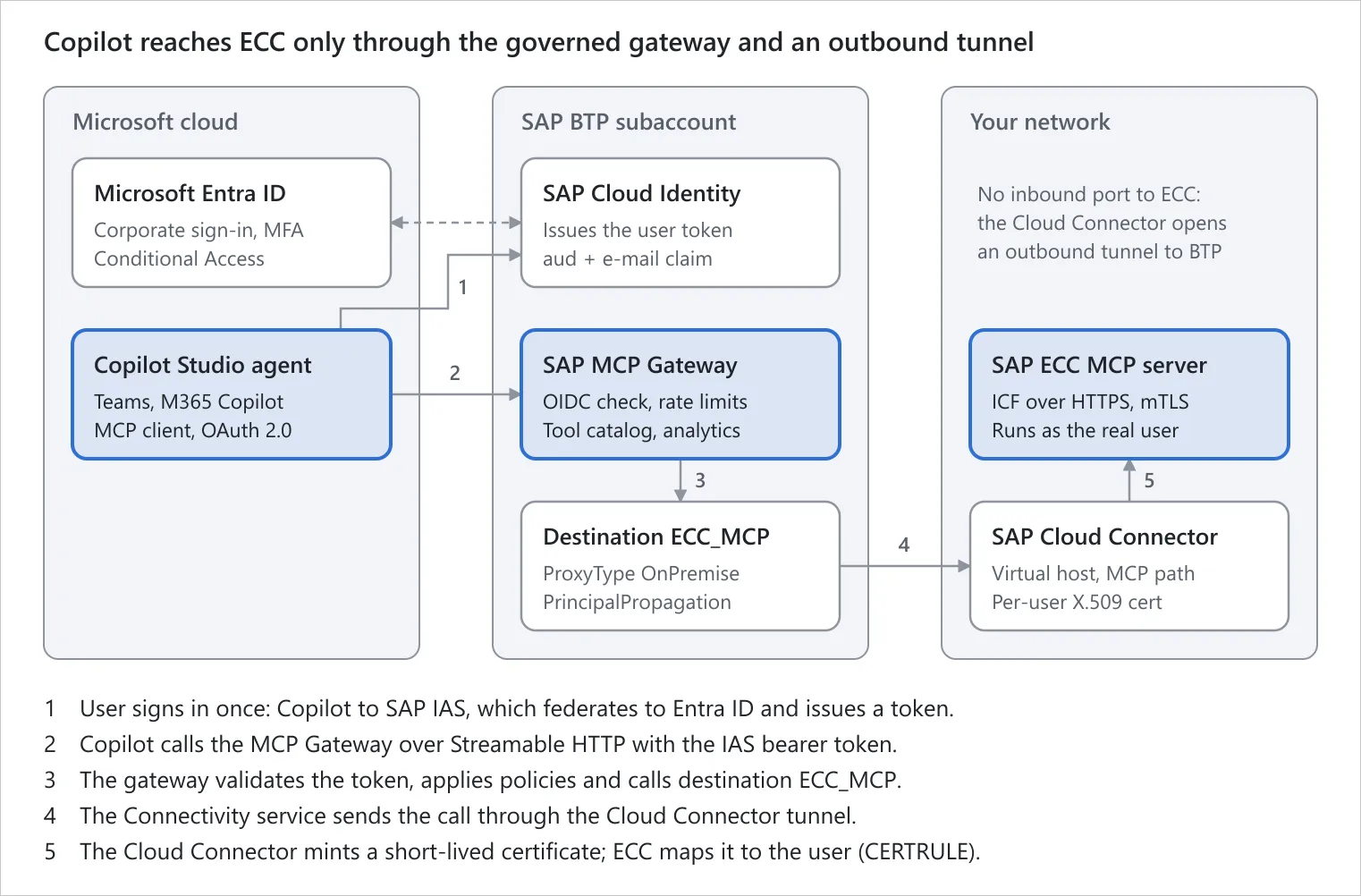
Recommended architecture (option A) · 5 hops from Copilot to ECC
The user’s e-mail travels with every call. IAS puts it in the token, the Cloud Connector writes it into a short-lived certificate, and ECC maps it to the SU01 user. For option B, replace the MCP Gateway box with the CAP router; everything else stays the same.
Prerequisites checklist
Section titled “Prerequisites checklist”SAP ECC
- The MCP server is reachable over HTTPS from inside the network, for example
https://ecc-host:44300/sap/bc/abap/skybfr/mcp - Admin access to SICF, STRUST, RZ10 or RZ11, SMICM, SU01, CERTRULE (or SM30
VUSREXTID), and a window to restart the whole system once - A technical user for Stage A (type
System, minimum roles for the MCP tools)
On-premise host for the Cloud Connector
- A Linux or Windows server or VM (SAP recommends 2 cores and 4 GB RAM or more) with outbound HTTPS 443 to
*.hana.ondemand.comfor your BTP region - Network route from that host to the ECC ICM HTTPS port
- Cloud Connector 2.7.0 or later (latest 2.x release recommended). Principal propagation needs the System Certificate feature.
SAP BTP subaccount (Cloud Foundry)
- SAP Integration Suite subscribed, with API Management and the Integration Cell activated
- Integration Suite plan that includes the MCP Server artifact (Enhanced, Premium, Trial or Free Tier)
- Role collections for Integration Suite developer and administrator, and for Connectivity and Destination administrator
- SAP Cloud Identity Services (IAS) tenant trusted by the subaccount
Microsoft
- Copilot Studio environment with permission to create agents and custom connectors
- Entra ID admin who can register an app and grant consent
- E-mail addresses match across Entra, IAS and ECC SU01 for every pilot user
Step 1. Set up the SAP Cloud Connector
Section titled “Step 1. Set up the SAP Cloud Connector”Goal: BTP can reach the ECC MCP path through a virtual host. The Cloud Connector can also mint short-lived per-user certificates for that host.
1.1 Install and connect
Section titled “1.1 Install and connect”- Install the Cloud Connector on the on-premise host. Open
https://<cc-host>:8443and change the default password. - Choose Add Subaccount:
- Region: your BTP region
- Subaccount ID
- A subaccount admin user
- A Location ID, for example
ECC-PRD. It is required if you run more than one Cloud Connector per subaccount.
- Check that the status is Connected. Then confirm in the BTP cockpit under Connectivity → Cloud Connectors.
1.2 Map the ECC system (Cloud To On-Premise → Access Control → Add)
Section titled “1.2 Map the ECC system (Cloud To On-Premise → Access Control → Add)”| Field | Value |
|---|---|
| Back-end type | ABAP System |
| Protocol | HTTPS (required for X.509 principal propagation) |
| Internal host / port | ecc-host.corp.local / ICM HTTPS port, for example 44300 |
| Virtual host / port | ecc-mcp.internal / 44300 (any name; never expose real hostnames) |
| Principal type | X.509 Certificate (General Usage) |
| System certificate for logon | No |
| Host in request header | Use virtual host (default) |
Then add the resource: path /sap/bc/abap/skybfr/mcp with Path and all sub-paths. Expose only the MCP path, not all of /sap/bc.
1.3 Trust the ECC server certificate
Section titled “1.3 Trust the ECC server certificate”- Go to Configuration → On-Premise → Back-End Trust Store. Import the ECC SSL server certificate or its CA. Export it in ECC from STRUST → SSL server Standard. It must be RSA, and its SAN must cover the internal hostname.
- Run Check availability on the mapping. It must show Reachable. If it shows “issuer not trusted”, the previous step is incomplete.
1.4 Certificates for principal propagation (Stage B)
Section titled “1.4 Certificates for principal propagation (Stage B)”- Configuration → On-Premise → Principal Propagation → CA Certificate: create a self-signed CA or upload one from your PKI. Download it for STRUST (step 1.5).
- Configuration → On-Premise → System Certificate: create or upload one. Download it and its issuer for STRUST (step 1.5), and copy its subject and issuer into
icm/trusted_reverse_proxy_0. - Principal Propagation → Subject Pattern: set the CN to the user’s e-mail, for example
CN=${email}. Check the variable name in your version’s drop-down, because it must match the CERTRULE rule (CN → E-Mail). - Keep the default short certificate lifetime (a few minutes). Then export a sample certificate to test CERTRULE.
- Configuration → Cloud → Principal Propagation → Synchronize: sync the trusted identity providers, so the Cloud Connector trusts tokens from your subaccount and IAS.
1.5 ECC trust for principal propagation (Stage B)
Section titled “1.5 ECC trust for principal propagation (Stage B)”These ECC settings only make ECC trust the Cloud Connector’s per-user certificates. They do not change the MCP server. Skip any you already have.
- SU01: set Address → E-Mail for every pilot user, exactly as in Entra and IAS.
- STRUST → SSL server Standard (
SAPSSLS.pse, not the SSL client PSE): import the Cloud Connector Principal Propagation CA (step 1.4) and the System Certificate or its issuer (step 1.4). - RZ10 (DEFAULT profile): set the three parameters below.
| Parameter | Value | Purpose |
|---|---|---|
icm/HTTPS/verify_client |
1 |
ICM requests a client certificate (mutual TLS) |
icm/trusted_reverse_proxy_0 |
SUBJECT="<CC system cert subject>", ISSUER="<its issuer>" |
ICM keeps the forwarded per-user certificate |
login/certificate_mapping_rulebased |
1 |
ABAP evaluates CERTRULE rules at runtime |
-
Restart the whole system once.
login/certificate_mapping_rulebasedtakes effect only after a full restart. Without it, every user gets HTTP 401 even though the CERTRULE simulation is green. -
CERTRULE: create one rule:
- Issuer =
CN=<your CC Principal Propagation CA> - Certificate entry =
Subject, attribute =CN - Login as =
E-Mail, subject filter empty
Test it with the sample certificate from step 1.4, not with the CA.
- Issuer =
Older ECC without CERTRULE: use SM30 view VUSREXTID, type DN, and map each subject (for example CN=jane.doe@corp.com) to its ECC user.
Authorizations: propagated users need S_ICF / S_SERVICE for the MCP ICF node, plus the business authorizations of each tool.
Step 2. Create the BTP Destination
Section titled “Step 2. Create the BTP Destination”Goal: one destination that the MCP Gateway uses to reach ECC through the Cloud Connector. Between Stage A and Stage B, only the authentication method changes.
In the BTP cockpit, open Connectivity → Destinations → Create Destination and enter:
| Property | Stage A (basic auth) | Stage B (production) |
|---|---|---|
| Name | ECC_MCP |
ECC_MCP |
| Type | HTTP |
HTTP |
| URL | https://ecc-mcp.internal:44300 |
same |
| Proxy Type | OnPremise |
OnPremise |
| Authentication | BasicAuthentication |
PrincipalPropagation |
| User / Password | technical ECC user | (remove) |
| Location ID | ECC-PRD (must match the Cloud Connector) |
same |
Additional property sap-client |
100 (your client) |
same |
Also add the additional property that makes the destination visible to the Integration Cell / MCP Server builder. In the reference setup this is the “Integration Cell include” flag set to true. Copy the exact property name from your tenant’s SAP Help page for MCP Server destinations.
Then run Check Connection:
- Stage A: the check must be green. A 401 or 403 response from ECC also confirms that the tunnel works.
- Stage B: “Check Connection” cannot test principal propagation because there is no user token. Test it end to end in Step 5.
Step 3. Configure the SAP MCP Gateway (Integration Suite)
Section titled “Step 3. Configure the SAP MCP Gateway (Integration Suite)”Goal: a governed public MCP endpoint that validates the user’s IAS token and forwards each call to ECC through ECC_MCP.
3.1 Activate the capabilities
Section titled “3.1 Activate the capabilities”- In Integration Suite, go to Settings / Manage Capabilities. Activate Build Integration Scenarios (Cloud Integration) and Manage APIs (API Management).
- Activate the Integration Cell runtime. MCP Server artifacts run only there, not on the classic Cloud Integration runtime.
3.2 Create the MCP Server artifact
Section titled “3.2 Create the MCP Server artifact”- Go to Design → Integrations and APIs and create a package, for example
ECC_AI_TOOLS. Under Artifacts, choose Add → MCP Server. - Choose the source:
- Recommended: Remote / third-party MCP server. Source type Destination =
ECC_MCP, path/sap/bc/abap/skybfr/mcp. The gateway then reads the tool list from your ECC server. - Alternative: RFC (select BAPIs or RFC function modules through an RFC destination), or HTTP endpoint with an uploaded OpenAPI spec of an ECC OData or REST service. Then select up to 50 operations as tools.
- Recommended: Remote / third-party MCP server. Source type Destination =
- Set the MCP path, for example
/ecc. Copilot calls this path. - Review the tool names and descriptions. Copilot’s orchestrator chooses tools only from these descriptions, so make each one specific and action-oriented. Hide tools that Copilot must not use, especially write tools during the pilot.
3.3 Policies
Section titled “3.3 Policies”- Open Policies → Authentication → Policy Settings and switch from the default (client certificate or XSUAA) to External OAuth (OIDC):
| Field | Value |
|---|---|
| Configuration type | Well-Known URL |
| Well-Known URL | https://<ias-tenant>.accounts.ondemand.com/.well-known/openid-configuration |
| Audience | the OAuth Client ID of the IAS application for Copilot (step 4.2) |
| ClientID key | ${authn.oidc.jwt.aud} |
| UserInfo key | ${authn.oidc.userinfo.email} |
- Authorization: the audience and issuer checks already limit callers to your IAS app. You can also restrict by IAS groups, such as
ECC_COPILOT_USERS, or by Entra tenant ID. - Traffic management: add a spike arrest or quota. Keep it at or below what ECC can serve, for example 5 requests per second per user to start. Add payload size limits too.
- Save and deploy. Note the endpoint, for example
https://<tenant>.<region>.integration.cloud.sap/ecc.
3.4 Forward the user token
Section titled “3.4 Forward the user token”- Make sure the gateway passes the inbound IAS token to the PrincipalPropagation destination call. The Connectivity proxy needs it as
SAP-Connectivity-Authenticationto create the per-user certificate. Test this before you debug any ECC trust: in the Cloud Connector monitor, the User column must show the e-mail.
Step 4. Set up identity and connect Copilot Studio
Section titled “Step 4. Set up identity and connect Copilot Studio”Goal: users sign in once with Microsoft. IAS issues the token that the gateway accepts and that the Cloud Connector turns into an ECC logon.
4.1 Federate IAS with Entra ID (application 1, in Entra)
Section titled “4.1 Federate IAS with Entra ID (application 1, in Entra)”- In IAS, go to Identity Providers → Corporate Identity Providers → Create, type OpenID Connect. Save it and copy the IAS callback URL it displays.
- In Entra, go to App registrations → New:
- Platform Web, redirect URI = the IAS callback URL.
- Create a client secret.
- Add the optional claim
email.
- Back in IAS, enter the Entra issuer
https://login.microsoftonline.com/<tenant-id>/v2.0, plus the client ID and secret, with scopesopenid profile email.
4.2 Create the IAS application for Copilot (application 2, in IAS)
Section titled “4.2 Create the IAS application for Copilot (application 2, in IAS)”- In IAS, go to Applications → Create, protocol OpenID Connect. Set the conditional authentication / default IdP to the Entra corporate IdP from 4.1.
- Under Redirect URIs, add
https://global.consent.azure-apim.net/redirect/**(noteapim.net). The wildcard covers every Copilot connection you create later. - Under Application APIs → Client Authentication → Secrets → Add, note the OAuth Client ID and secret. The token’s
audclaim uses this OAuth client ID, not the Application ID. Use it as the gateway Audience in step 3.3. - Make sure the token contains
mail/email. IAS does not allow custom scopes, so request onlyopenid,email,profile,offline_accessorgroups.
4.3 Add the MCP server in Copilot Studio
Section titled “4.3 Add the MCP server in Copilot Studio”- Open your agent and go to Tools → Add tool → Model Context Protocol (new).
- Fill in:
- Server name and description: say exactly when to use it, for example “SAP ECC purchasing, vendor and PM data for the signed-in user”.
- Server URL: the gateway endpoint from step 3.3, for example
https://<tenant>.<region>.integration.cloud.sap/ecc.
4.4 Authentication: OAuth 2.0, Manual
Section titled “4.4 Authentication: OAuth 2.0, Manual”| Field | Value |
|---|---|
| Client ID / secret | IAS app 2 OAuth client ID and secret |
| Authorization URL | https://<ias-tenant>.accounts.ondemand.com/oauth2/authorize |
| Token URL | https://<ias-tenant>.accounts.ondemand.com/oauth2/token |
| Refresh URL | same as the token URL |
| Scope | openid email offline_access. Without offline_access there is no refresh token, and users must sign in again when the token expires. |
- Choose Create, then create the connection. Sign in with your Microsoft account, which redirects through IAS to Entra.
4.5 Fix the Content-Type (once per connector)
Section titled “4.5 Fix the Content-Type (once per connector)”- In Power Apps / Power Automate, go to Custom connectors and open the connector Copilot created. Open Code, enable it, and paste this script:
public class Script : ScriptBase { public override async Task<HttpResponseMessage> ExecuteAsync() { var req = this.Context.Request; if (req.Content != null) req.Content.Headers.ContentType = new MediaTypeHeaderValue("application/json"); return await this.Context.SendAsync(req, this.CancellationToken).ConfigureAwait(false); }}- Save, recreate the connection, and wait 1 to 2 minutes for Power Platform to refresh its cache. The tool list from ECC now appears in Copilot Studio. Enable only the tools you need.
- Publish the agent to Teams and Microsoft 365 Copilot. Users without a connection are prompted to sign in on first use.
Step 5. Test, troubleshoot and operate
Section titled “Step 5. Test, troubleshoot and operate”Test one hop at a time. If a hop fails, every hop after it fails too.
- ECC directly (inside the network): an MCP
initializecall to the existing MCP endpoint returnsserverInfo. - Cloud Connector: the mapping shows Reachable. In Monitor → Most Recent Requests, calls appear once the gateway from Step 3 is deployed.
- Gateway with a token: get an IAS token in a REST client, then POST
initializeandtools/listto the gateway URL. Send the headersAuthorization: Bearer <token>,Content-Type: application/jsonandAccept: application/json, text/event-stream. Reuse theMcp-Session-Idheader if the server returns one. - Stage A in Copilot: ask a read-only question. The Cloud Connector monitor shows the technical user.
- Stage B in Copilot: switch the destination to
PrincipalPropagationand run the same question as two different users (use an InPrivate window for the second one). The Cloud Connector User column and ECC (sy-uname, STAD, SM20) must show two different ECC users. The first call takes about 4 seconds because of the certificate logon. Later calls are fast.
| Symptom | Likely cause | Fix |
|---|---|---|
| Copilot shows “Refresh token missing” or users must sign in again | offline_access missing from the scope |
Add it to the scope (step 4.4) and recreate the connection |
| Gateway returns 401 | Audience is the IAS Application ID instead of the OAuth Client ID, or the issuer does not match | Correct the Audience (step 3.3) |
| Gateway returns 415 or 400 on every call | Content-Type includes charset |
Add the connector script (step 4.5) |
| “Not mutually authenticated”, 0 bytes reach ECC | CA or System Certificate not in SSL server PSE, or trusted_reverse_proxy missing |
Step 1.5, then ICM Exit Hard → Global |
| HTTP 401 for all users, CERTRULE simulation is green | login/certificate_mapping_rulebased not active |
Set it to 1 and restart the whole system |
| Logon fails for one user | E-mail differs between Entra, IAS and SU01 | Align the e-mail in all three |
| Cloud Connector shows the technical user in Stage B | Destination still uses basic auth, or the gateway does not forward the token | Steps 2 and 3.4 |
| Tools missing in Copilot | Power Platform cache, or the tool is disabled in the gateway | Recreate the connection and wait 2 minutes, then check gateway tool selection |
Operations
- Monitor: Integration Suite API analytics and message monitoring, the Cloud Connector audit log, and ECC SM20 / STAD.
- Renew certificates: track expiry for the Cloud Connector CA, the System Certificate and the ECC SSL server certificate. An expired System Certificate breaks every call.
- High availability: run the Cloud Connector as a master/shadow pair.
- Version tools: treat tool names and descriptions as an API contract.
Security hardening and sources
Section titled “Security hardening and sources”- Start with read-only tools. Enable write tools, such as creating purchase orders or posting invoices, only after a review. Consider requiring user confirmation in Copilot for them.
- The Cloud Connector exposes only the MCP path, not
/sap/bcor/sap/opuas a whole. - In production, no technical user remains in the destination. Every call uses principal propagation.
- Gateway rate limits are at or below ECC capacity, and payload size limits are set.
- Validate tool inputs inside the ECC MCP server. Use an allow-list of fields for data sources.
- Restrict users through IAS groups. Keep Entra Conditional Access (MFA, compliant device) on the sign-in.
- Store secrets only in IAS, BTP and Power Platform connections. Rotate them on a schedule.
- Log every tool call with user, tool and status, redacting personal data, and send it to your SIEM.
- Review OWASP MCP Top 10 risks, such as tool poisoning, over-broad permissions and prompt injection through returned data.
- Check the SAP API Policy for your use case. SAP endorses the MCP Gateway pattern for third-party agent access.
Sources
Section titled “Sources”- SAP Architecture Center: Copilot Studio with MCP Gateway in SAP Integration Suite
- SAP Architecture Center: Third-Party MCP Access to SAP Solutions
- SAP Architecture Center: A2A and MCP for Interoperability (MCP Server artifact source types)
- hobru/sap-mcp-gateway-copilot-studio: Parts 1, 3, 4 and 6 (community walkthrough with tested values)
- hobru/CAP-Routing-App: BTP Router for option B
- SAP Help: Create an MCP Server Using Remote MCP Server as the Source
- SAP Help: Principal propagation (Connectivity) and Set up trust for principal propagation
- Microsoft Learn: Connect your agent to an existing MCP server
- Microsoft Learn: SAP MCP Gateway on SAP Integration Suite architecture