

Skybuffer MCP Access Installation
Skybuffer MCP Access lets MCP clients such as Claude reach the Skybuffer MCP server in your SAP systems from outside your network. Users sign in with their corporate account, and every call runs in SAP under the user’s own SAP user. Skybuffer MCP Access runs in your own subaccount on SAP Business AI Platform, and your infrastructure team installs and operates it.
This page is for the people who install it: the administrator of the subaccount, the administrator of your SAP Cloud Identity Services tenant, and SAP Basis for the Cloud Connector and the SAP systems. Each step says who does it. How to manage the SAP systems, the limits and the log afterwards is on Skybuffer MCP Access Administration.
How it works
Section titled “How it works”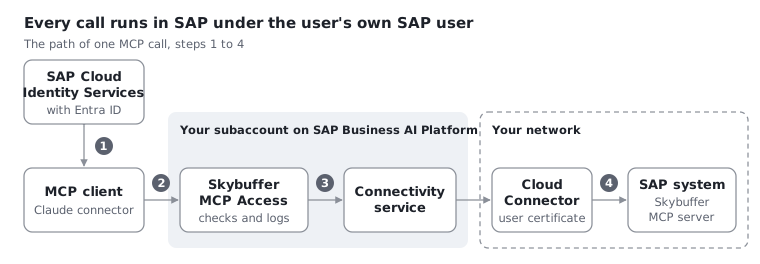
- The user connects the MCP client and signs in at your SAP Cloud Identity Services tenant, which sends them on to your corporate identity provider, such as Microsoft Entra ID. The MCP client gets a token that names the user.
- The MCP client sends every call with this token to Skybuffer MCP Access. Skybuffer MCP Access checks the token, the caller’s address, the request, the SAP system, the groups allowed for it and the limits, and writes one entry to its log.
- Skybuffer MCP Access sends the call on through the Connectivity service to the Cloud Connector in your network.
- The Cloud Connector logs the user on to the SAP system with a short-lived certificate that names the user (principal propagation). The tool runs in the Skybuffer MCP server under the user’s own SAP user, with that user’s authorizations.
Skybuffer MCP Access holds no SAP user or password. The SAP systems that MCP clients may reach are destinations of your subaccount that an administrator has marked as MCP systems.
Each SAP system has an address of its own, https://<application host>/mcp/<system ID>. The federated address, https://<application host>/federation/mcp, reaches every SAP system in the federation with one connector: the model names the system in each call. The federated address describes how it works.
What you need
Section titled “What you need”- A subaccount on SAP Business AI Platform with the Cloud Foundry environment and a space, and the entitlements for SAP Cloud Identity Services (service
identity, planapplication), the Connectivity service (connectivity, planlite) and the Destination service (destination, planlite). - A tenant of SAP Cloud Identity Services that the subaccount trusts (OpenID Connect).
- A Cloud Connector in the network of the SAP systems, connected to the subaccount. It must reach the ICM HTTPS port of each SAP system directly, without a reverse proxy that ends the TLS connection in between.
- The Skybuffer MCP server in each SAP system, with its service
/sap/bc/abap/skybfr/mcpactive, as MCP Server Configuration in ABAP System describes. - The e-mail address of every user in
SU01of the SAP client: maintained, unique in the client, and the same as in your corporate identity provider. SAP finds the user by it. - The
cfcommand line with the MultiApps plugin (cf install-plugin multiapps), and the Space Developer role in the space. - The installation archive
skybfryai_mcp_access_<version>.mtar, provided by Skybuffer.
Installation
Section titled “Installation”Step 1. Corporate sign-in
Section titled “Step 1. Corporate sign-in”Done by your identity team, once for the tenant. Skip this step if your SAP Cloud Identity Services tenant already signs users in through your corporate identity provider. The steps are for Microsoft Entra ID.
- In Microsoft Entra ID, open Enterprise applications and the application for your tenant, with the identifier
https://<tenant>.accounts.ondemand.com. Add it from the gallery if it is missing. - Under Single sign-on → Basic SAML Configuration, enter the reply URL
https://<tenant>.accounts.ondemand.com/saml2/idp/acs/<tenant>.accounts.ondemand.comand mark it as the default. - Under Attributes & Claims, make sure that every user gets an e-mail claim: the source
user.mail, or the user principal name for accounts without a mailbox. - Under Users and groups, assign the users or groups who will use MCP clients, if the application requires an assignment.
- Download the Federation Metadata XML.
- In the administration console of SAP Cloud Identity Services, open Identity Providers → Corporate Identity Providers, add Microsoft Entra ID with the SAML 2.0 protocol, and upload the metadata.
- In the cockpit of the subaccount, check under Security → Trust Configuration that the subaccount trusts the tenant.
Step 2. Deployment
Section titled “Step 2. Deployment”Done by the administrator of the subaccount, with the Space Developer role in the space.
-
Create a settings file: copy the template below and keep only the settings that differ from the defaults. Settings describes each of them.
-
Sign in to Cloud Foundry and choose the space:
Terminal window cf login -a https://api.cf.<region>.hana.ondemand.com -
Deploy the archive with the settings file:
Terminal window cf deploy skybfryai_mcp_access_<version>.mtar -e <settings file>.mtaext -
Check the application:
cf app py_mcp_accessshows it started, and its route is the application host.https://<application host>/healthanswers with the status and the version, and nothing else.
The deployment creates the application py_mcp_access and its own service instances mcp-access-identity, mcp-access-connectivity and mcp-access-destination. Through mcp-access-identity, it creates the application Skybuffer MCP Access in your tenant: users sign in with PKCE, no token is issued without a user, and a user can be signed in at up to 10 connectors at once.
The template holds the defaults:
_schema-version: "3.1"ID: skybfryai_mcp_access.settingsextends: skybfryai_mcp_access
modules:  - name: py_mcp_access    parameters:      # Application instances. With two, each instance counts the limits on its own.      instances: 1      # The addresses a sign-in may return to. Keep the first line: it is the admin page's own.      # Add the callback address of every MCP client below it.      mcp-client-callbacks:        - ${default-live-url}/admin/callback        - https://claude.ai/api/mcp/auth_callback        - https://claude.com/api/mcp/auth_callback    properties:      # Group of SAP Cloud Identity Services whose members may use the admin page.      ADMIN_GROUP: MCP_ADMIN      # Paths of MCP services in SAP that a system may have.      ALLOWED_PATHS:        - /sap/bc/abap/skybfr/mcp      # Addresses or address ranges that may call, for example 160.79.104.0/21. Empty: any address.      ALLOWED_CALLERS: []      # Addresses of the platform's own proxies that follow the caller's address in X-Forwarded-For.      TRUSTED_PROXY_HOPS: 1      # Calls of one user to one system per minute.      CALLS_PER_MINUTE: 120      # Calls that may run in one system at the same time.      CONCURRENT_PER_SYSTEM: 10      # Largest request, in KB.      MAX_REQUEST_KB: 1024      # Seconds to wait for SAP's answer.      BACKEND_TIMEOUT: 120      # Seconds after which an admin session ends.      ADMIN_SESSION_TTL: 3600      # Federated address: seconds a system's tool list is kept for a user, and seconds to wait for the tool lists.      FEDERATION_TOOLS_TTL: 600      FEDERATION_LIST_TIMEOUT: 30
resources: - name: mcp-access-identity parameters: # Seconds a token is valid (60 to 43200). token-validity: 3600 # Seconds after which an MCP client asks the user to sign in again (3600 to 15552000). refresh-validity: 43200 # Sign-ins one user can have at the same time, one for each connector (1 to 10). sessions-per-user: 10Step 3. The application in SAP Cloud Identity Services
Section titled “Step 3. The application in SAP Cloud Identity Services”Done by the administrator of the tenant, in the administration console under Applications & Resources → Applications → Skybuffer MCP Access.
- Under Conditional Authentication, set the default identity provider to your corporate identity provider. The deployment does not set it. Without it, users sign in on the tenant’s own page with e-mail and password instead of their Microsoft 365 account.
- Set the Subject Name Identifier to E-Mail. Skybuffer MCP Access reads the user’s e-mail address and groups from the token. If a refused sign-in to the admin page logs no groups, add the attribute
groupswith the source Identity Directory under Attributes. Without it, no user passes the groups allowed for a system, and nobody can open the admin page. - Create the admin group under Users & Authorizations → Groups, with the name of the setting
ADMIN_GROUP(MCP_ADMINby default), and add the administrators of Skybuffer MCP Access as its members. A user exists in the tenant after their first sign-in, and gets the group with their next sign-in. - Create a client secret for each MCP client under Client Authentication → Secrets: a description that names the connector, an expiry date, and API Access: OAuth. Hand the secret over through a password manager. Never give an MCP client the secret of the service binding: a deployment can renew it.
The grant types and the token policy of the application come from the deployment, through the parameters of mcp-access-identity, and the administration console does not show them for this application. They allow only Authorization Code with PKCE (S256) and Refresh Token. To read them:
cf service mcp-access-identity --guidcf curl /v3/service_instances/<guid>/parametersStep 4. Cloud Connector
Section titled “Step 4. Cloud Connector”Done by SAP Basis in the Cloud Connector, once for each SAP system.
- Under Cloud To On-Premise → Access Control, add a system:
- Back-end Type: ABAP System
- Protocol: HTTPS
- Internal Host and Internal Port: the SAP application server and its ICM HTTPS port (
SMICM→ Goto → Services), directly, not through a reverse proxy - Virtual Host and Virtual Port: a name of your choice, for example
s4p-virtualand443. The admin page asks for them as the virtual host URL. - Principal Type: X.509 Certificate
- System Certificate for Logon: as the SAP system is set up in Step 5
- Add the resource
/sap/bc/abap/skybfr/mcpwith the access policy Path Only, and no other resource. - Under Configuration → On-Premise, make sure that the Cloud Connector has a System Certificate, and a CA Certificate for principal propagation that allows the key usage keyCertSign. The Cloud Connector warns about a missing KEYCERTSIGN otherwise.
- Set the subject pattern for principal propagation: first
CN=${email}with the condition that${email}exists, thenCN=${name}as the fallback. - Under Principal Propagation of the subaccount, choose Synchronize, and set your tenant and the application Skybuffer MCP Access to Trusted.
- Check that the system shows as Reachable. This only shows that the network connection works; Step 8 checks the logon.
Step 5. SAP systems
Section titled “Step 5. SAP systems”Done by SAP Basis in each SAP system and client that MCP clients reach. Where principal propagation already works in the system for other applications, items 1 to 3 are usually in place.
-
In
STRUST, import the CA certificate for principal propagation, and the CA of the Cloud Connector’s system certificate, into the SSL server PSE of the HTTPS port that the Cloud Connector calls, with Add to Certificate List. Without the CA in that PSE, the Cloud Connector sends no certificate, and the ICM trace showsNO client cert. -
Set the profile parameters:
icm/HTTPS/verify_client = 1, not2, which also blocks logon with SPNego and passwordslogin/certificate_mapping_rulebased = 1- with System Certificate for Logon:
icm/HTTPS/trust_client_with_subjectandicm/HTTPS/trust_client_with_issuerwith the subject and the issuer of the Cloud Connector’s system certificate, oricm/trusted_reverse_proxy_<n> = SUBJECT="<subject>", ISSUER="<issuer>". The issuer is the CA that signed the system certificate, not the CA for principal propagation. Copy both values from the certificate: spaces, order and case must match exactly.
Restart the ICM. A parameter that is not dynamic takes effect only after the system restarts.
-
In
CERTRULE, create a rule for the certificates of the CA for principal propagation that maps the subject’sCNto the user’s e-mail address. Test it with a sample certificate from the Cloud Connector. -
In
SU01, check the e-mail address of every user who will use MCP clients: maintained, unique in the client, and the same as in your corporate identity provider. -
In
SICF, open the service/sap/bc/abap/skybfr/mcp. Its Logon Data must have the procedure Standard and no user or password. With an alternative logon procedure, the SSL client certificate comes before SPNego. -
Give the users the authorizations that the MCP tools need.
Step 6. Systems on the admin page
Section titled “Step 6. Systems on the admin page”Done by an administrator of Skybuffer MCP Access, a member of the admin group.
- Open
https://<application host>/adminand sign in with your corporate account. - Choose Add system for each SAP system, with the virtual host from Step 4 and the path
/sap/bc/abap/skybfr/mcp. Add a system describes the fields. - Choose Test connection on each system. The result must name the MCP server and you.
Step 7. MCP clients
Section titled “Step 7. MCP clients”Skybuffer MCP Access is tested with Claude as the MCP client. An Owner of your Claude organization adds an organization connector; users can also add a connector for themselves.
Decide which connectors to offer: one for each SAP system, one for the federated address, or both. Each connector gets a client secret of its own from Step 3.
- On the admin page, open Connect an MCP client on the card of the system, or for the federated address under Settings, and copy the address and the client ID. Connect an MCP client shows the dialog.
- In Claude, add a custom connector: for the organization under Organization settings → Connectors, for yourself under Customize → Connectors.
- Enter the address as the URL. For the OAuth client, choose Use your own OAuth client, and enter the client ID and the client secret made for this connector.
- Users connect the connector and sign in with their corporate account. They never see the client secret.
Claude’s callback addresses, https://claude.ai/api/mcp/auth_callback and https://claude.com/api/mcp/auth_callback, are in the settings by default. An organization connector cannot be changed: to give it another address or client secret, remove it and add it again.
For another MCP client, add its callback address to mcp-client-callbacks in the settings file and deploy again. Other MCP clients than Claude are not tested.
Step 8. Checks
Section titled “Step 8. Checks”Done by SAP Basis and an administrator of Skybuffer MCP Access.
-
A user connects a connector, signs in and calls a tool that only reads data.
cf logs py_mcp_access --recentshows an entry for the callsinitialize,tools/listandtools/call, each with"result":"ok". -
In the SAP system,
STADorSM20shows the call of/sap/bc/abap/skybfr/mcpunder the user’s own SAP user. Check it with several users. -
A call without a token is answered with
401and aWWW-Authenticateheader that names the address of the sign-in metadata:Terminal window curl -i -X POST https://<application host>/mcp/<system ID> -
A user outside the groups allowed for a system gets
403withforbidden_system. A user without an e-mail address inSU01gets502withbackend_auth_failedand SAP’s message, and is never logged on as another user.
Settings
Section titled “Settings”The settings are in the settings file and take effect with the next deployment, cf deploy with the settings file. The admin page shows them under Settings. A deployment ends the open sessions of the admin page; the systems, the client ID and the client secrets stay.
| Setting | Meaning | Default |
|---|---|---|
instances |
Application instances; see Production use | 1 |
mcp-client-callbacks |
The addresses a sign-in may return to: the admin page’s own callback, which must stay the first line, and the callback of every MCP client | the admin page and Claude |
ADMIN_GROUP |
Group of SAP Cloud Identity Services whose members may use the admin page; several groups separated by commas | MCP_ADMIN |
ALLOWED_PATHS |
Paths of MCP services in SAP that a system may have | /sap/bc/abap/skybfr/mcp |
ALLOWED_CALLERS |
Addresses or address ranges that may call; empty allows any address | empty |
TRUSTED_PROXY_HOPS |
Addresses of the platform’s own proxies that follow the caller’s address in X-Forwarded-For |
1 |
CALLS_PER_MINUTE |
Calls of one user to one system per minute | 120 |
CONCURRENT_PER_SYSTEM |
Calls that may run in one system at the same time | 10 |
MAX_REQUEST_KB |
Largest request, in KB | 1024 |
BACKEND_TIMEOUT |
Seconds to wait for SAP’s answer | 120 |
ADMIN_SESSION_TTL |
Seconds after which an admin session ends; it also ends when the administrator’s token expires | 3600 |
FEDERATION_TOOLS_TTL |
Seconds the federated address keeps a system’s tool list for a user; 0 reads it for every tool list |
600 |
FEDERATION_LIST_TIMEOUT |
Seconds the federated address waits for the tool lists of the systems | 30 |
token-validity |
Seconds a token is valid; the MCP client renews it without the user | 3600 |
refresh-validity |
Seconds after which an MCP client asks the user to sign in again: the sign-in lifetime | 43200 (12 hours) |
sessions-per-user |
Sign-ins one user can have at the same time, one for each connector | 10 |
Limits and Allowed caller addresses describe what the settings do when a call reaches them.
Production use
Section titled “Production use”- Two instances. Set
instances: 2. Each instance counts the limits on its own: with two instances, a user can make up to twice as many calls per minute to a system, twice as many calls can run in a system, and each instance pauses a failing system on its own. Set the limits with this in mind. - Cloud Connector in high availability, with a master and a shadow instance.
- Keep the log.
cf logsshows only the most recent lines. Bind a logging service topy_mcp_accessor set up a log drain, and decide how long you keep the entries. - Alerts. Skybuffer MCP Access sends no alerts. Set them up in your logging service, for example on refused sign-ins (
invalid_token), errors from SAP (backend_auth_failed,backend_unreachable,backend_timeout) and long durations (ms). - Custom domain. The platform adds
Strict-Transport-Securityon the application’s default address. With a custom domain, check that the answers still carry it. - Data protection. The MCP client sends the results of the tools to the language model of its provider. Agree on the tools and the data that may be used with each provider.
- Updates. Deploy a new archive in the same way as in Step 2, with your settings file.