

Skybuffer MCP Access Administration
On the admin page of Skybuffer MCP Access, administrators manage the SAP systems that MCP clients such as Claude may reach, and see the settings of the installation. The call log shows every call. This page is for these administrators: the members of the admin group in SAP Cloud Identity Services, MCP_ADMIN unless the installation names another one.
The installation and the settings are on Skybuffer MCP Access Installation.
Open the admin page
Section titled “Open the admin page”Open https://<application host>/admin and sign in with your corporate account. The page has two tabs, Systems and Settings. It follows the light or dark setting of your device.
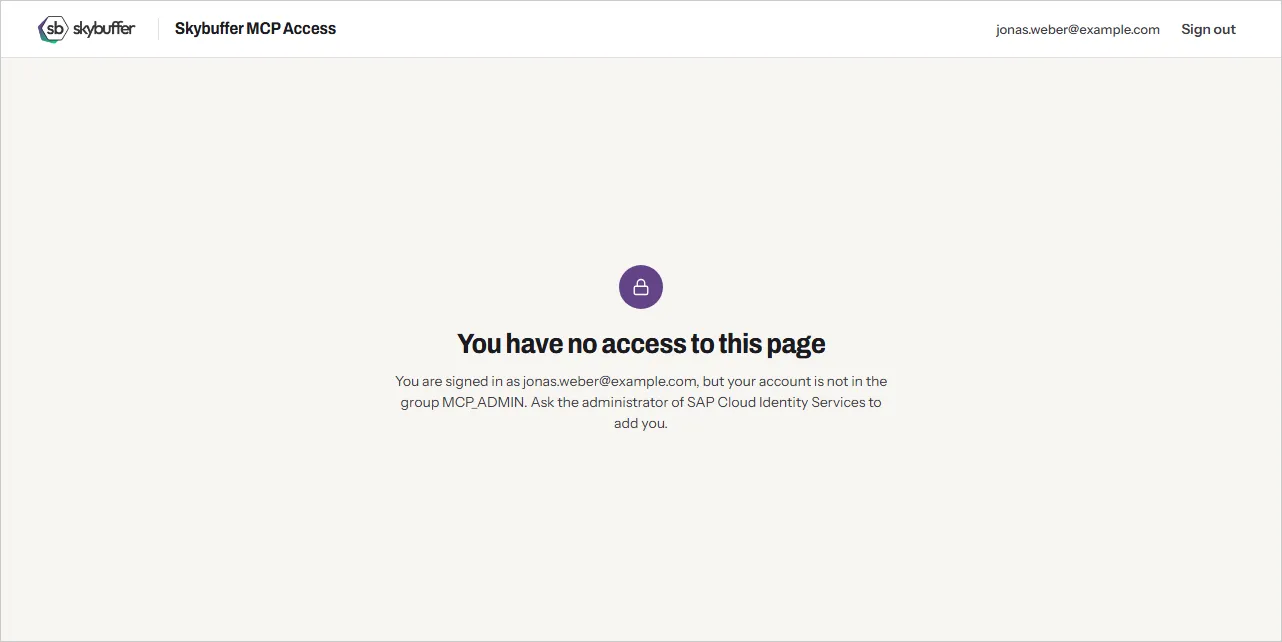
An admin session ends after one hour (ADMIN_SESSION_TTL), or earlier when your token expires; then the page asks you to sign in again. Sign out ends it at once. A signed-in user who is not in the admin group sees a page that names the group they need.
Systems
Section titled “Systems”Systems lists the SAP systems that MCP clients can reach, one card for each system. Every call runs in SAP under the signed-in user’s own SAP user.
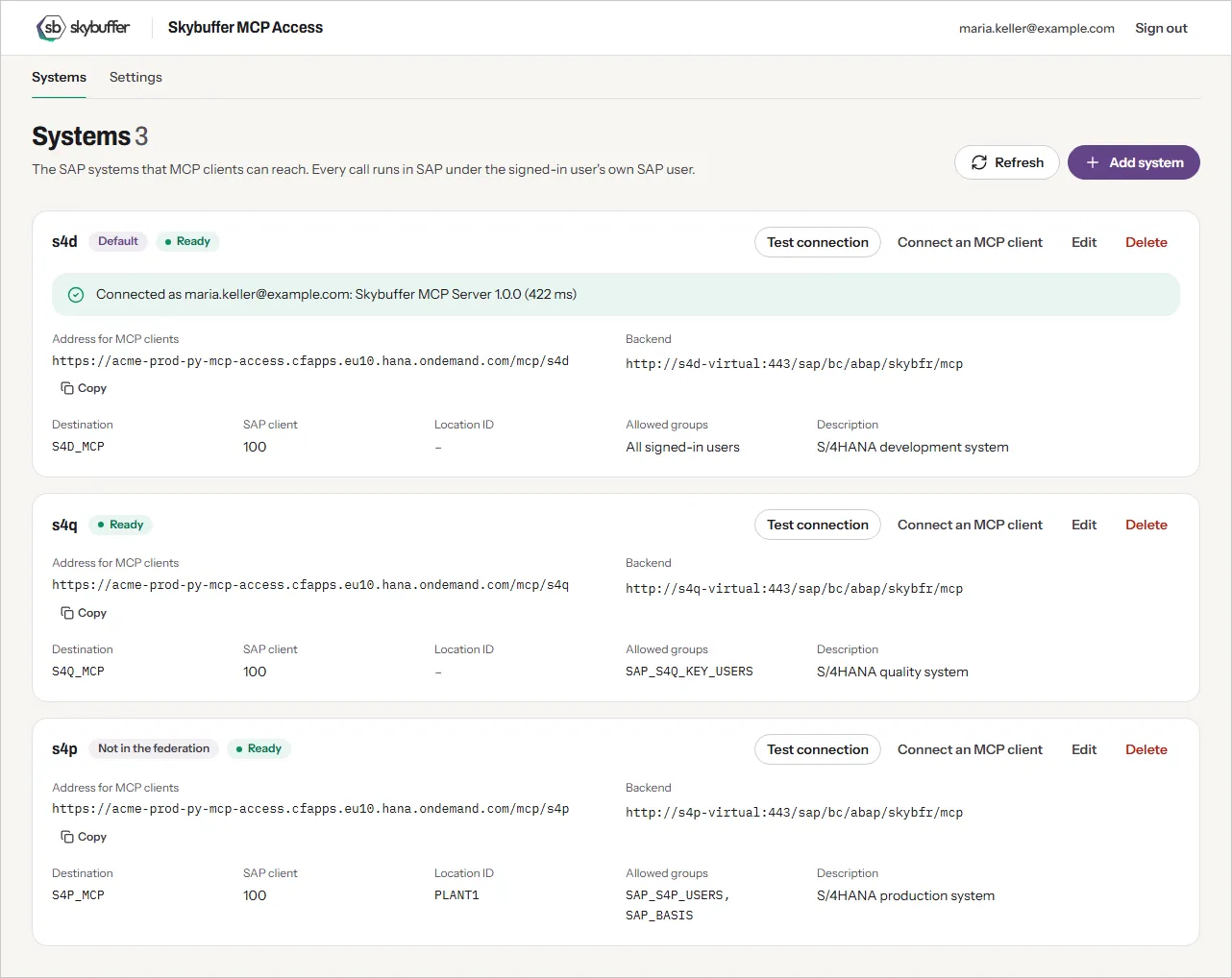
Each card shows:
- the system ID, with the marks Default for the default system, Not in the federation for a system that the federated address leaves out, and the status: Ready, or Check configuration with the problems that keep the system from being served;
- Address for MCP clients, with Copy: the address that an MCP client calls for this system;
- Backend: the virtual host of the Cloud Connector and the path of the MCP service;
- Destination, SAP client and Location ID;
- Allowed groups: the groups of SAP Cloud Identity Services whose members may use the system, or All signed-in users;
- Description.
A system is a destination of the subaccount that is marked as an MCP system. The admin page lists only such destinations, and changes and deletes only them: the other destinations of the subaccount stay untouched. You can also maintain a system in the cockpit of the subaccount, under Connectivity → Destinations; MCP calls follow such a change within 60 seconds. Refresh reads the list again.
Add a system
Section titled “Add a system”Choose Add system and fill in the dialog:
- System ID: used in the address of the system,
/mcp/<system ID>. Lowercase letters, digits,-and_, up to 40 characters. - Destination name: the name of the destination in the subaccount. Letters, digits,
-and_. It cannot be changed later. - Virtual host URL: the virtual host and port of the system in the Cloud Connector, for example
http://s4p-virtual:443. Alwayshttp://: the Cloud Connector connects to SAP over HTTPS. - MCP service path:
/sap/bc/abap/skybfr/mcp. The page accepts only the paths of the settingALLOWED_PATHS. - SAP client (optional): without it, SAP uses its default client.
- Location ID (optional): the location ID of the Cloud Connector, when it has one.
- Allowed groups (optional): see Allowed groups.
- Description (optional): what the system is, for example “S/4HANA production system”. The federated address shows it to the model.
- Default system: used when an MCP client names no system. Only one system is the default.
- In the federation: also reached through the federated address. On for a new system.
Save stores the system as a destination of the subaccount, with the proxy type OnPremise and the authentication PrincipalPropagation. A field that is not valid shows its error in the dialog.
Test the connection
Section titled “Test the connection”Test connection sends the MCP call initialize to the SAP system as you, through the Cloud Connector, as an MCP client would. A passed test shows Connected as your user, the name and version of the MCP server, and the time it took. A failed test shows the HTTP status and SAP’s text; Errors and what to do explains them.
Connect an MCP client
Section titled “Connect an MCP client”Connect an MCP client shows what an MCP client needs: the address of the system and the client ID of the application Skybuffer MCP Access, each with Copy. The client secret is not shown: the administrator of SAP Cloud Identity Services creates one for each MCP client.
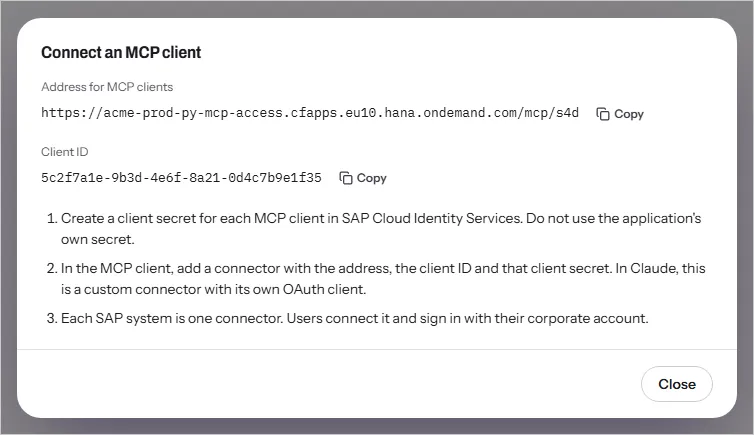
Step 7 of the installation describes how to add the connector in Claude.
Change or delete a system
Section titled “Change or delete a system”Edit opens the same dialog as Add system; the destination name cannot be changed. Delete asks for confirmation, then deletes the system and its destination. MCP clients that use the address of a deleted system stop working.
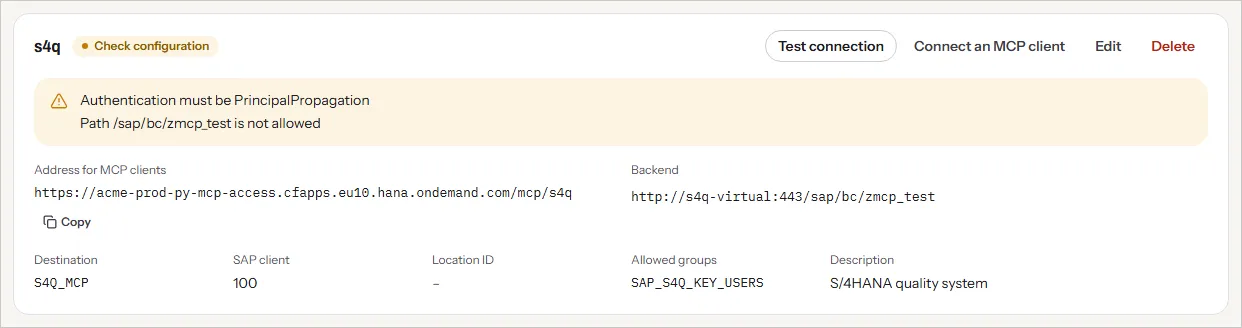
A system whose destination was changed in the cockpit so that it can no longer be served shows Check configuration with the problems, for example a path that is not allowed. Calls to it are refused with invalid_system_config until you correct the destination.
Allowed groups
Section titled “Allowed groups”Leave Allowed groups empty to let every signed-in user use the system. With groups, only the members of at least one of them can: another user gets 403 with forbidden_system for this system, and can still use the systems whose groups include them. Enter the names of groups of SAP Cloud Identity Services; their members get them in the token at their next sign-in.
The groups are a check before SAP: SAP still checks every call against the user’s own SAP authorizations.
How an MCP client selects a system
Section titled “How an MCP client selects a system”| Way | Example |
|---|---|
| Path (recommended) | https://<application host>/mcp/s4p |
| Header | X-SAP-System: s4p on https://<application host>/mcp |
| Query parameter | https://<application host>/mcp?system=s4p |
| None | https://<application host>/mcp reaches the default system |
Use the path: each system’s address has its own sign-in metadata, and Connect an MCP client shows it.
The federated address
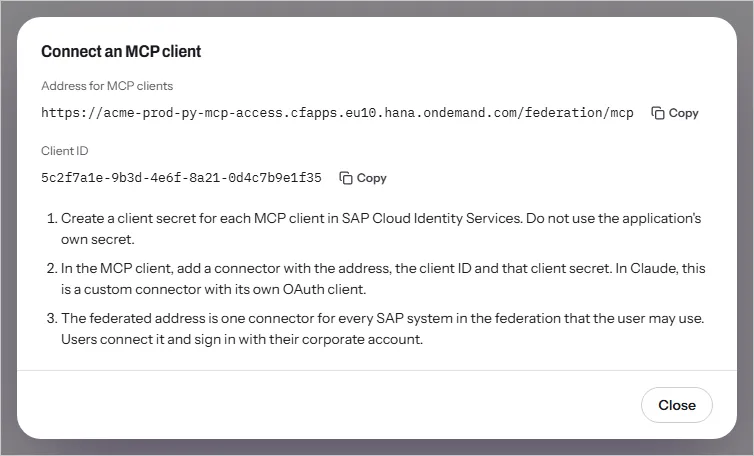
Section titled “The federated address”https://<application host>/federation/mcp reaches, with one connector, every SAP system in the federation that the user may use: every system with In the federation on, without a configuration problem, and whose allowed groups include the user. The address of each system works as well, whether the system is in the federation or not.
- Tool list. The federated address reads the tool list of each of these systems with the user’s sign-in and lists the tools together. A tool with the same name and input schema in several systems is listed once. A tool whose input schema differs between systems is listed once for each system, with
__<system ID>added to its name. - The system in each call. Every tool gets the required argument
sap_system, whose allowed values are the systems that have the tool. Its description, and the instructions the MCP client gets when it connects, name each system with its Description from the admin page, so the model can choose. Write descriptions that say what each system is for. - Calls. A call goes only to the system that
sap_systemnames, without that argument, under the user’s own SAP user. The system’s allowed groups, limits, timeout and pause apply, counted together with its own address. - Refused calls. A call without
sap_system, or for a system that the user may not use or that is not in the federation, is not sent to SAP. The MCP client gets a tool error that names the systems the user may use. - Keep a system out. Switch off In the federation in the system’s dialog, for example for a production system. The card then shows Not in the federation, and the system’s own address keeps working.
- Timing. A system’s tool list is kept for each user for 10 minutes (
FEDERATION_TOOLS_TTL), so a new tool in SAP appears within that time. A tool list waits at most 30 seconds (FEDERATION_LIST_TIMEOUT) for the systems: a system that fails or has not answered by then is left out of that list, the call log names it, and the next tool list reads it again.
The federated address is one connector in the MCP client, with a client secret of its own. Users can have it next to connectors for single systems.
Settings
Section titled “Settings”Settings shows the settings of the installation, read only: the version, the admin group, the allowed MCP paths, the allowed caller addresses, the limits, the federated address with its two settings, the sign-in callbacks of MCP clients and the client ID. Connect an MCP client next to the federated address shows what an MCP client needs for it. The page shows no secret.
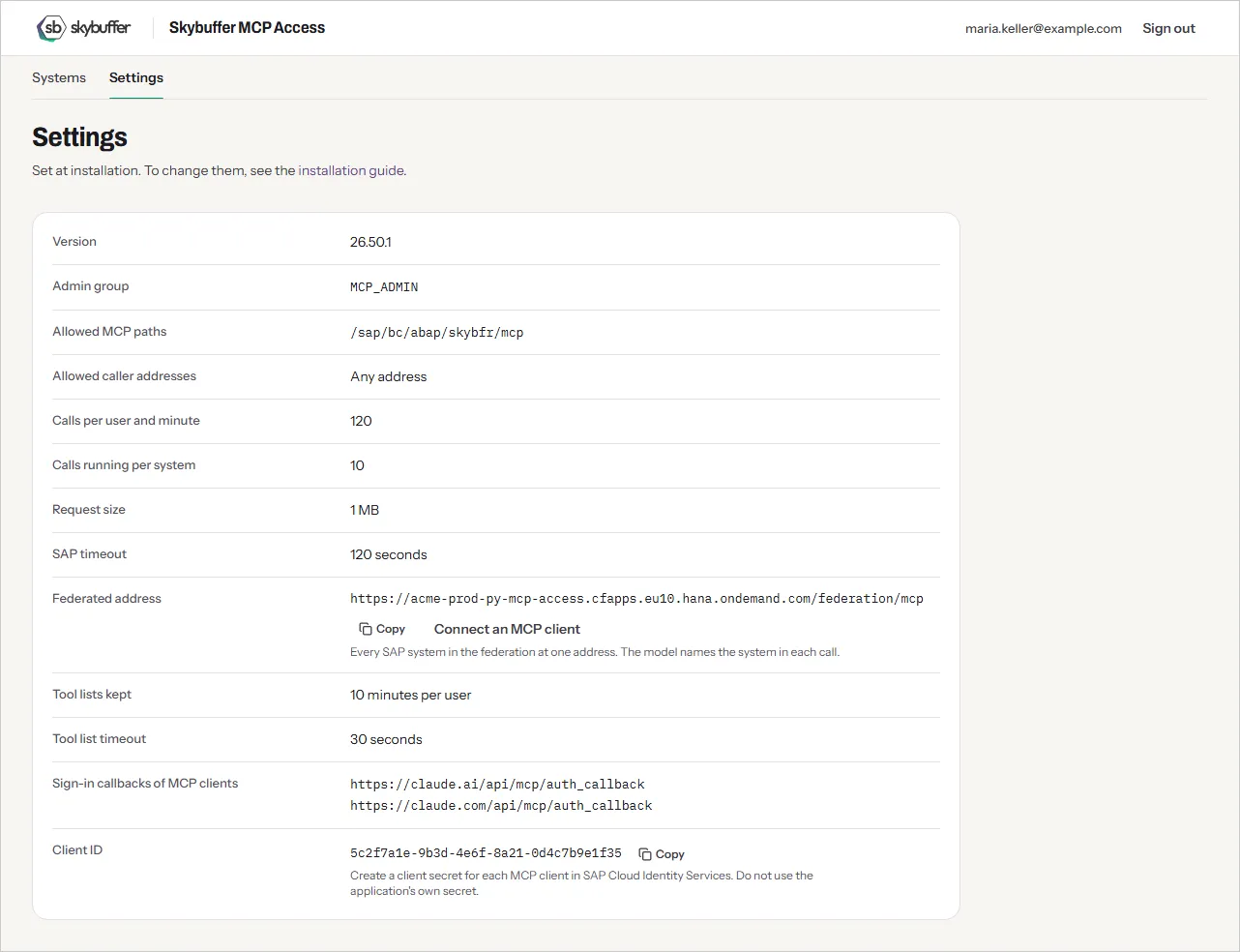
The settings are changed in the settings file of the installation, with a new deployment: see Settings on the installation page.
Limits
Section titled “Limits”Skybuffer MCP Access refuses a call before it reaches SAP when it is over a limit:
| Limit | Default | Answer |
|---|---|---|
| Calls of one user to one system per minute | 120 | 429 with rate_limited, and Retry-After with the seconds to wait |
| Calls running in one system at the same time | 10 | 429 with system_busy |
| Size of a request | 1 MB | 413 with request_too_large |
| SAP’s answer | 120 seconds | 504 with backend_timeout |
| Pause after five failures in a row, because SAP could not be reached or did not answer in time | 30 seconds | 503 with backend_unavailable at once, and Retry-After; the next call after the pause goes to SAP again |
A request that is not one JSON-RPC message gets 400 with invalid_request. A call refused because its system is paused or busy does not count against the calls per minute. The pause affects only the system concerned. With two application instances, each instance counts the limits on its own.
Allowed caller addresses
Section titled “Allowed caller addresses”With the setting ALLOWED_CALLERS empty, calls from any address are processed. With addresses or address ranges set, a call from another address gets 403 with forbidden_address, and the call log names the address. Skybuffer MCP Access takes the caller’s address from the entry that the platform’s own router adds to X-Forwarded-For, so a caller cannot pass as another address with a header of its own.
Sign-in lifetime
Section titled “Sign-in lifetime”An MCP client renews the user’s token every hour without the user. After 12 hours (refresh-validity), it asks the user to sign in again. In Claude, the user then sees that the connection to the connector was invalidated, and connects it again in the connector settings with Disconnect and Connect. A user can be signed in at several connectors at the same time, up to 10 (sessions-per-user): a sign-in at one connector does not end another.
Call log
Section titled “Call log”Every MCP call, also a refused one, and every sign-in and change on the admin page writes one JSON line to the application log. Read the recent lines with:
cf logs py_mcp_access --recentThe platform keeps only the most recent lines. To keep the entries, bind a logging service to the application or set up a log drain.
A tool call writes, for example:
{"ts":"2026-11-14T15:04:06.512Z","event":"mcp_call","user":"maria.keller@example.com","client":"Claude-User","caller":"203.0.113.25","system":"s4p","method":"tools/call","tool":"get_sales_order_status","args":["sales_order"],"result":"ok","sapStatus":200,"ms":842,"requestId":"5f0c1a7e-3b2d-4c6e-9a1f-7d2e8b4c6a90","traceId":"4bf92f3577b34da6a3ce929d0e0e4736","route":"system"}| Field | Content |
|---|---|
ts |
Time, in UTC |
event |
mcp_call for an MCP call, admin for the admin page |
user |
E-mail address of the signed-in user |
client |
Client software, as the client reports it (User-Agent) |
caller |
Address the call came from |
system |
System ID; on the federated address, the system that the call or the tool list read went to |
method |
MCP method; for admin: sign_in, add_system, change_system, delete_system or test_system |
tool, args |
For a tool call: the tool and the names of its arguments, as SAP gets them |
result |
ok, or the error of the answer, for example forbidden_system |
sapStatus |
HTTP status of SAP’s answer |
ms |
Milliseconds until SAP answered or the call was refused |
requestId |
Request ID of the platform |
traceId |
Trace ID of the call: the caller’s, when the call carries a valid traceparent header, otherwise a new one. SAP gets it in a traceparent header. |
route |
system for the address of a system or /mcp, federation for the federated address |
A tool list of the federated address writes one entry for each system whose list it reads. No entry holds the values of arguments, the results of tools, or tokens. A call refused at the token check has no method or tool in its entry.
Security headers
Section titled “Security headers”Every answer of Skybuffer MCP Access carries X-Content-Type-Options: nosniff and Referrer-Policy: no-referrer. The admin page and its files also carry X-Frame-Options: DENY and a Content-Security-Policy that allows scripts, styles, fonts, images and connections only from the component’s own address: the page loads nothing from other hosts and cannot be shown inside another page. Answers of the admin functions carry Cache-Control: no-store.
The platform adds Strict-Transport-Security on the application’s default address. With a custom domain, check that the answers still carry it.
Errors and what to do
Section titled “Errors and what to do”Every error answer holds error and error_description. On the federated address, a tool call refused after the checks of the token, the caller’s address and the request is a tool error instead, with the reason and the systems the user may use.
error |
Status | Cause | What to do |
|---|---|---|---|
invalid_token |
401 | No token, or one that is expired, of another tenant, for another application, or that names no user | The MCP client signs the user in again. If every user gets it, check that the connector has the client ID that the admin page shows. |
forbidden_address |
403 | The caller’s address is not in ALLOWED_CALLERS |
Add the caller’s address range to the setting, if it may call |
forbidden_system |
403 | The user is not in the groups allowed for the system, or the token holds no groups | Add the user to a group; check the attribute groups (Step 3 of the installation) |
unknown_system |
404 | No MCP system has this ID | Check the system ID in the connector’s address |
system_required |
400 | The call names no system, and there is no default system | Use the address of the system, or set a default system |
invalid_request |
400 | The request is not one JSON-RPC message | Check the MCP client |
request_too_large |
413 | The request is larger than MAX_REQUEST_KB |
Raise the limit, if such requests are expected |
rate_limited, system_busy |
429 | Over the calls per minute, or the calls running in the system | Wait the seconds of Retry-After; raise the limit if it happens in normal work |
invalid_system_config |
500 | The destination of the system has a problem, which the answer and the card name | Correct the destination: proxy type OnPremise, authentication PrincipalPropagation, a URL http://<virtual host>:<port>, and an allowed path |
destination_error |
502 | The systems could not be read from the Destination service, and none were read before. Once they were read, calls go on with them while the service cannot be reached. | Check the Destination service and the service instance mcp-access-destination |
backend_auth_failed |
502 | SAP refused the user; sap_message holds SAP’s text |
See SAP refuses the user |
backend_redirect |
502 | SAP redirected: from HTTP to HTTPS, or to a logon page | For HTTPS, use the protocol HTTPS and the ICM HTTPS port in the Cloud Connector. For a logon page, the certificate was not used for the logon: switch off SAML for the MCP service, and check principal propagation. |
backend_unreachable |
502 | SAP could not be reached: the Cloud Connector is not connected, the location ID is wrong, or the Cloud Connector does not expose the virtual host or the path | Check the Cloud Connector and the destination; sap_message holds the text |
backend_timeout |
504 | SAP did not answer within BACKEND_TIMEOUT |
Check the SAP system; raise the timeout for tools that run long |
backend_unavailable |
503 | The system is paused after five failures in a row | Wait the seconds of Retry-After, and find out why SAP could not be reached |
method_not_allowed |
405 | Only POST is served on the MCP addresses |
Check the MCP client |
An answer of the MCP server itself, also one with an error status, is passed on as it is.
SAP refuses the user
Section titled “SAP refuses the user”backend_auth_failed means that SAP did not accept the certificate of the Cloud Connector for the user. Check, in this order:
- The Cloud Connector log says “unassigned principal”: the application Skybuffer MCP Access is not trusted in the Cloud Connector, or the token holds no e-mail address. See Step 4 of the installation.
- The ICM trace shows
NO client cert: the CA is missing in the SSL server PSE of the HTTPS port. Import it inSTRUST, and restart the ICM. - Every user fails, while the
CERTRULEsimulation passes:login/certificate_mapping_rulebasedis not active yet. Set it, and restart the system if the parameter is not dynamic. - One user fails, others work: the user’s e-mail address differs between the corporate identity provider and
SU01, or it is not unique in the client.
The client ID is locked
Section titled “The client ID is locked”Symptom: nobody can sign in to the admin page, which shows Sign-in did not complete, and the application log has the line admin sign-in failed: Token endpoint: HTTP 401. Connectors cannot sign users in or renew their tokens; a connector whose token is still valid keeps working until the token expires.
Cause: SAP Cloud Identity Services locks the client ID of the application Skybuffer MCP Access after five failed logons with a client secret (Client ID Lock, on by default), and then refuses every secret, also the right ones. A connector with a wrong, expired or deleted secret causes such failures each time it tries to sign a user in or to renew a token.
Fix:
- Find the connector with the wrong secret, and give it a valid one, or remove it.
- In the administration console of SAP Cloud Identity Services, open Applications & Resources → Applications → Skybuffer MCP Access → Client Authentication. Client ID Status shows the failed attempts and whether the client ID is locked. Unlock it there.
Changing the service binding or restarting the application does not lift the lock. To avoid it, give each connector the secret made for it, and remove a connector before you delete its secret.
Other sign-in problems
Section titled “Other sign-in problems”| Symptom | Cause | What to do |
|---|---|---|
| The page You have no access to this page after the sign-in | The user is not in the admin group, or the token holds no groups. The application log names the groups found in the token. | Add the user to the group, then sign out and in again; check the attribute groups |
| Claude says it couldn’t register with the sign-in service | The connector has no own OAuth client, and SAP Cloud Identity Services does not register clients automatically | Add the connector again with Use your own OAuth client |
| The sign-in fails with “client_id must match” | The connector uses another client ID, or Claude’s own identity | Use the client ID that the admin page shows |
The token request fails with invalid_client, Client authentication failed |
The client secret does not match the client ID, for example after it expired or was deleted | Create a new secret for the connector; mind the lock |
The token request fails with invalid_client, Client scope oauth missing |
The client secret was created without API Access: OAuth | Create a secret with API Access: OAuth |
Microsoft shows AADSTS50011 |
The reply URL of SAP Cloud Identity Services is missing in the Microsoft Entra ID application | Add the reply URL that the message names |
Microsoft shows AADSTS50105 |
The user is not assigned to the Microsoft Entra ID application | Assign the user or their group |
Calls answer 200, but STAD shows another SAP user |
A user is stored in the logon data of the MCP service in SICF |
Remove it (Step 5 of the installation) |
Calls with the answer 401 and no user in the call log, from Claude while users connect a connector, are normal: a connector first calls without a token to find the sign-in.