

Business-Data-Free, GDPR-Compliant Development with Claude Desktop
Claude Desktop works only in a separate SAP system that holds your custom code and customizing, but no business data: the AI development tower. Claude never sees your business data, which brings GDPR compliance to your development process.
This guide is for your SAP Basis team, who builds the AI development tower from a copy of your production system and connects it to Claude Desktop through the Skybuffer MCP server. Your data protection officer reviews the result.
How it works
Section titled “How it works”Claude Desktop needs your custom code and customizing to develop, not your business data. For tests, Claude generates fake data, or you create a few records by hand.
Your landscape has four SAP systems:
- AI development tower: a copy of your production system with custom code, customizing and fake test data. Claude Desktop connects only to this system.
- DEV, QAS and PRD: your existing systems, not connected to Claude. Each has its own LibreChat, which runs on your company’s own LLM.
Only code and apps leave the AI development tower:
- Code goes as transports to DEV, and from there on your usual route to QAS and PRD.
- Apps built in Claude Desktop are deployed to the LibreChat of DEV, and then follow the usual route to QAS and PRD.
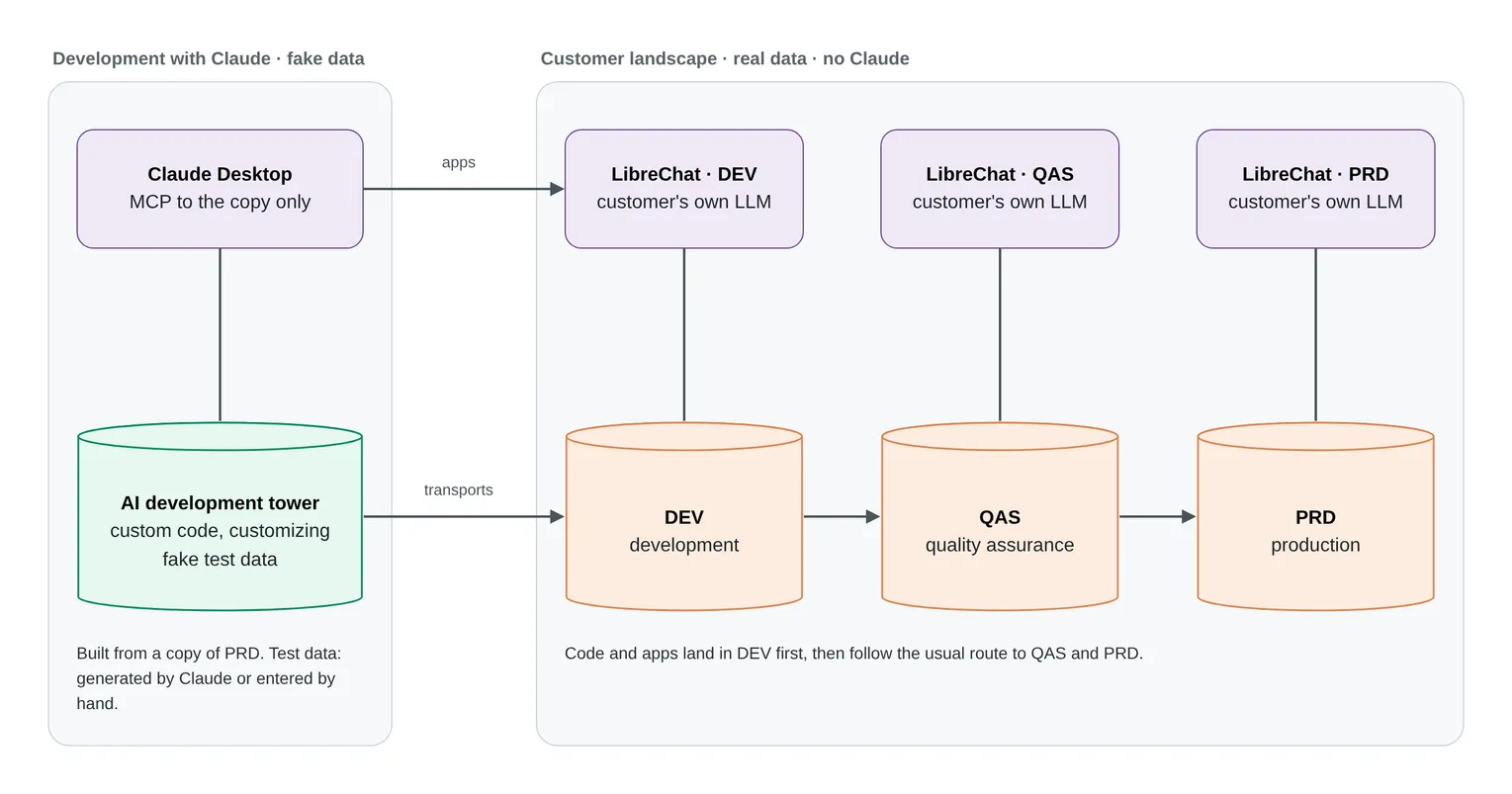
Figure 1. The four SAP systems: Claude Desktop connects only to the AI development tower; only transports and apps cross into your landscape.
Data protection and GDPR
Section titled “Data protection and GDPR”This setup brings GDPR compliance to your development process. Claude works only in a system without business data, and all test data is fake. It applies the GDPR principles of data minimisation and data protection by design and by default (Articles 5(1)(c) and 25 GDPR) to development with AI.
What reaches Claude:
- source code and ABAP Dictionary objects
- customizing
- fake test data
- the user IDs of the people who work in the AI development tower
Your data protection officer confirms the setup for your company. Use a Claude plan for organizations (Team or Enterprise), under your company’s agreement with Anthropic.
Before you start
Section titled “Before you start”- Space on your own infrastructure for a full copy of your production system, or a tool for shell creation (see Step 1).
- The Skybuffer AI add-on with the Skybuffer MCP server in your production system, or installed in the AI development tower after the copy.
- Claude Desktop for the developers, with a Claude plan for organizations.
- One LibreChat each for DEV, QAS and PRD, connected to the Skybuffer MCP server of that system.
Set up the AI development tower
Section titled “Set up the AI development tower”Connect Claude Desktop only in the last stage. Until then, the copy with your business data stays inside your infrastructure.
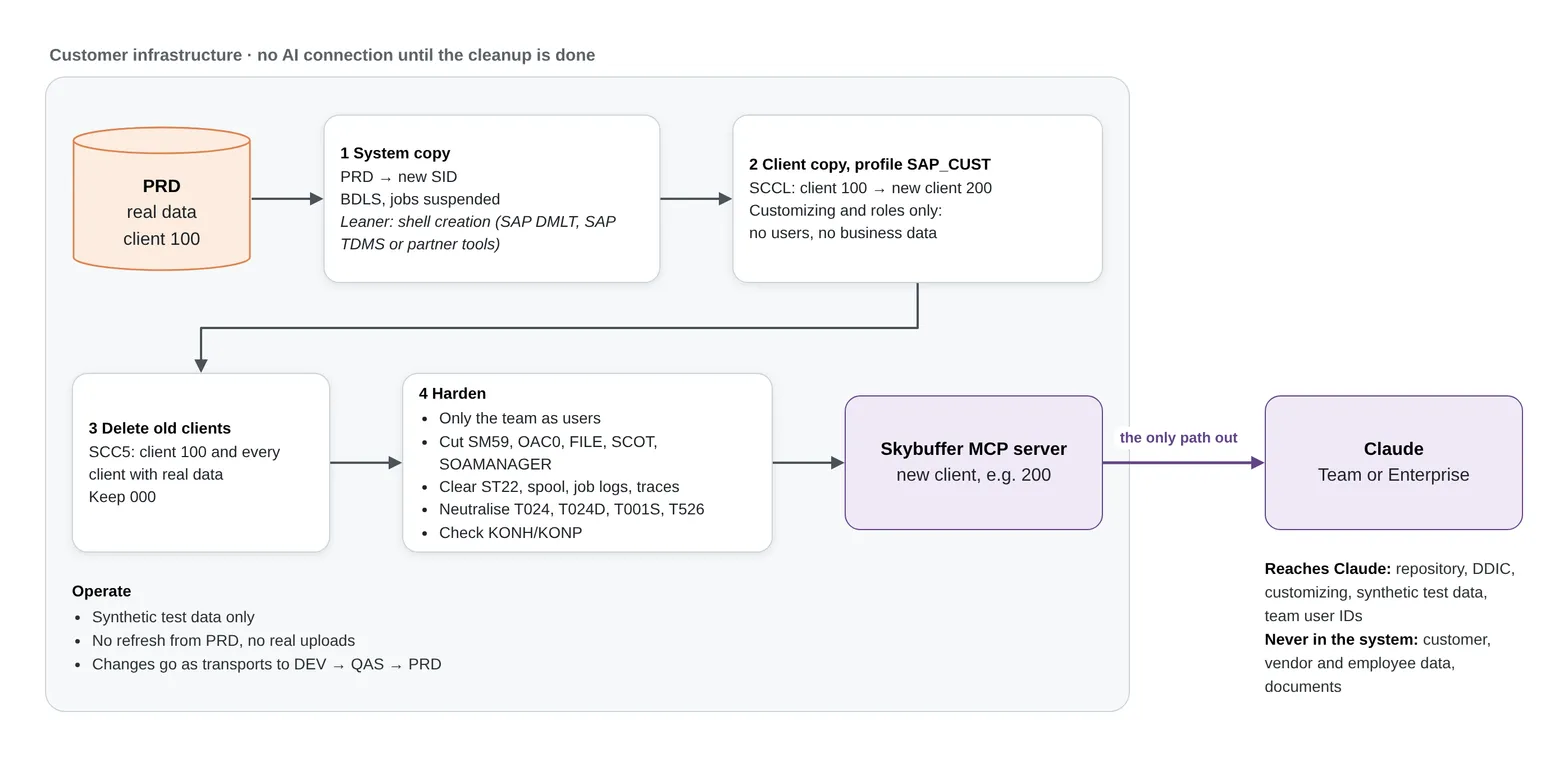
Figure 2. The setup inside your infrastructure: system copy, client copy with SAP_CUST, deleting the old clients and hardening. The connection to Claude is the only path out.
Step 1. Copy the production system
Section titled “Step 1. Copy the production system”- Copy your production system to a new system with its own SID, on your own infrastructure. Use a homogeneous system copy, or restore a backup.
- Do your usual post-copy steps: convert the logical system names with transaction BDLS, and suspend the background jobs that came with the copy.
Instead of a full copy, you can create the AI development tower as a shell with SAP Data Management and Landscape Transformation (DMLT), SAP Test Data Migration Server (TDMS) or a partner tool. A shell holds the repository and the cross-client data, but no business data, and needs less space. Copy the customizing into it with a client transport (SCC8 and SCC7) or a remote client copy (SCC9) with copy profile SAP_CUST, then continue with Step 3.
Step 2. Copy the customizing into a new client
Section titled “Step 2. Copy the customizing into a new client”- In transaction SCC4, create a new client, for example 200.
- In transaction SCCL, copy the copied production client, for example 100, into the new client with copy profile SAP_CUST. It copies the client-specific customizing with roles and authorization profiles, but no business data, no users and no variants.
- When the copy has finished, check its log in transaction SCC3, and keep it for your data protection officer.
Do not use another copy profile: SAP_CUSV also copies variants, SAP_UCUS users, and SAP_ALL business data. Variants and users can hold personal data.
Step 3. Delete the old clients
Section titled “Step 3. Delete the old clients”- In transaction SCC5, delete the copied production client, for example 100.
- Delete every other client that holds real data. Keep client 000.
Delete every client with real data, not only the one you copied: the development tools of the Skybuffer MCP server let Claude create ABAP code, and ABAP code can read the data of every client in a system.
Step 4. Harden the system
Section titled “Step 4. Harden the system”- Create users only for the people who work in the AI development tower, and assign their roles. The client copy brought the roles, but no users.
- Delete or change the connections to other systems: RFC destinations (SM59), above all those with stored or trusted logons; content repositories (OAC0); logical file paths (FILE); SAPconnect (SCOT); web service configuration (SOAMANAGER).
- Delete the data that came with the copy outside the clients: short dumps (ST22), spool requests, job logs and traces.
- Replace personal data in customizing with neutral values, for example names, phone numbers and e-mail addresses in purchasing groups (T024), MRP controllers (T024D), accounting clerks (T001S) and HR administrators (T526). Change them only in the AI development tower, and do not release the changes to other systems.
- Check whether the client copy brought condition records (tables KONH and KONP), as SAP Knowledge Base Article 2245763 describes. Delete those that hold business data, such as customer-specific prices.
Step 5. Connect Claude Desktop
Section titled “Step 5. Connect Claude Desktop”- Connect Claude Desktop to the Skybuffer MCP server in the new client.
- Create the test data you need: ask Claude to generate it, or create a few records by hand.
Work with the four systems
Section titled “Work with the four systems”- Keep the test data in the AI development tower fake: no refresh from production, and no uploads of real extracts.
- Release the transports of the AI development tower to DEV. From DEV, they follow your usual route to QAS and PRD.
- Deploy the apps you build in Claude Desktop to the LibreChat of DEV. From there, they follow the usual route to QAS and PRD.
- Connect each LibreChat only to its own SAP system.
Check the result
Section titled “Check the result”- In transaction SCC4 of the AI development tower, only client 000 and the new client are left.
- In the new client, the tables of master and transaction data have no entries. Check a few in transaction SE16N, for example KNA1, LFA1, BKPF (ACDOCA in SAP S/4HANA) and PA0001.
- In transaction SCC3, the logs show the client copy with profile SAP_CUST and the deletion of the old clients.
Troubleshooting
Section titled “Troubleshooting”Claude finds no data to test with. This is expected: the AI development tower holds no business data. Ask Claude to generate test data, or create a few records by hand.
A test needs data like a real record. Create a fake record with the same characteristics. Do not copy the real record from another system.