

Upgrade an Existing Installation
This page is for SAP Basis administrators who update an XS Advanced space where an earlier release of Skybuffer AI is installed. For a new installation, use the Guide for Non-Isolated Environment or the Guide for Isolated Environment.
What changes with this release
Section titled “What changes with this release”skybfrxtsis no longer part of Skybuffer AI. Tenants are now part ofskybfryai, in its own tableTenant. The tenant data is not moved automatically: you export it before the upgrade and import it after the newskybfryaiis deployed.- Documents Analyzer is no longer part of
skybfryai. It is a separate archive,skybfryai_doc_analyzer, and the platform shows it in its menu only whenskybfryaiis deployed with an extension descriptor. - Existing Documents Analyzer data is not carried over to the new Documents Analyzer. This is intended: Documents Analyzer starts empty after the upgrade.
Before you start
Section titled “Before you start”- Check the Node.js runtime: Node.js 22 (22.14.0 or later) or Node.js 24 must be available. See Pre-Deployment Runtime Check.
- Upload the archives and extension descriptors of the new release to the XSA host, as described in the guide for your environment.
- Log in with
xs loginand check withxs targetthat you are in the space you upgrade.
In an isolated environment, also check these points before you start:
- The Node.js runtime must be installed on the XSA host beforehand, while outbound access is available. The new
xsafecrtneeds Node.js 22 or 24 as well. - Deploying the Python applications downloads dependencies. Provide temporary outbound access or a proxy for the time of the upgrade, as described in Network & Proxy Configuration.
- The extension descriptors have new names.
sapui5rt.mtaextfrom earlier releases is replaced byskybfryai_sapui5rt.mtaext,skybfryai_sapui5rt_docanalyzer.mtaextanddocanalyzer_sapui5rt.mtaext. Use only the files delivered with the new release.
The order of the steps is the same for both environments. In an isolated environment, xsafecrt is updated first, and the commands use other extension descriptors. They are shown under Isolated environment.
Step 1. Export the tenant data
Section titled “Step 1. Export the tenant data”Step 1. In SAP HANA Database Explorer, add the HDI container of skybfrxts, service hdi_core_db_2.
Step 2. Export the content of the table Tenant to a CSV file and keep the file.
If the table holds only the default tenant 10000000, there is nothing to move: the new table already contains it. Keep the export anyway as a backup.
Step 2. Remove skybfrxts
Section titled “Step 2. Remove skybfrxts”xs undeploy skybfrxts --delete-services --delete-service-brokersThis removes the applications and services of skybfrxts. The binding of skybfryai to its container is removed with them.
Step 3. Deploy the new platform
Section titled “Step 3. Deploy the new platform”In an isolated environment, deploy the new xsafecrt first:
xs deploy xsafecrt_<version>.mtarThen deploy skybfryai without Documents Analyzer:
xs deploy skybfryai_<version>.mtarIsolated environment:
xs deploy skybfryai_<version>.mtar -e skybfryai_sapui5rt.mtaextThe deployment creates the HDI container hdi_db_tenants with the table Tenant and the default tenant 10000000.
Step 4. Import the tenant data
Section titled “Step 4. Import the tenant data”Step 1. In SAP HANA Database Explorer, add the HDI container hdi_db_tenants.
Step 2. Import the CSV file from Step 1 into the table Tenant. Leave out the row of the default tenant 10000000: it exists already.
Step 3. Open the data of the table Tenant and check that all your tenants are there.
Step 5. Deploy Documents Analyzer
Section titled “Step 5. Deploy Documents Analyzer”xs deploy skybfryai_doc_analyzer_<version>.mtarIsolated environment:
xs deploy skybfryai_doc_analyzer_<version>.mtar -e docanalyzer_sapui5rt.mtaextStep 6. Deploy the platform with Documents Analyzer
Section titled “Step 6. Deploy the platform with Documents Analyzer”xs deploy skybfryai_<version>.mtar -e skybfryai_docanalyzer.mtaextIsolated environment:
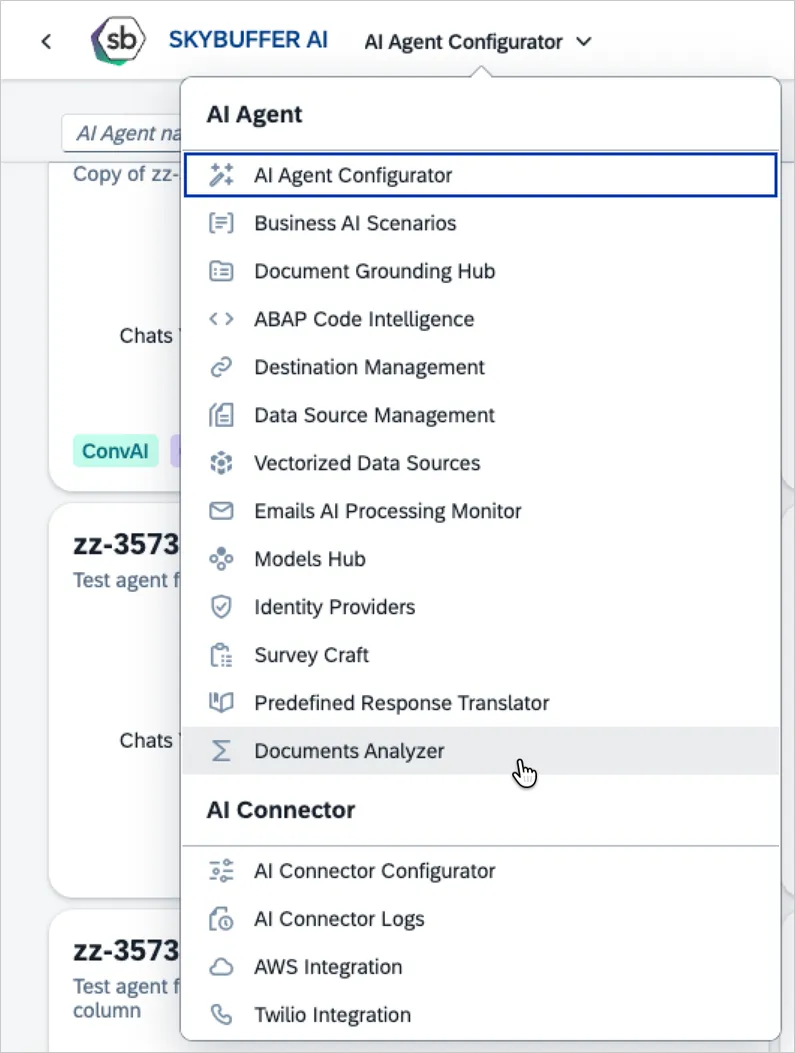
xs deploy skybfryai_<version>.mtar -e skybfryai_sapui5rt_docanalyzer.mtaextCheck the result with xs env platform: the user-provided variables contain DOC_ANALYZER_ENABLED: true and a destination named docanalyzer:
User-Provided: DOC_ANALYZER_ENABLED: true ... destinations: [ ... { "forwardAuthToken": true, "name": "docanalyzer", "timeout": 120000, "url": "https://<docanalyzer-host>" } ]In the Skybuffer AI platform, Documents Analyzer appears in the app menu:
Step 7. Deploy the remaining archives
Section titled “Step 7. Deploy the remaining archives”xs deploy skybfryai_py_ai_core_<version>.mtarxs deploy skybfryai_rag_m_<version>.mtarxs deploy skybfryai_translate_<version>.mtarxs deploy botclientconnector_<version>.mtarStep 8. Clean up and check
Section titled “Step 8. Clean up and check”Step 1. Run xs services. If the service xts_ui5_src_1.108 is still there and not bound to any application, it is left over from earlier releases and no longer used. Delete it:
xs delete-service xts_ui5_src_1.108Step 2. Run xs apps and check that all applications are started.
Step 3. Check the routes of the AI Connector, which can change during an update. See AI Connector Link.