
MCP Channel through Skybuffer MCP Access
Use this guide to let MCP clients reach an MCP channel of the AI Connector through Skybuffer MCP Access. Users sign in once, at your SAP Cloud Identity Services tenant, and every call goes through the checks and the call log of Skybuffer MCP Access. The tools of the channel then call SAP through the Cloud Connector under each user’s own SAP user.
The guide is for the administrators of the AI Connector, of your SAP Cloud Identity Services tenant and of Skybuffer MCP Access, and for SAP Basis. Each step says who does it.
For MCP clients that connect to the channel directly and sign in with Microsoft Entra ID, see MCP Channel. Single Sign-On with Microsoft Entra ID. A channel accepts the sign-in of one identity provider only: a bot that needs both ways has two MCP channels, each with its own address.
How it works
Section titled “How it works”- The user connects an MCP client to the address of the channel in Skybuffer MCP Access, and signs in at your SAP Cloud Identity Services tenant, which sends them on to your corporate identity provider, such as Microsoft Entra ID.
- Skybuffer MCP Access checks the call, gets a token for the AI Connector in the user’s name from SAP Cloud Identity Services, and calls the channel with this token. The token of the MCP client never reaches the AI Connector.
- The channel accepts only such tokens: issued by your tenant for the API
mcp-channelof the application of the AI Connector, and naming a user. A call without a token, or with another token, such as one of Microsoft Entra ID, gets401. - The tools of the channel call SAP through BTP destinations with principal propagation: the Cloud Connector logs the user on to SAP with a short-lived certificate, and SAP runs the call under the user’s own SAP user.
What you need
Section titled “What you need”- The AI Connector on SAP BTP, Cloud Foundry environment. On SAP HANA XS advanced, the Identity Providers app offers the identity provider type SAP Cloud Identity Services as well, but an MCP channel with it refuses every call.
- Skybuffer MCP Access, installed as Skybuffer MCP Access Installation describes.
- In the subaccount of the AI Connector, the entitlement for SAP Cloud Identity Services (
identity, planapplication), and trust to the same SAP Cloud Identity Services tenant that Skybuffer MCP Access uses. - The SAP systems that the tools of the channel call, set up in Destination Management with the Destination Type BTP and the Authentication Type Single Sign-On. Their BTP destinations have the proxy type
OnPremiseand the authenticationPrincipalPropagation. - A Cloud Connector with principal propagation to these SAP systems, as for Skybuffer MCP Access: Step 4 and Step 5 of its installation.
- The
cfcommand line with the MultiApps plugin, and the Space Developer role in the space of the AI Connector.
Step 1. The application of the AI Connector
Section titled “Step 1. The application of the AI Connector”Done by the administrator of the subaccount, in the space of the AI Connector, once.
Step 1. Create the service instance botclientconnector_ias of SAP Cloud Identity Services. It creates the application of the AI Connector in your tenant, named as display-name:
cf create-service identity application botclientconnector_ias -c '{"display-name": "AI Connector"}'The instance must have exactly this name. It is optional: the AI Connector deploys without it, and only MCP channels with the identity provider type SAP Cloud Identity Services need it.
Step 2. Deploy the AI Connector again with its installation archive, so that it binds the instance:
cf deploy botclientconnector_<version>.mtarcf env botclientconnector then shows the binding under VCAP_SERVICES, with the label identity. The deployment does not change the instance, so the settings of Step 2 stay with later deployments.
Step 2. The API and the dependency
Section titled “Step 2. The API and the dependency”Done by the administrator of your SAP Cloud Identity Services tenant, in the administration console under Applications & Resources → Applications.
Step 1. Open the application of the AI Connector from Step 1. Under Trust → Application APIs → Provided APIs, add an API named exactly mcp-channel. The channel accepts only tokens issued for an API of this name.
Step 2. In the same application, set the Subject Name Identifier to the same attribute as in the application Skybuffer MCP Access, for example E-Mail.
Step 3. Open the application Skybuffer MCP Access. Under Trust → Application APIs → Dependencies, choose Add. Enter a name for the dependency, for example ai-connector, and choose the application of the AI Connector and its API mcp-channel from Step 1.
The administrators of Skybuffer MCP Access enter this dependency name in Step 5.
Step 3. Cloud Connector
Section titled “Step 3. Cloud Connector”Done by SAP Basis in the Cloud Connector that connects the subaccount of the AI Connector with the SAP systems.
Step 1. Under Principal Propagation of the subaccount, choose Synchronize, and set the application of the AI Connector to Trusted.
The subject pattern and the rules in CERTRULE stay as they are for Skybuffer MCP Access.
Step 4. The identity provider and the channel
Section titled “Step 4. The identity provider and the channel”Done by an administrator of the AI Agent Configurator.
Step 1. In the Identity Providers app, create an identity provider, for example MCP Access, with the Identity provider type SAP Cloud Identity Services. The Application type is then Frontend Application and the Channel type is MCP, and neither can be changed. Choose Create. The identity provider has no settings: the AI Connector takes the tenant and the client ID of its application from the binding of Step 1.
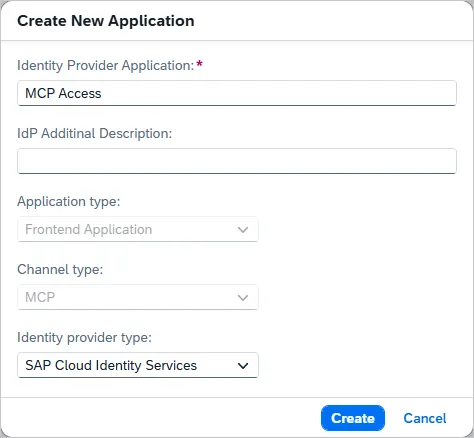
Step 2. In the AI Agent Configurator, open the AI agent, then Communication Channels and the MCP channel, and choose Edit. Under Identity Provider, set Identity Provider Application to this identity provider, and save. Only MCP channels offer identity providers of this type. From now on, the channel accepts only user tokens that SAP Cloud Identity Services issues for the application of the AI Connector, such as the ones Skybuffer MCP Access gets.
Step 3. On the Destination Assignment tab of the channel, check that the tools that call SAP use destinations of the type BTP with Single Sign-On. See Destination Assignment.
On this channel, SAP runs every call as the user, and the AI Connector never falls back to the system’s own user and password. A tool does not call SAP:
- when its system is a direct connection or uses a technical user, when it reads a data source with its technical user, or when the BTP destination has another authentication than
PrincipalPropagationor another proxy type thanOnPremise. It answers that the system needs a BTP destination with principal propagation, and names the destination’s authentication and proxy type. - when the BTP destination cannot be prepared, for example because it is not found. It answers that the system cannot be called as the user right now, and that the call was not sent to SAP.
Step 5. The MCP connection in Skybuffer MCP Access
Section titled “Step 5. The MCP connection in Skybuffer MCP Access”Step 1. The administrator of the subaccount of Skybuffer MCP Access adds the host of the AI Connector to the setting ALLOWED_HOSTS and deploys Skybuffer MCP Access with the settings file. The host is the one in the URL under Endpoints in the settings of the MCP channel. See MCP servers on SAP BTP or the Internet.
Step 2. An administrator of Skybuffer MCP Access adds the MCP connection on the admin page, as MCP servers on SAP BTP or the Internet describes, with:
- Hosted on: SAP BTP.
- Server URL: the URL under Endpoints in the settings of the MCP channel,
https://<host>/<channel ID>/mcp. - Dependency: the dependency name from Step 2, for example
ai-connector.
Step 3. Choose Test connection on the card of the new MCP connection. It passes with Reached when the channel answers and asks for a token.
Step 6. Check the connection
Section titled “Step 6. Check the connection”Step 1. Connect an MCP client to the address of the new MCP connection, as Step 7 of the installation of Skybuffer MCP Access describes. Sign in, and call a tool of the channel that reads data from SAP.
Step 2. In the SAP system, STAD or SM20 shows the call under the user’s own SAP user.
Step 3. If something fails, read the log of the AI Connector:
cf logs botclientconnector --recentIts lines that start with [MCP-SSO] show each step of the channel’s sign-in and SAP calls. They name the user and the trace ID of the call, which is the traceId of the entry in the call log of Skybuffer MCP Access.
Troubleshooting
Section titled “Troubleshooting”| What you see | Cause | What to do |
|---|---|---|
The channel answers 500 with “MCP SSO is not configured correctly for this channel”, and the [MCP-SSO][config] line names no binding to the Identity service |
The instance botclientconnector_ias does not exist, or the AI Connector was not deployed after it was created. On SAP HANA XS advanced, every MCP channel with this identity provider answers so. |
Step 1, on SAP BTP, Cloud Foundry environment |
An MCP client that calls the URL of the channel directly gets 401 |
The channel accepts only user tokens that SAP Cloud Identity Services issues for the application of the AI Connector, and the MCP client has none | Connect the MCP client to the address of the MCP connection in Skybuffer MCP Access, or give the bot a second MCP channel with Microsoft Entra ID |
Skybuffer MCP Access answers 502 with token_exchange_failed |
SAP Cloud Identity Services issued no token for the AI Connector, for example because the dependency does not exist | Check the dependency of Step 2 and the Dependency of the MCP connection |
Skybuffer MCP Access answers 502 with backend_auth_failed, and the AI Connector logs “jwt audience invalid” |
The dependency points to an API of another application | Point the dependency to the API of the application of the AI Connector |
Skybuffer MCP Access answers 502 with backend_auth_failed, and the AI Connector logs “Token was not issued for the API mcp-channel of the AI Connector” |
The API of the application of the AI Connector is not named mcp-channel, or the dependency points to another API |
Name the API exactly mcp-channel, and point the dependency to it (Step 2) |
| The AI Connector logs “Token issuer is not the SAP Cloud Identity tenant of the connector” | The application of the AI Connector is in another tenant than Skybuffer MCP Access | Create the instance in a subaccount that trusts the tenant of Skybuffer MCP Access |
| A tool answers that the system cannot be used on this channel and needs a BTP destination with principal propagation | The system is a direct connection or uses a technical user, the tool reads a data source, or the BTP destination has another authentication than PrincipalPropagation or another proxy type than OnPremise |
Set the system up as a BTP destination with Single Sign-On, on a destination with PrincipalPropagation and OnPremise (Step 4) |
| A tool answers that the system cannot be called as the user right now, because the BTP destination could not be prepared | The BTP destination was not found, or the AI Connector got no token of the Destination or Connectivity service | Check the destination in the subaccount of the AI Connector; the [MCP-SSO][10.btp] lines of the log say what failed |
| SAP refuses the call through the Cloud Connector | The Cloud Connector does not trust the application of the AI Connector, or CERTRULE does not map the user |
Step 3 |